# CommandKit Documentation
## Introduction
import Logo from './Logo';
CommandKit is a meta-framework for building Discord bots with
discord.js. It provides a structured, convention-based approach to
command and event handling, JSX components, middleware, and more, so
you can focus on writing bot logic instead of boilerplate setup.
Whether you're a beginner looking for an easy way to get started or an
experienced developer tired of rebuilding the same architecture for
every new bot, CommandKit has you covered.
## Get started
import Tabs from '@theme/Tabs';
import TabItem from '@theme/TabItem';
```bash npm2yarn
npm create commandkit
```
Then run `commandkit dev` and start building.
```bash npm2yarn
npx skills add neplextech/commandkit
```
## Why CommandKit?
Every time you start a new discord.js bot, you end up solving the same
problems from scratch:
- Writing a command handler that reads files, registers slash
commands, and routes interactions
- Building an event handler that loads listeners and manages their
lifecycle
- Wiring up interaction collectors for buttons, select menus, and
modals — then cleaning them up
- Manually syncing command definitions with Discord's API every time
you change something
- Setting up the same project structure, over and over
If you've built more than one bot, you know the drill. Hours of
boilerplate before you write a single line of actual bot logic. And if
you're a beginner, figuring all of this out for the first time is
overwhelming.
## How is this different from other frameworks?
There's no shortage of discord.js frameworks out there, but most of
them solve a very narrow problem: they load your command and event
files so you don't have to write a file reader yourself. You
instantiate their handler class, point it at a folder, and that's
about it. The rest — project structure, compilation, component
handling, command syncing — is still on you.
Frameworks like Sapphire go further and have decent features, but
they're built around a heavy object-oriented design. Everything is a
class. Commands extend base classes, listeners extend base classes,
preconditions extend base classes. It works, but it demands a lot of
boilerplate and a specific programming style that not everyone wants.
**CommandKit takes a fundamentally different approach.** Instead of
being a library you wire into your own setup, it works like a proper
meta-framework — think Next.js for Discord bots. It ships with a smart
CLI that handles bundling, TypeScript/JSX compilation, hot-reloading,
and command registration automatically. You don't configure a bundler.
You don't set up `tsconfig.json` for JSX. You don't write glue code to
connect things together. You run `commandkit dev`, and everything just
works.
This is the key difference: most discord.js frameworks are
**loaders**. CommandKit is a **framework** — it manages the entire
development lifecycle, from project scaffolding to production builds,
so you can focus entirely on your bot's logic.
## Convention over configuration
CommandKit follows a **convention-over-configuration** philosophy.
Instead of requiring you to wire things together with config files,
decorators, or registration calls, it uses sensible defaults and
file-system conventions that just work.
Put a file in `src/app/commands/` — it's a command. Put a file in
`src/app/events/` — it's an event listener. Export a `chatInput`
function — it handles slash commands. Export a `message` function in
the same file — it handles prefix commands too. There's nothing to
register, no class to extend, no decorator to apply.
This matters because Discord bot projects aren't complex enterprise
applications — they shouldn't need complex enterprise tooling. You
want to write bot logic, not plumbing. Convention-over-configuration
means the framework already knows what to do with your code based on
_where it is and what it exports_, so you skip the setup entirely and
go straight to building.
If you've used Next.js, this will feel familiar: file-system routing,
zero-config defaults, and a CLI that handles the build pipeline. Same
idea, applied to Discord bots.
## What makes it actually useful
### Command and event handling — done for you
This is the core of CommandKit. Drop your command files in a folder,
export a function, and they just work. Slash commands, context menu
commands, and even prefix (message) commands are all supported under a
single unified command structure — no separate handler for each type.
Commands are automatically registered and kept in sync with Discord.
Events work the same way: create a file, export a listener, and
CommandKit handles the rest.
No more writing your own `loadCommands()` and `loadEvents()` utilities
for every project.
### JSX components — clean, readable Discord UI code
If you've used React, you already know how much cleaner JSX makes UI
code. CommandKit brings that same idea to Discord. Instead of chaining
`ActionRowBuilder`, `ButtonBuilder`, `Poll`, and friends — which gets
unreadable fast with even moderately complex layouts — you write
declarative JSX that looks like what it produces.
This isn't a gimmick. discord.js builder chains become genuinely hard
to maintain as your components grow. JSX fixes that.
### Built-in component handlers — forget about collectors
This is where CommandKit goes beyond a basic command handler. Buttons,
select menus, and modals get `onClick`, `onSelect`, and `onSubmit`
handlers that are directly bound to the component. No more setting up
`InteractionCollector` instances, managing timeouts, filtering
interactions, and cleaning up afterwards.
You define the component and its behavior in one place. CommandKit
handles the interaction routing for you.
### Command middlewares — run logic before and after execution
Need to check permissions, log analytics, or gate commands behind a
cooldown? Middlewares let you run code before and/or after any command
executes, without modifying the command itself. This is a step above
what a typical command handler gives you — it's a proper middleware
layer, similar to what you'd find in web frameworks like Express.
### Prefix commands — unified with slash commands
CommandKit supports message-based (prefix) commands within the same
command file that already handles slash commands, user context menus,
and message context menus. One file, all command types. No separate
prefix command handler needed.
### Caching with Redis support
CommandKit ships with a
[`@commandkit/cache`](../05-official-plugins/03-commandkit-cache.mdx)
plugin that provides a customizable caching layer. Need fast in-memory
caching? Done. Need Redis-backed caching for persistence across
restarts? Also done. No need to wire up your own caching logic. Just
attach the `'use cache'` directive to a function and call it a day!
```ts
// The result of this function is automatically cached
async function fetchUserData(userId: string) {
'use cache';
return db.users.findUnique({ id: userId });
}
```
Learn more about caching in
[the cache plugin documentation](../05-official-plugins/03-commandkit-cache.mdx).
### Plugin system and custom events
CommandKit is extensible through plugins. Plugins can hook into the
framework lifecycle, add new behaviors, and even **emit custom
events** — for example, a plugin could listen to an external API (a
payment webhook, a game server, etc.) and fire events that your bot
code can react to. This isn't just a wrapper around `node:events`;
it's a structured extension point that lets plugins and your bot code
communicate through a well-defined event system.
Other official plugins include
[`@commandkit/i18n`](../05-official-plugins/05-commandkit-i18n.mdx)
for localization and
[`@commandkit/analytics`](../05-official-plugins/02-commandkit-analytics.mdx)
for usage tracking.
### AI-powered command execution
The [`@commandkit/ai`](../05-official-plugins/01-commandkit-ai.mdx)
plugin lets users interact with your bot through natural language.
Instead of memorizing slash command names and options, users can just
talk to your bot — and the AI figures out which command to run and
with what parameters.
Under the hood, it uses the [AI SDK](https://ai-sdk.dev) to connect to
models like Google Gemini, OpenAI, and others. You define an `ai`
export in your command file with a Zod schema describing the expected
parameters, and the AI handles the rest — parsing natural language
into structured input and calling your command function.
```ts title="src/app/commands/greet.ts"
import type { AiConfig, AiCommand } from '@commandkit/ai';
import { z } from 'zod';
export const aiConfig: AiConfig = {
inputSchema: z.object({
username: z.string().describe('The username to greet'),
}),
};
export const ai: AiCommand = async (ctx) => {
const { username } = ctx.ai.params;
await ctx.message.reply(`Hello, ${username}!`);
};
```
Now users can say `@bot say hi to John` and it just works. You also
get built-in tools (fetching users, channels, guild info), custom tool
support, lifecycle hooks, and per-user model selection. It's a full AI
integration layer, not just a chatbot wrapper.
Learn more in
[the AI plugin documentation](../05-official-plugins/01-commandkit-ai.mdx).
### TypeScript and JavaScript — zero config
CommandKit works with both TypeScript and JavaScript out of the box —
including native JSX support with no configuration. No fiddling with
`tsconfig.json`, no setting up a separate build step, no wiring up a
bundler. The CLI handles compilation, bundling, hot-reloading, and
project scaffolding. Run `commandkit dev` and start building.
## Who is this for?
- **Beginners** who don't want to spend hours building command/event
handlers before they can do anything useful
- **Experienced developers** who are tired of rebuilding the same
boilerplate for every new bot project
- **Teams and freelancers** working on client projects who need a
reliable, structured foundation they can build on quickly
CommandKit has been used in production client projects and has saved
hours of setup time on each one. It's not overhead — it's the setup
work you'd do anyway, already done well.
## Support and suggestions
- [GitHub repository](https://github.com/neplexlabs/commandkit)
- [Discord community](https://commandkit.dev/discord)
---
## Setup CommandKit
import Tabs from '@theme/Tabs';
import TabItem from '@theme/TabItem';
:::info
- CommandKit requires at least [Node.js](https://nodejs.org/) v24
- This documentation assumes that you have a basic understanding of
how to use [discord.js](https://discord.js.org/). If you are new to
discord.js, we recommend you to read the
[discord.js guide](https://discordjs.guide/) first.
:::
The quickest way to setup a new CommandKit project is to use the
`create-commandkit` CLI. To get started, run the following command in
your terminal:
```sh npm2yarn
npm create commandkit@latest
```
This will start the CLI in an interactive mode. You can follow the
prompts to setup your project.
## Available Examples
CommandKit comes with several pre-built examples to help you get started quickly. You can list all available examples using:
```sh npm2yarn
npm create commandkit@latest --list-examples
```
### Using Examples
You can create a project from any example using the `--example` flag:
```sh npm2yarn
# Create a basic TypeScript bot
npm create commandkit@latest --example basic-ts
# Create a basic JavaScript bot
npm create commandkit@latest --example basic-js
# Create a Deno TypeScript bot
npm create commandkit@latest --example deno-ts
# Create a bot without CLI integration
npm create commandkit@latest --example without-cli
```
### CLI Options
The CLI supports various options for customization:
```sh npm2yarn
# Skip prompts and use defaults
npm create commandkit@latest --yes
# Use a specific package manager
npm create commandkit@latest --use-pnpm
npm create commandkit@latest --use-yarn
npm create commandkit@latest --use-bun
npm create commandkit@latest --use-deno
# Skip dependency installation
npm create commandkit@latest --skip-install
# Skip git initialization
npm create commandkit@latest --no-git
# Create in a specific directory
npm create commandkit@latest my-bot
# Use a custom GitHub repository
npm create commandkit@latest --example "https://github.com/user/repo"
```
## Project structure
By using the CLI to create a base project, you should get a file tree
that looks something like this:
```
.
├── src/
│ ├── app/
│ │ ├── commands/
│ │ │ └── ping.ts
│ │ └── events/
│ │ └── clientReady/
│ │ └── log.ts
│ └── app.ts
├── .env
├── .gitignore
├── commandkit.config.ts
├── package.json
└── tsconfig.json
```
:::note
The exact project structure may vary depending on the example you choose. Each example comes with its own configuration and dependencies tailored to its specific use case.
:::
## Entry point
The `src/app.ts` file is the main entry point for your application.
This file default exports the discord.js client instance which
CommandKit loads at runtime.
```ts title="src/app.ts"
import { Client } from 'discord.js';
const client = new Client({
intents: ['Guilds', 'GuildMessages', 'MessageContent'],
});
// Optional: Setting up the token manually
client.token = process.env.MY_BOT_TOKEN;
export default client;
```
```js title="src/app.js"
import { Client } from 'discord.js';
const client = new Client({
intents: ['Guilds', 'GuildMessages', 'MessageContent'],
});
// Optional: Setting up the token manually
client.token = process.env.MY_BOT_TOKEN;
export default client;
```
Notice how there's no `client.login()` in this file. This is because
CommandKit will automatically handle the login process for you when
the application starts.
## Development version
If you would like to try the latest development builds, you can use
the `@dev` tag like so:
```sh npm2yarn
npm create commandkit@dev
```
:::warning
The development version is likely to have bugs.
:::
## Getting Help
For more information about the CLI options, you can use the help flag:
```sh npm2yarn
npm create commandkit@latest --help
```
This will display all available options and usage examples.
## Manual setup
Alternatively, if you would like to setup a new CommandKit project
manually, you can follow
[this guide](../08-advanced/01-setup-commandkit-manually.mdx).
---
## Chat Input Commands
import Tabs from '@theme/Tabs';
import TabItem from '@theme/TabItem';
Chat input commands, more commonly known as 'Slash Commands', are a
way for users on Discord to perform actions using your bot.
CommandKit provides a very simple way to manage your chat input
commands, including registering them to the Discord API, as well as
handling their execution.
To create a new chat input command, create a new file in the
`src/app/commands` directory with the name of the command. This guide
will create a basic ping command which will respond with "Pong!" when
executed.
```ts title="src/app/commands/ping.ts"
import type { CommandData, ChatInputCommand } from 'commandkit';
export const command: CommandData = {
name: 'ping',
description: 'Replies with Pong!',
};
export const chatInput: ChatInputCommand = async (ctx) => {
await ctx.interaction.reply('Pong!');
};
```
```js title="src/app/commands/ping.js"
/**
* @typedef {import('commandkit').CommandData} CommandData
* @typedef {import('commandkit').ChatInputCommand} ChatInputCommand
*/
/** @type {CommandData} */
export const command = {
name: 'ping',
description: 'Replies with Pong!',
};
/** @type {ChatInputCommand} */
export const chatInput = async (ctx) => {
await ctx.interaction.reply('Pong!');
};
```
## Exports explained
### `command`
This is the command data object which defines the shape of your
command. This is directly registered to the Discord API everytime your
commands are refreshed.
### `chatInput`
This is the main handler function for your chat input command. By
exporting this function, CommandKit will know that it's a chat input
command and will register and handle it accordingly.
:::tip
Chat input commands are just one of the command types that CommandKit
supports. Learn more about
[message commands](./04-message-commands.mdx) and
[context menu commands](./03-context-menu-commands.mdx).
:::
---
## Options Autocomplete
import Tabs from '@theme/Tabs';
import TabItem from '@theme/TabItem';
:::warning
This feature is only available for
[chat input commands](./01-chat-input-commands.mdx).
:::
In your chat input command options, autocomplete allows users on
Discord to see a list of suggested choices based on what they're
actively typing.
## Managing autocomplete choices
In addition to registering your application commands, CommandKit can
also handle any options you mark as 'autocomplete'. This means that
CommandKit will automatically identify which command the autocomplete
interaction belongs to. This will save you the hassle of registering
and managing your own `interactionCreate` event listener.
To begin, export the `autocomplete` function from the command where
you have an option with `autocomplete` set to `true`.
```ts title="src/app/commands/pet.ts"
import type { CommandData, AutocompleteCommand, ChatInputCommand } from 'commandkit';
import { ApplicationCommandOptionType } from 'discord.js';
export const command: CommandData = {
name: 'pet',
description: 'Check in one of your pets.',
options: [
{
name: 'name',
description: 'The name of your pet',
type: ApplicationCommandOptionType.String,
autocomplete: true,
required: true,
},
],
};
const pets = Array.from({ length: 20 }, (_, i) => ({
name: `Pet ${i + 1}`, // e.g. Pet 1, Pet 2, Pet 3, etc.
value: `petId_${i}`,
}));
export const autocomplete: AutocompleteCommand = async ({ interaction }) => {
try {
// Get the input value of your autocomplete option
const input = interaction.options.getString('name', false);
if (!input) {
interaction.respond(pets);
return;
}
const filteredPets = pets.filter((pet) =>
pet.name.toLowerCase().includes(input.toLowerCase()),
);
// Respond with what you think the user may trying to find
interaction.respond(filteredPets);
} catch (error) {
console.error('Autocomplete error', error);
}
};
export const chatInput: ChatInputCommand = async ({ interaction }) => {
const chosenPetId = interaction.options.getString('name', true);
const chosenPet = pets.find((pet) => pet.value === chosenPetId);
if (!chosenPet) {
interaction.reply('Pet not found.');
return;
}
interaction.reply(`You chose ${chosenPet.name}`);
};
```
```js title="src/app/commands/pet.js"
/**
* @typedef {import('commandkit').CommandData} CommandData
* @typedef {import('commandkit').AutocompleteCommand} AutocompleteCommand
* @typedef {import('commandkit').ChatInputCommand} ChatInputCommand
*/
import { ApplicationCommandOptionType } from 'discord.js';
/** @type {CommandData} */
export const command = {
name: 'pet',
description: 'Check in one of your pets.',
options: [
{
name: 'name',
description: 'The name of your pet',
type: ApplicationCommandOptionType.String,
autocomplete: true,
required: true,
},
],
};
const pets = Array.from({ length: 20 }, (_, i) => ({
name: `Pet ${i + 1}`, // e.g. Pet 1, Pet 2, Pet 3, etc.
value: `petId_${i}`,
}));
/** @type {AutocompleteCommand} */
export const autocomplete = async ({ interaction }) => {
try {
// Get the input value of your autocomplete option
const input = interaction.options.getString('name', false);
if (!input) {
interaction.respond(pets);
return;
}
const filteredPets = pets.filter((pet) =>
pet.name.toLowerCase().includes(input.toLowerCase()),
);
// Respond with what you think the user may trying to find
interaction.respond(filteredPets);
} catch (error) {
console.error('Autocomplete error', error);
}
};
/** @type {ChatInputCommand} */
export const chatInput = async ({ interaction }) => {
const chosenPetId = interaction.options.getString('name', true);
const chosenPet = pets.find((pet) => pet.value === chosenPetId);
if (!chosenPet) {
interaction.reply('Pet not found.');
return;
}
interaction.reply(`You chose ${chosenPet.name}`);
};
```
:::warning
The Discord API only allows a maximum of 25 autocomplete choices per
response. To ensure you don't run into errors, it's highly recommended
to manually limit your choices response array to this amount.
:::
:::tip
It's highly recommended to use try/catch blocks in your `autocomplete`
function as it's very common for autocomplete responses to run into
errors, as they may take longer due to their dynamic nature.
:::
---
## Context Menu Commands
import Tabs from '@theme/Tabs';
import TabItem from '@theme/TabItem';
Context menu commands allows users on Discord to run commands by
either referencing a message or a user. Context menu commands can be
grouped to either 'Message' or 'User' context menu commands.
Alongside chat input commands, you can use CommandKit to also register
and handle context menu commands.
Context menu commands live in the same directory as your chat input
commands. To begin, create a command file in your `src/app/commands`
directory.
This guide will create 2 simple `report-message` and `report-user`
commands. It's not an actual reporting system, but it should make
understanding the nature of these context menu commands easier.
## Message context menu command
```ts title="src/app/commands/report-message.ts"
import type { CommandData, MessageContextMenuCommand } from 'commandkit';
import { MessageFlags } from 'discord.js';
export const command: CommandData = {
name: 'report-message',
description: 'Report a message to moderators.',
};
export const messageContextMenu: MessageContextMenuCommand = async ({
interaction,
}) => {
const content = interaction.targetMessage.content;
// you could add your message reporting logic here
await interaction.reply({
content: `You have reported the following message: ${content}`,
flags: MessageFlags.Ephemeral,
});
};
```
```js title="src/app/commands/report-message.js"
/**
* @typedef {import('commandkit').CommandData} CommandData
* @typedef {import('commandkit').MessageContextMenuCommand} MessageContextMenuCommand
*/
import { MessageFlags } from 'discord.js';
/** @type {CommandData} */
export const command = {
name: 'report-message',
description: 'Report a message to moderators.',
};
/** @type {MessageContextMenuCommand} */
export const messageContextMenu = async ({ interaction }) => {
const content = interaction.targetMessage.content;
// you could add your message reporting logic here
await interaction.reply({
content: `You have reported the following message: ${content}`,
flags: MessageFlags.Ephemeral,
});
};
```
Once the command file is loaded, CommandKit also materializes the
context menu variants in the command handler cache. This means
introspection APIs such as `commandHandler.getCommandsArray()` and
tools built on top of it can see the context menu entries as distinct
commands immediately after load.
By just exporting the `messageContextMenu` function from your command
file, CommandKit will properly update your command type before
registering it to the Discord API. You don't have to manually set a
`type` in your `command` object, as you would with most command
handlers.
## User context menu command
The logic for registering and handling user context menu commands is
very similar to message context menu commands.
```ts title="src/app/commands/report-user.ts"
import type { CommandData, UserContextMenuCommand } from 'commandkit';
import { MessageFlags } from 'discord.js';
export const command: CommandData = {
name: 'report-user',
description: 'Report a user to moderators.',
};
export const userContextMenu: UserContextMenuCommand = async ({
interaction,
}) => {
const userId = interaction.targetUser.id;
// you could add your user reporting logic here
await interaction.reply({
content: `You have reported a user with the ID: ${userId}`,
flags: MessageFlags.Ephemeral,
});
};
```
```js title="src/app/commands/report-user.js"
/**
* @typedef {import('commandkit').CommandData} CommandData
* @typedef {import('commandkit').UserContextMenuCommand} UserContextMenuCommand
*/
import { MessageFlags } from 'discord.js';
/** @type {CommandData} */
export const command = {
name: 'report-user',
description: 'Report a user to moderators.',
};
/** @type {UserContextMenuCommand} */
export const userContextMenu = async ({ interaction }) => {
const userId = interaction.targetUser.id;
// you could add your user reporting logic here
await interaction.reply({
content: `You have reported a user with the ID: ${userId}`,
flags: MessageFlags.Ephemeral,
});
};
```
You may have noticed that the context menu command names are the same
as the message command names. This is because the context menu command
names are borrowed from the non-context menu command names.
In order to change the context menu command name, you can use the
`nameAliases` option in the `CommandMetadata` object.
:::warning
If you are using the
[i18n plugin](../05-official-plugins/05-commandkit-i18n.mdx), the
plugin will add `name_localizations` to the `nameAliases` option if
localization for the context menu command name is provided.
```json title="src/app/locales/en/command.json"
{
"$command": {
"name": "Report", // this will add `name_localizations` to the regular command name
"description": "Report a message or user to moderators." // this will add `description_localizations` to the regular command description
},
"$command:user-ctx": {
"name": "Report User" // this will add `name_localizations` to the `nameAliases.user` option
},
"$command:message-ctx": {
"name": "Report Message" // this will add `name_localizations` to the `nameAliases.message` option
}
}
```
:::
```ts title="src/app/commands/report-user.ts"
import type { CommandMetadata } from 'commandkit';
import { MessageFlags } from 'discord.js';
export const metadata: CommandMetadata = {
nameAliases: {
user: 'Report User',
message: 'Report Message',
}
};
```
```js title="src/app/commands/report-user.js"
/** @type {CommandMetadata} */
export const metadata = {
nameAliases: {
user: 'Report User',
message: 'Report Message',
}
};
```
---
## Message Commands
import Tabs from '@theme/Tabs';
import TabItem from '@theme/TabItem';
Message commands, which are generally considered 'Legacy', are a way
to run commands on Discord bots using regular messages. Before the
introduction of
[Slash/Chat Input Commands](./01-chat-input-commands.mdx), this was
the primary way commands were handled. They were usually triggered by
using a prefix set by the developer of the bot (for example: `!ping`).
:::warning
While CommandKit allows developers to create and handle message
commands, it's important to note that Discord generally discourages
message commands in favor of the more modern
[Chat Input Commands](./01-chat-input-commands.mdx).
:::
## Basic setup
Message commands, like all the other command types, live in your
`src/app/commands` directory. To let CommandKit know that this is a
message command, just export the `message` function from your command
file.
```ts title="src/app/commands/ping.ts"
import type { CommandData, MessageCommand } from 'commandkit';
export const command: CommandData = {
name: 'ping',
};
export const message: MessageCommand = async (ctx) => {
await ctx.message.reply('Pong!');
};
```
```js title="src/app/commands/ping.js"
/**
* @typedef {import('commandkit').CommandData} CommandData
* @typedef {import('commandkit').MessageCommand} MessageCommand
*/
/** @type {CommandData} */
export const command = {
name: 'ping',
};
/** @type {MessageCommand} */
export const message = async (ctx) => {
await ctx.message.reply('Pong!');
};
```
## Message command options (arguments)
Since a message command - on a technical level - is just a string, the
idea of message command options will be different compared to
[chat input command](./01-chat-input-commands.mdx) options. Instead of
getting parsed data, you'll essentially be dealing with string
'arguments'.
```ts title="src/app/commands/ping.ts" {8}
import type { CommandData, MessageCommand } from 'commandkit';
export const command: CommandData = {
name: 'ping',
};
export const message: MessageCommand = async (ctx) => {
const args = ctx.args(); // string[]
};
```
```js title="src/app/commands/ping.js" {13}
/**
* @typedef {import('commandkit').CommandData} CommandData
* @typedef {import('commandkit').MessageCommand} MessageCommand
*/
/** @type {CommandData} */
export const command = {
name: 'ping',
};
/** @type {MessageCommand} */
export const message = async (ctx) => {
const args = ctx.args(); // string[]
};
```
With the above command as an example, if a user on Discord runs
`!ping john jack jane`, the value of `args` will equal
`['john', 'jack', 'jane']`.
## Custom prefixes
The simplest way to set a custom prefix is using the
`setPrefixResolver` method on the `commandkit` instance:
```ts title="src/app.ts"
import { commandkit } from 'commandkit';
commandkit.setPrefixResolver(async (message) => {
return '?';
});
```
```js title="src/app.js"
import { commandkit } from 'commandkit';
commandkit.setPrefixResolver(async (message) => {
return '?';
});
```
This sets a global prefix of `?` for all message commands. Your bot
will now respond to commands like `?help` or `?ping`.
:::tip
You can return an array of strings to support multiple prefixes
simultaneously:
```js
return ['?', '!', '>'];
```
:::
### Guild-specific prefixes
For a more dynamic approach, you might want different prefixes for
different guilds. Here's how to implement that:
```ts title="src/app.ts"
import { commandkit } from 'commandkit';
import { database } from '../database'; // This is a mock database
commandkit.setPrefixResolver(async (message) => {
if (!message.guildId) {
return '!'; // Fallback to '!' if command is used in a DM
}
const guildSettings = await database.findUnique({
where: {
guildId: message.guildId,
},
select: {
prefix: true,
},
});
return guildSettings?.prefix ?? '!'; // Fallback to '!' if no prefix is found
});
```
```js title="src/app.js"
import { commandkit } from 'commandkit';
import { database } from '../database'; // This is a mock database
commandkit.setPrefixResolver(async (message) => {
if (!message.guildId) {
return '!'; // Fallback to '!' if command is used in a DM
}
const guildSettings = await database.findUnique({
where: {
guildId: message.guildId,
},
select: {
prefix: true,
},
});
return guildSettings?.prefix ?? '!'; // Fallback to '!' if no prefix is found
});
```
:::warning
The `setPrefixResolver` method runs on every message, so it's
important to make sure that it's as lightweight as possible. To help
with performance, you may want to implement caching, which CommandKit
also supports with the
[`@commandkit/cache`](../05-official-plugins/03-commandkit-cache.mdx)
official plugin.
:::
---
## Command Metadata
import Tabs from '@theme/Tabs';
import TabItem from '@theme/TabItem';
Command metadata is a way to add additional information to your
commands that CommandKit will handle.
To get started, you can export a `metadata` object from your command:
```ts title="src/app/commands/ping.ts" {8-10}
import type { CommandData, CommandMetadata } from 'commandkit';
export const command: CommandData = {
name: 'ping',
description: 'Replies with Pong!',
};
export const metadata: CommandMetadata = {
// Add your metadata here
};
```
```js title="src/app/commands/ping.js" {13-15}
/**
* @typedef {import('commandkit').CommandData} CommandData
* @typedef {import('commandkit').CommandMetadata} CommandMetadata
*/
/** @type {CommandData} */
export const command = {
name: 'ping',
description: 'Replies with Pong!',
};
/** @type {CommandMetadata} */
export const metadata = {
// Add your metadata here
};
```
## Metadata properties
### `userPermissions`
This is a string, or array of user permission strings that will be
required by the person executing the command.
```ts title="src/app/commands/ping.ts"
export const metadata: CommandMetadata = {
// If the user does not have the Administrator permission, CommandKit will let them know
userPermissions: 'Administrator',
};
```
```js title="src/app/commands/ping.js"
/** @type {CommandMetadata} */
export const metadata = {
// If the user does not have the Administrator permission, CommandKit will let them know
userPermissions: 'Administrator',
};
```
### `botPermissions`
This is a string, or array of bot permission strings that will be
required by your bot to execute the command. This is useful for
commands where your bot needs to have certain permissions in a guild
e.g. moderation commands.
```ts title="src/app/commands/ping.ts"
export const metadata: CommandMetadata = {
// If the bot does not have these permissions, CommandKit will let them know
botPermissions: ['KickMembers', 'BanMembers'],
};
```
```js title="src/app/commands/ping.js"
/** @type {CommandMetadata} */
export const metadata = {
// If the bot does not have these permissions, CommandKit will let them know
botPermissions: ['KickMembers', 'BanMembers'],
};
```
### `guilds`
This is an array of guild IDs that the command will be registered in,
or be available to be executed (message commands).
```ts title="src/app/commands/ping.ts"
export const metadata: CommandMetadata = {
guilds: ['1234567890', '1234567891'],
};
```
```js title="src/app/commands/ping.js"
/** @type {CommandMetadata} */
export const metadata = {
guilds: ['1234567890', '1234567891'],
};
```
### `aliases`
This is an array of alternative command names that will be available
for users to use to execute the command.
:::warning
This only works for [message commands](./04-message-commands.mdx).
:::
```ts title="src/app/commands/ping.ts"
export const metadata: CommandMetadata = {
aliases: ['p', 'pong'],
};
```
```js title="src/app/commands/ping.js"
/** @type {CommandMetadata} */
export const metadata = {
aliases: ['p', 'pong'],
};
```
### `nameAliases`
This is a way to use a different context menu command name from the
one defined in your `command` object. This is helpful when you want a
different name compared to your chat input or message command while
still using the same command file to handle them.
:::warning
When the
[@commandkit/i18n](../05-official-plugins/05-commandkit-i18n.mdx)
plugin is in use and a translation for the context menu command is
provided, this will be taken as base name and translations will be applied on top of it.
:::
```ts title="src/app/commands/avatar.ts"
export const command: CommandData = {
name: 'avatar'
}
export const metadata: CommandMetadata = {
nameAliases: {
message: 'Author Avatar',
user: 'Profile Picture'
}
};
// this slash command will run using the name `avatar`
export const chatInput: ChatInputCommand = () => {};
// this message command will run using the name `avatar`
export const message: MessageCommand = () => {};
// this message context menu command will run using the name `author-avatar`
export const messageContextMenu: MessageContextMenuCommand = () => {};
// this user context menu command will run using the name `profile-picture`
export const userContextMenu: UserContextMenuCommand = () => {};
```
```js title="src/app/commands/avatar.js"
export const command = {
name: 'avatar'
}
export const metadata = {
nameAliases: {
message: 'author-avatar',
user: 'profile-picture'
}
};
// this slash command will run using the name `avatar`
export const chatInput = () => {};
// this message command will run using the name `avatar`
export const message = () => {};
// this message context menu command will run using the name `author-avatar`
export const messageContextMenu = () => {};
// this user context menu command will run using the name `profile-picture`
export const userContextMenu = () => {};
```
## Generated metadata
If you'd like to generate metadata dynamically, you can export a
`generateMetadata` function from your command file that should return
a `CommandMetadata` object.
```ts title="src/app/commands/ping.ts"
import type { CommandMetadataFunction } from 'commandkit';
export const generateMetadata: CommandMetadataFunction = async () => {
// Dynamically determine the metadata for the command
return {
userPermissions: 'Administrator',
botPermissions: ['KickMembers', 'BanMembers'],
guilds: ['1234567890', '1234567891'],
aliases: ['p', 'pong'],
};
};
```
```js title="src/app/commands/ping.js"
/**
* @typedef {import('commandkit').CommandMetadataFunction} CommandMetadataFunction
*/
/** @type {CommandMetadataFunction} */
export const generateMetadata = async () => {
// Dynamically determine the metadata for the command
return {
userPermissions: 'Administrator',
botPermissions: ['KickMembers', 'BanMembers'],
guilds: ['1234567890', '1234567891'],
aliases: ['p', 'pong'],
};
};
```
---
## after Function
import Tabs from '@theme/Tabs';
import TabItem from '@theme/TabItem';
:::warning UNSTABLE
The `after()` function is currently marked as unstable and may change
in the future.
:::
The `after()` function allows you to execute a callback after a
command has been executed. This is useful for performing actions that
should occur after the command has completed, such as logging or
cleanup tasks.
## Usage
```ts title="src/app/commands/ping.ts"
import {
type CommandData,
type ChatInputCommand,
unstable_after as after,
} from 'commandkit';
export const command: CommandData = {};
export const chatInput: ChatInputCommand = async (ctx) => {
after(() => {
// This code will be executed after the command has been executed
// Perform any cleanup here
console.log('Command has been executed');
});
await ctx.interaction.reply({
content: 'Hello World',
ephemeral: true,
});
};
```
```js title="src/app/commands/ping.js"
/**
* @typedef {import('commandkit').CommandData} CommandData
* @typedef {import('commandkit').ChatInputCommand} ChatInputCommand
*/
import { unstable_after as after } from 'commandkit';
/** @type {CommandData} */
export const command = {};
/** @type {ChatInputCommand} */
export const chatInput = async (ctx) => {
after(() => {
// This code will be executed after the command has been executed
// Perform any cleanup here
console.log('Command has been executed');
});
await ctx.interaction.reply({
content: 'Hello World',
ephemeral: true,
});
};
```
:::info
The `after()` function will always be called, regardless of whether
the command execution was successful or not.
:::
## Cancelling the after function
You can cancel the after function by calling the `cancelAfter`
function with the ID of the after function.
```ts title="src/app/commands/ping.ts"
import {
unstable_after as after,
unstable_cancelAfter as cancelAfter,
} from 'commandkit';
export const chatInput: ChatInputCommand = async (ctx) => {
const id = after(() => {
console.log('This will run after the command has finished executing.');
});
if (something) {
cancelAfter(id);
}
};
```
```js title="src/app/commands/ping.js"
/**
* @typedef {import('commandkit').ChatInputCommand} ChatInputCommand
*/
import {
unstable_after as after,
unstable_cancelAfter as cancelAfter,
} from 'commandkit';
/** @type {ChatInputCommand} */
export const chatInput = async (ctx) => {
const id = after(() => {
console.log('This will run after the command has finished executing.');
});
if (something) {
cancelAfter(id);
}
};
```
---
## Category Directory
Category directories are special directories inside
`src/app/commands`, with `(categoryName)` as their name.
It is primarily used to group related commands together. This is
useful for organizing your commands into logical groups, making it
easier to manage and maintain your code. You can even nest multiple
category directories to create a hierarchy of commands. This can then
be used across your application in places such as middlewares,
plugins, or even other commands through your `commandkit` instance.
## Example structure
```title="" {4-15}
.
├── src/
│ ├── app/
│ │ ├── commands/
│ │ │ ├── (Fun)/
│ │ │ │ ├── (Jokes)/
│ │ │ │ │ ├── random-joke.ts
│ │ │ │ │ └── dad-joke.ts
│ │ │ │ ├── 8ball.ts
│ │ │ │ ├── cat.ts
│ │ │ │ └── dog.ts
│ │ │ └── (Moderation)/
│ │ │ ├── timeout.ts
│ │ │ ├── kick.ts
│ │ │ └── ban.ts
│ │ └── events/
│ │ └── clientReady/
│ │ └── log.ts
│ └── app.ts
├── .env
├── .gitignore
├── commandkit.config.ts
├── package.json
└── tsconfig.json
```
> [!NOTE] Transparent Categories vs Subcommand Hierarchy: Folders
> using parenthesis `(Category)` strictly serve to group handlers
> mentally and apply transparent middlewares. They do **not** change
> the execution slash command (`/ban`). If you are designing
> comprehensive setups combining sub-commands, you should establish a
> Root Command directory using square brackets `[commandName]`. Read
> more in the [Subcommand Hierarchy Guide](./09-subcommand-hierarchy).
---
## Middlewares
import Tabs from '@theme/Tabs';
import TabItem from '@theme/TabItem';
Middlewares in CommandKit allow you to execute code before and after
command execution. This is incredibly powerful for implementing
features like logging, authentication, permission checks, or any other
cross-cutting concerns for your Discord bot.
CommandKit supports three different types of middleware files, each
serving different scoping purposes for your commands.
## Basic middleware structure
All middleware files follow the same export pattern. You can export
`beforeExecute` and `afterExecute` functions that will run at their
respective times during command execution.
```ts title="src/app/commands/+middleware.ts"
import { MiddlewareContext } from 'commandkit';
export function beforeExecute(ctx: MiddlewareContext) {
// This function will be executed before the command is executed
console.log(`User ${ctx.interaction.user.id} is about to execute a command`);
}
export function afterExecute(ctx: MiddlewareContext) {
// This function will be executed after the command is executed
console.log(
`Command execution completed for user ${ctx.interaction.user.id}`,
);
}
```
```js title="src/app/commands/+middleware.js"
/**
* @typedef {import('commandkit').MiddlewareContext} MiddlewareContext
*/
/**
* Executed before command execution
* @param {MiddlewareContext} ctx - The middleware context
*/
export function beforeExecute(ctx) {
// This function will be executed before the command is executed
console.log(`User ${ctx.interaction.user.id} is about to execute a command`);
}
/**
* Executed after command execution
* @param {MiddlewareContext} ctx - The middleware context
*/
export function afterExecute(ctx) {
// This function will be executed after the command is executed
console.log(
`Command execution completed for user ${ctx.interaction.user.id}`,
);
}
```
## Stop command execution
You can stop a command from running by calling `stopMiddlewares()` in
the `beforeExecute` function.
```ts title="src/app/commands/+middleware.ts"
import { type MiddlewareContext, stopMiddlewares } from 'commandkit';
export function beforeExecute(ctx: MiddlewareContext) {
if (ctx.interaction.user.id !== '1234567890') {
// Conditionally stop command execution
console.log(`${ctx.commandName} will not be executed!`);
stopMiddlewares();
}
// Continue with command execution
console.log(`${ctx.commandName} will be executed!`);
}
```
```js title="src/app/commands/+middleware.js"
/**
* @typedef {import('commandkit').MiddlewareContext} MiddlewareContext
*/
/**
* @param {MiddlewareContext} ctx - The middleware context
*/
export function beforeExecute(ctx) {
if (ctx.interaction.user.id !== '1234567890') {
// Conditionally stop command execution
console.log(`${ctx.commandName} will not be executed!`);
stopMiddlewares();
}
// Continue with command execution
console.log(`${ctx.commandName} will be executed!`);
}
```
:::tip
You can also use `stopMiddlewares()` inside a command function to stop
any `afterExecute` middlewares from running.
In addition, you can also use `stopMiddlewares()` inside any
`afterExecute` middleware function to stop any remaining middlewares
from running.
:::
:::warning
Calling `stopMiddlewares()` in a try/catch block may lead to
unexpected behavior.
If you still want to use `stopMiddlewares()` in a try/catch block, you
can use the `isErrorType` function to check if the error is an
instance of the `CommandKitErrorCodes.StopMiddlewares` error.
```ts title="src/app/commands/+middleware.ts"
import { type MiddlewareContext, stopMiddlewares } from 'commandkit';
export function beforeExecute(ctx: MiddlewareContext) {
try {
// code that may throw an error
stopMiddlewares(); // conditionally stop the middleware chain
} catch (error) {
if (isErrorType(error, CommandKitErrorCodes.StopMiddlewares)) {
// if stopMiddlewares() is called in the try block, throw it so CommandKit can stop the middleware chain
throw error;
}
// this means that the code threw the error, and stopMiddlewares() was not called
// the rest of the middlewares will be executed as normal
console.error(error);
}
}
```
```js title="src/app/commands/+middleware.js"
/**
* @typedef {import('commandkit').MiddlewareContext} MiddlewareContext
*/
/**
* @param {MiddlewareContext} ctx - The middleware context
*/
export function beforeExecute(ctx) {
try {
// code that may throw an error
stopMiddlewares(); // conditionally stop the middleware chain
} catch (error) {
if (isErrorType(error, CommandKitErrorCodes.StopMiddlewares)) {
// if stopMiddlewares() is called in the try block, throw it so CommandKit can stop the middleware chain
throw error;
}
// this means that the code threw the error, and stopMiddlewares() was not called
// the rest of the middlewares will be executed as normal
console.error(error);
}
}
```
:::
## Middleware types
### Directory-scoped middleware
Create a `+middleware.ts` file in any commands directory to apply
middleware to commands whose definition files live in that same
directory.
```ts title="src/app/commands/(Moderation)/+middleware.ts"
import type { MiddlewareContext } from 'commandkit';
export function beforeExecute(ctx: MiddlewareContext) {
// This middleware will run before commands defined in this directory
if (!ctx.interaction.member.permissions.has('KickMembers')) {
throw new Error('You need moderation permissions to use this command');
}
}
```
```js title="src/app/commands/(Moderation)/+middleware.js"
/**
* @typedef {import('commandkit').MiddlewareContext} MiddlewareContext
*/
/**
* @param {MiddlewareContext} ctx - The middleware context
*/
export function beforeExecute(ctx) {
// This middleware will run before commands defined in this directory
if (!ctx.interaction.member.permissions.has('KickMembers')) {
throw new Error('You need moderation permissions to use this command');
}
}
```
For hierarchical command trees, "current directory" means the
directory that contains the leaf definition:
- a shorthand leaf such as `add.subcommand.ts` uses middleware from the
directory that contains that file
- a folder leaf such as `[archive]/command.ts` uses middleware from the
`[archive]` directory
- parent command and group directories do not automatically contribute
`+middleware.ts` files to deeper leaves
### Command-specific middleware
For command-specific middleware, create a file named
`+.middleware.ts` where `` matches your
command file name.
```ts title="src/app/commands/+ban.middleware.ts"
import type { MiddlewareContext } from 'commandkit';
export function beforeExecute(ctx: MiddlewareContext) {
// This middleware only runs before the ban command
console.log('Ban command is about to be executed');
}
```
```js title="src/app/commands/+ban.middleware.js"
/**
* @typedef {import('commandkit').MiddlewareContext} MiddlewareContext
*/
/**
* @param {MiddlewareContext} ctx - The middleware context
*/
export function beforeExecute(ctx) {
// This middleware only runs before the ban command
console.log('Ban command is about to be executed');
}
```
### Global middleware
Create a `+global-middleware.ts` file in your commands directory to
apply middleware to every command in your entire Discord bot.
```ts title="src/app/commands/+global-middleware.ts"
import type { MiddlewareContext } from 'commandkit';
export function beforeExecute(ctx: MiddlewareContext) {
// This middleware runs before ANY command in your bot
console.log(
`Command executed by ${ctx.interaction.user.tag} in ${ctx.interaction.guild?.name || 'DMs'}`,
);
}
```
```js title="src/app/commands/+global-middleware.js"
/**
* @typedef {import('commandkit').MiddlewareContext} MiddlewareContext
*/
/**
* @param {MiddlewareContext} ctx - The middleware context
*/
export function beforeExecute(ctx) {
// This middleware runs before ANY command in your bot
console.log(
`Command executed by ${ctx.interaction.user.tag} in ${ctx.interaction.guild?.name || 'DMs'}`,
);
}
```
:::tip
Middleware execution order is deterministic:
- global middlewares run first
- current-directory middlewares run second
- same-directory command-scoped middlewares run last
:::
---
## Subcommand Hierarchy
:::info
This feature is currently available under `commandkit@dev` release only.
:::
CommandKit supports fully filesystem-based slash command trees. The
filesystem tokens are explicit:
- `[command]` defines a root command directory
- `{group}` defines a subcommand group directory
- `command.ts` defines a directory-backed command node
- `group.ts` defines a group node
- `*.subcommand.ts` defines a shorthand subcommand leaf
## Root Command Directories `[command]`
Wrap a directory name in square brackets to declare a root slash
command. The root directory must contain a `command.ts` file.
```text title="Directory Structure"
src/app/commands/
└── (general)/
└── [settings]/
├── command.ts
├── profile.subcommand.ts
└── security.subcommand.ts
```
This produces:
- `/settings profile`
- `/settings security`
Use `command.ts` to define the root command's description and shared
options or metadata for the `/settings` root.
## Group Directories `{group}`
Use curly braces inside a root command directory to define a subcommand
group. Group directories must contain a `group.ts` file.
```text title="Directory Structure"
src/app/commands/
└── [settings]/
├── command.ts
└── {notifications}/
├── group.ts
├── enable.subcommand.ts
└── disable.subcommand.ts
```
This produces:
- `/settings notifications enable`
- `/settings notifications disable`
## Folder Leaves And Shorthand Leaves
You can define leaves in two ways:
1. Shorthand files with `*.subcommand.ts`
2. Directory-backed leaves with `[leaf]/command.ts`
Both compile to executable subcommands.
```text title="Directory Structure"
src/app/commands/
└── [ops]/
├── command.ts
├── status.subcommand.ts
└── [deploy]/
└── command.ts
```
This produces:
- `/ops status`
- `/ops deploy`
## Non-Leaf Command Files
A hierarchical node with children is a non-leaf node. When a directory
such as `[admin]` contains child subcommands or groups, its
`command.ts` file can define command metadata and configuration, but it
must not export executable handlers such as `chatInput`, `message`, or
`autocomplete`.
Executable handlers belong in leaf nodes, such as `[logs]/command.ts`
or `logs.subcommand.ts`.
Incorrect:
```text title="Directory Structure"
src/app/commands/
└── [admin]/
├── command.ts # Incorrect: exports chatInput while admin has children
└── [logs]/
└── command.ts
```
Correct:
```text title="Directory Structure"
src/app/commands/
└── [admin]/
├── command.ts # Correct: metadata/config only
└── [logs]/
└── command.ts # Correct: executable handlers live here
```
You can also use a shorthand leaf:
```text title="Directory Structure"
src/app/commands/
└── [admin]/
├── command.ts # metadata/config only
└── logs.subcommand.ts
```
## Middleware Scope In Hierarchical Trees
Hierarchical commands use the same middleware model as flat commands:
- `+global-middleware.ts` always applies
- `+middleware.ts` applies only from the current directory
- `+.middleware.ts` applies only from that same current
directory
That means hierarchical leaves do not inherit `+middleware.ts` from
ancestor command or group directories.
Example:
```text title="Directory Structure"
src/app/commands/
└── [workspace]/
├── command.ts
├── +middleware.ts
└── {notes}/
├── group.ts
├── +middleware.ts
├── +add.middleware.ts
├── add.subcommand.ts
└── [archive]/
├── +middleware.ts
└── command.ts
```
`add.subcommand.ts` uses:
- global middleware
- `{notes}/+middleware.ts`
- `{notes}/+add.middleware.ts`
`[archive]/command.ts` uses:
- global middleware
- `[archive]/+middleware.ts`
## Categories Still Work
Parenthesis directories such as `(general)` remain organizational only.
They do not change the slash route shape and they do not create command
or group nodes by themselves.
:::info
Use `(category)` for organization, `[command]` for root commands, and
`{group}` for subcommand groups. That separation keeps the filesystem
shape and the generated Discord route aligned.
:::
---
## Discord.js Events
import Tabs from '@theme/Tabs';
import TabItem from '@theme/TabItem';
Events allow your Discord bot to react to various actions happening on
Discord, such as when users send messages, join guilds, or when your
bot comes online.
CommandKit provides a simple way to organize and handle Discord.js
events using the `events` directory inside your `src/app` directory.
This approach makes it easy to manage multiple events and keep your
code organized.
## Basic event directory structure
Each Discord.js event gets its own directory within `src/app/events`,
and the directory name must match the exact Discord.js event name.
Inside each event directory, you can create multiple handler files
that will all execute when that event is triggered.
Here's how your project structure might look with the
`"messageCreate"` and `"clientReady"` events:
```title="" {4-9}
.
├── src/
│ ├── app/
│ │ └── events/
│ │ ├── messageCreate/
│ │ │ ├── give-xp.ts
│ │ │ └── log-message.ts
│ │ └── clientReady/
│ │ └── log.ts
│ └── app.ts
├── .env
├── .gitignore
├── commandkit.config.ts
├── package.json
└── tsconfig.json
```
:::tip
You can see what events are available in Discord.js by checking the
[Discord.js documentation](https://discord.js.org/docs/packages/discord.js/main/ClientEventTypes:Interface).
:::
## Creating an event handler
To create an event handler, create a folder inside the
`src/app/events` directory which should match the event name from
Discord.js. This example will use the `"clientReady"` event.
```ts title="src/app/events/clientReady/log.ts"
import type { EventHandler } from 'commandkit';
const handler: EventHandler<'clientReady'> = (client) => {
console.log(`🤖 ${client.user.displayName} is online!`);
};
export default handler;
```
```js title="src/app/events/clientReady/log.js"
/**
* @typedef {import('commandkit').EventHandler<'clientReady'>} ClientReadyHandler
*/
/** @type {ClientReadyHandler} */
const handler = (client) => {
console.log(`🤖 ${client.user.displayName} is online!`);
};
export default handler;
```
That's it! CommandKit will automatically detect this file and register
it as one of the handler functions for the `"clientReady"` event.
Just like the Discord.js `client.on()` method, the parameters you
receive in your event file will be based on what event you're trying
to handle. In the example above, the `"clientReady"` event should give
you a
[`Client`](https://discord.js.org/docs/packages/discord.js/main/Client:Class)
instance.
:::tip
By using the
[`EventHandler`](../../api-reference/commandkit/types/event-handler.mdx)
type, you can get type safety for the parameters you receive in your
event file, without having to manually typing each Discord.js type
definition.
:::
## Once events
You may want to have some events to only get called once. For this,
you can export a variable called `once` from your event function file.
```ts title="src/app/events/clientReady/log.ts"
import type { EventHandler } from 'commandkit';
export const once = true;
const handler: EventHandler<'clientReady'> = (client) => {
console.log(`🤖 ${client.user.displayName} is online!`);
};
export default handler;
```
```js title="src/app/events/clientReady/log.js"
/**
* @typedef {import('commandkit').EventHandler<'clientReady'>} ClientReadyHandler
*/
export const once = true;
/** @type {ClientReadyHandler} */
const handler = (client) => {
console.log(`🤖 ${client.user.displayName} is online!`);
};
export default handler;
```
## Events with multiple parameter
Some Discord.js events have multiple parameters, such as the
`"messageUpdate"` event.
```ts title="src/app/events/messageUpdate/log-message-update.ts"
import type { EventHandler } from 'commandkit';
const handler: EventHandler<'messageUpdate'> = (oldMessage, newMessage) => {
console.log(
`Message from ${oldMessage.author?.username} updated: ${oldMessage.content} -> ${newMessage.content}`,
);
};
export default handler;
```
```js title="src/app/events/messageUpdate/log-message-update.js"
/**
* @typedef {import('commandkit').EventHandler<'messageUpdate'>} MessageUpdateHandler
*/
/** @type {MessageUpdateHandler} */
const handler = (oldMessage, newMessage) => {
console.log(
`Message from ${oldMessage.author?.username} updated: ${oldMessage.content} -> ${newMessage.content}`,
);
};
export default handler;
```
## Additional parameters
Outside of the parameters provided by Discord.js, CommandKit will pass
additional parameters to the event handler, including a
[`Client`](https://discord.js.org/docs/packages/discord.js/main/Client:Class)
and
[`CommandKit`](../../api-reference/commandkit/classes/command-kit.mdx)
instance.
```ts title="src/app/events/messageCreate/log.ts"
import type { EventHandler } from 'commandkit';
const handler: EventHandler<'messageCreate'> = (
message,
client,
commandkit,
) => {
console.log(`Message from ${message.author.username}: ${message.content}`);
};
export default handler;
```
```js title="src/app/events/messageCreate/log.js"
/**
* @typedef {import('commandkit').EventHandler<'messageCreate'>} MessageCreateHandler
*/
/** @type {MessageCreateHandler} */
const handler = (message, client, commandkit) => {
console.log(`Message from ${message.author.username}: ${message.content}`);
};
export default handler;
```
## Multiple handlers for the same event
One of the powerful features of CommandKit's event system is the
ability to have multiple handlers for the same event. Each handler
file you create in an event directory will be executed when that event
is called.
For example, you might want to do several things when a message is
created:
```ts title="src/app/events/messageCreate/give-xp.ts"
import type { EventHandler } from 'commandkit';
const handler: EventHandler<'messageCreate'> = (message) => {
// Don't give XP to bots
if (message.author.bot) return;
// Give XP to the user
console.log(`Giving XP to ${message.author.username}`);
};
export default handler;
```
```js title="src/app/events/messageCreate/give-xp.js"
/**
* @typedef {import('commandkit').EventHandler<'messageCreate'>} MessageCreateHandler
*/
/** @type {MessageCreateHandler} */
const handler = (message) => {
// Don't give XP to bots
if (message.author.bot) return;
// Give XP to the user
console.log(`Giving XP to ${message.author.username}`);
};
export default handler;
```
```ts title="src/app/events/messageCreate/log-message.ts"
import type { EventHandler } from 'commandkit';
const handler: EventHandler<'messageCreate'> = (message) => {
console.log(`Message from ${message.author.username}: ${message.content}`);
};
export default handler;
```
```js title="src/app/events/messageCreate/log-message.js"
/**
* @typedef {import('commandkit').EventHandler<'messageCreate'>} MessageCreateHandler
*/
/** @type {MessageCreateHandler} */
const handler = (message) => {
console.log(`Message from ${message.author.username}: ${message.content}`);
};
export default handler;
```
Both handler functions will be called whenever a message is sent in
Discord.
:::tip
Event handler files can be named anything you want - CommandKit
identifies them by their location in the event directory, not by their
filename. However, since each file is treated as a handler function,
they're executed one-by-one in the order of their file name.
Example: `01-give-xp.ts` will be executed before `02-log-message.ts`.
:::
---
## Custom Events
CommandKit also supports using custom events in the `events`
directory. Custom events must be defined in a namespaced directory,
which are primarily handled by plugins.
For example, if you have a plugin that is handling a custom event
called `"guildMemberBoost"` under a namespace called `"custom"`, you
can create a file in the `src/app/events/(custom)/guildMemberBoost`
directory which will be handled by the appropriate plugin.
:::warning
The `"custom"` namespace above is just an example. Namespaces will
generally be set by plugins, so make sure to check the plugin's
documentation for the correct one.
:::
:::danger
Event namespace directories are **not** the same as
[command categories](../02-commands/07-category-directory.mdx).
:::
## How plugins execute namespaced events
If you're developing a plugin, you can trigger a custom event in your
application. Here's an example of how you can trigger a custom
`guildMemberBoost` event under the `custom` namespace.
```ts
commandkit.events.to('custom').emit('guildMemberBoost', {
member: member,
guild: guild,
});
```
This will ensure every file inside the
`src/app/events/(custom)/guildMemberBoost` directory is executed just
like regular [Discord.js events](./01-discordjs-events.mdx)
---
## stopEvents Function
The `stopEvents()` function is a utility function that allows you to
stop the execution of the events chain in CommandKit. This is useful
when you want to prevent further event handlers from being executed
after a certain point. It is typically used in the context of event
handlers to control the flow of execution.
## Usage
```ts title="src/app/events/messageCreate/event.ts"
import { type EventHandler, stopEvents } from 'commandkit';
const handler: EventHandler<'messageCreate'> = (message) => {
console.log('Message received:', message.content);
// Stop further event handlers of messageCreate from being executed after this point
stopEvents();
// code below, and the rest of the event handlers, will not be executed
};
export default handler;
```
:::warning
Calling `stopEvents()` in a try/catch block may lead to unexpected
behavior.
If you still want to use `stopEvents()` in a try/catch block, you can
use the `isErrorType` function to check if the error is an instance of
the `CommandKitErrorCodes.StopEvents` error.
```ts title="src/app/events/messageCreate/event.ts"
import {
type EventHandler,
stopEvents,
isErrorType,
CommandKitErrorCodes,
} from 'commandkit';
const handler: EventHandler<'messageCreate'> = (message) => {
try {
// code that may throw an error
stopEvents(); // conditionally stop the event chain
} catch (error) {
if (isErrorType(error, CommandKitErrorCodes.StopEvents)) {
// if stopEvents() is called in the try block, throw it so CommandKit can stop the event chain
throw error;
}
// this means that the code threw the error, and stopEvents() was not called
// the rest of the event handlers will be executed as normal
console.error(error);
}
};
export default handler;
```
:::
---
## Using JSX
import Tabs from '@theme/Tabs';
import TabItem from '@theme/TabItem';
CommandKit provides first-class JSX support for both TypeScript and
JavaScript projects. This allows you to write Discord message
components using a familiar and intuitive syntax if you're already
familiar with React.
## Setup
CommandKit automatically configures JSX support in your project. If
you are doing a manual setup, ensure you have the following in your
configuration:
```json title="tsconfig.json"
{
"compilerOptions": {
"jsx": "react-jsx",
"jsxImportSource": "commandkit"
}
}
```
```json title="jsconfig.json"
{
"compilerOptions": {
"jsx": "react-jsx",
"jsxImportSource": "commandkit"
}
}
```
## Available components
CommandKit provides JSX versions for the following Discord.js
builders:
- [`ActionRow`](./02-interactive-components/01-action-row.mdx)
- [`Button`](./02-interactive-components/02-button.mdx)
- [`SelectMenu`](./02-interactive-components/03-select-menu.mdx)
- [`Modal`](./02-interactive-components/04-modal.mdx)
- [`TextDisplay`](./03-display-components/01-text-display.mdx)
- [`Container`](./03-display-components/02-container.mdx)
- [`MediaGallery`](./03-display-components/03-media-gallery.mdx)
- [`Separator`](./03-display-components/04-separator.mdx)
- [`File`](./03-display-components/05-file.mdx)
- [`Section`](./03-display-components/06-section.mdx)
## Example usage
```tsx title="example.tsx"
import { Container, TextDisplay, ActionRow, Button } from 'commandkit';
import { ButtonStyle } from 'discord.js';
const message = (
Welcome to our server!
);
interaction.reply({
components: [message],
});
```
```jsx title="example.jsx"
import { Container, TextDisplay, ActionRow, Button } from 'commandkit';
import { ButtonStyle } from 'discord.js';
const message = (
Welcome to our server!
);
interaction.reply({
components: [message],
});
```
## JSX fragments
CommandKit fully supports JSX fragments for grouping multiple elements
without adding extra nodes:
```tsx title="fragments.tsx"
const elements = (
<>
First messageSecond message
);
interaction.reply({
components: elements,
});
```
```jsx title="fragments.jsx"
const elements = (
<>
First messageSecond message
);
interaction.reply({
components: elements,
});
```
---
## Action Row
The `ActionRow` component is a container that groups interactive
components like buttons and select menus together in a single row.
## Basic usage
```tsx title="src/app/commands/example.tsx"
import { type ChatInputCommand, ActionRow, Button } from 'commandkit';
export const chatInput: ChatInputCommand = async ({ interaction }) => {
const row = (
);
await interaction.reply({
content: 'Choose an option:',
components: [row],
});
};
```
## With select menus
```tsx title="src/app/commands/select-example.tsx"
import {
type ChatInputCommand,
ActionRow,
StringSelectMenu,
StringSelectMenuOption,
} from 'commandkit';
export const chatInput: ChatInputCommand = async ({ interaction }) => {
const row = (
);
await interaction.reply({
content: 'Select from the dropdown:',
components: [row],
});
};
```
## Multiple action rows
You can use multiple ActionRows in a single message to organize your
components:
```tsx title="src/app/commands/multiple-rows.tsx"
import { type ChatInputCommand, ActionRow, Button } from 'commandkit';
import { ButtonStyle } from 'discord.js';
export const chatInput: ChatInputCommand = async ({ interaction }) => {
const firstRow = (
);
const secondRow = (
);
await interaction.reply({
content: 'Multiple action rows:',
components: [firstRow, secondRow],
});
};
```
---
## Button
The `Button` component allows you to create interactive buttons in
your Discord messages. Buttons can have different styles, labels, and
emojis.
## Basic usage
```tsx title="src/app/commands/button-example.tsx"
import { type ChatInputCommand, ActionRow, Button } from 'commandkit';
export const chatInput: ChatInputCommand = async ({ interaction }) => {
const buttonRow = (
);
await interaction.reply({
content: "Here's a button:",
components: [buttonRow],
});
};
```
## Button styles
Discord provides several button styles that you can import from the
[`discord.js`](https://discord.js.org) package:
```tsx title="src/app/commands/button-styles.tsx"
import { type ChatInputCommand, ActionRow, Button } from 'commandkit';
import { ButtonStyle } from 'discord.js';
export const chatInput: ChatInputCommand = async ({ interaction }) => {
const buttons = (
);
await interaction.reply({
content: 'Different button styles:',
components: [buttons],
});
};
```
## Link buttons
Link buttons redirect users to external URLs:
```tsx title="src/app/commands/link-button.tsx"
import { type ChatInputCommand, ActionRow, Button } from 'commandkit';
import { ButtonStyle } from 'discord.js';
export const chatInput: ChatInputCommand = async ({ interaction }) => {
const linkButton = (
);
await interaction.reply({
content: 'Click to visit Discord:',
components: [linkButton],
});
};
```
## Buttons with emojis
Add emojis to make your buttons more visually appealing:
```tsx title="src/app/commands/emoji-button.tsx"
import { type ChatInputCommand, ActionRow, Button } from 'commandkit';
export const chatInput: ChatInputCommand = async ({ interaction }) => {
const emojiButton = (
);
await interaction.reply({
content: 'Buttons with emojis:',
components: [emojiButton],
});
};
```
## Disabled buttons
Disable buttons to prevent interaction:
```tsx title="src/app/commands/disabled-button.tsx"
import { type ChatInputCommand, ActionRow, Button } from 'commandkit';
export const chatInput: ChatInputCommand = async ({ interaction }) => {
const disabledButton = (
);
await interaction.reply({
content: 'Disabled vs enabled buttons:',
components: [disabledButton],
});
};
```
## Handling button clicks
Handle button interactions with the `onClick` prop:
```tsx title="src/app/commands/interactive-button.tsx"
import {
type ChatInputCommand,
type OnButtonKitClick,
ActionRow,
Button,
} from 'commandkit';
import { MessageFlags } from 'discord.js';
const handleClick: OnButtonKitClick = async (interaction, context) => {
await interaction.reply({
content: 'Button clicked!',
flags: MessageFlags.Ephemeral,
});
// Clean up the button context
context.dispose();
};
export const chatInput: ChatInputCommand = async ({ interaction }) => {
const interactiveButton = (
);
await interaction.reply({
content: 'Click the button to see it work:',
components: [interactiveButton],
});
};
```
---
## Select Menu
CommandKit provides several types of select menus for different use
cases.
## String select menu
The most common type of select menu that allows users to select from
predefined string options:
```tsx title="src/app/commands/string-select.tsx"
import {
type ChatInputCommand,
type OnStringSelectMenuKitSubmit,
ActionRow,
StringSelectMenu,
StringSelectMenuOption,
} from 'commandkit';
import { MessageFlags } from 'discord.js';
const handleSelect: OnStringSelectMenuKitSubmit = async (
interaction,
context,
) => {
const selection = interaction.values[0];
await interaction.reply({
content: `You selected: ${selection}`,
flags: MessageFlags.Ephemeral,
});
// Clean up the select menu context
context.dispose();
};
export const chatInput: ChatInputCommand = async ({ interaction }) => {
const selectMenu = (
);
await interaction.reply({
content: 'Please make a selection:',
components: [selectMenu],
});
};
```
## Channel select menu
Allows users to select a channel from the server:
```tsx title="src/app/commands/channel-select.tsx"
import {
type ChatInputCommand,
type OnChannelSelectMenuKitSubmit,
ActionRow,
ChannelSelectMenu,
} from 'commandkit';
import { MessageFlags } from 'discord.js';
const handleSelect: OnChannelSelectMenuKitSubmit = async (
interaction,
context,
) => {
const channel = interaction.values[0];
await interaction.reply({
content: `Selected channel: <#${channel}>`,
flags: MessageFlags.Ephemeral,
});
// Clean up the select menu context
context.dispose();
};
export const chatInput: ChatInputCommand = async ({ interaction }) => {
const selectMenu = (
);
await interaction.reply({
content: 'Select a channel:',
components: [selectMenu],
});
};
```
## Role select menu
Allows users to select a role from the server:
```tsx title="src/app/commands/role-select.tsx"
import {
type ChatInputCommand,
type OnRoleSelectMenuKitSubmit,
ActionRow,
RoleSelectMenu,
} from 'commandkit';
import { MessageFlags } from 'discord.js';
const handleSelect: OnRoleSelectMenuKitSubmit = async (
interaction,
context,
) => {
const role = interaction.values[0];
await interaction.reply({
content: `Selected role: <@&${role}>`,
flags: MessageFlags.Ephemeral,
});
// Clean up the select menu context
context.dispose();
};
export const chatInput: ChatInputCommand = async ({ interaction }) => {
const selectMenu = (
);
await interaction.reply({
content: 'Select a role:',
components: [selectMenu],
});
};
```
## User select menu
Allows users to select a user from the server:
```tsx title="src/app/commands/user-select.tsx"
import {
type ChatInputCommand,
type OnUserSelectMenuKitSubmit,
ActionRow,
UserSelectMenu,
} from 'commandkit';
import { MessageFlags } from 'discord.js';
const handleSelect: OnUserSelectMenuKitSubmit = async (
interaction,
context,
) => {
const user = interaction.values[0];
await interaction.reply({
content: `Selected user: <@${user}>`,
flags: MessageFlags.Ephemeral,
});
// Clean up the select menu context
context.dispose();
};
export const chatInput: ChatInputCommand = async ({ interaction }) => {
const selectMenu = (
);
await interaction.reply({
content: 'Select a user:',
components: [selectMenu],
});
};
```
## Mentionable select menu
Allows users to select a user or role from the server:
```tsx title="src/app/commands/mentionable-select.tsx"
import {
type ChatInputCommand,
type OnMentionableSelectMenuKitSubmit,
ActionRow,
MentionableSelectMenu,
} from 'commandkit';
import { MessageFlags } from 'discord.js';
const handleSelect: OnMentionableSelectMenuKitSubmit = async (
interaction,
context,
) => {
const mentionable = interaction.values[0];
await interaction.reply({
content: `Selected: <@${mentionable}>`,
flags: MessageFlags.Ephemeral,
});
// Clean up the select menu context
context.dispose();
};
export const chatInput: ChatInputCommand = async ({ interaction }) => {
const selectMenu = (
);
await interaction.reply({
content: 'Select a user or role:',
components: [selectMenu],
});
};
```
## Multiple selection
You can allow multiple selections by setting the `minValues` and
`maxValues` properties:
```tsx title="src/app/commands/multi-select.tsx"
import {
type ChatInputCommand,
type OnStringSelectMenuKitSubmit,
ActionRow,
StringSelectMenu,
StringSelectMenuOption,
} from 'commandkit';
import { MessageFlags } from 'discord.js';
const handleSelect: OnStringSelectMenuKitSubmit = async (
interaction,
context,
) => {
const selections = interaction.values;
await interaction.reply({
content: `You selected: ${selections.join(', ')}`,
flags: MessageFlags.Ephemeral,
});
// Clean up the select menu context
context.dispose();
};
export const chatInput: ChatInputCommand = async ({ interaction }) => {
const selectMenu = (
);
await interaction.reply({
content: 'Select your favorite foods (1-3 options):',
components: [selectMenu],
});
};
```
---
## Modal
The `Modal` component allows you to create interactive forms that
appear as popups in Discord.
## Basic usage
```tsx title="src/app/commands/user-profile.tsx"
import {
type ChatInputCommand,
type OnModalKitSubmit,
Modal,
ShortInput,
ParagraphInput,
} from 'commandkit';
import { MessageFlags } from 'discord.js';
const handleSubmit: OnModalKitSubmit = async (interaction, context) => {
const name = interaction.fields.getTextInputValue('name');
const description = interaction.fields.getTextInputValue('description');
await interaction.reply({
content: `**Profile Created!**\n**Name:** ${name}\n**Description:** ${description}`,
flags: MessageFlags.Ephemeral,
});
// Clean up the modal context
context.dispose();
};
export const chatInput: ChatInputCommand = async ({ interaction }) => {
const modal = (
);
await interaction.showModal(modal);
};
```
---
## Poll
The `Poll` component allows you to create interactive polls in Discord messages. Users can vote on poll questions with multiple answer options, and the results are displayed in real-time. Polls can be open for up to 32 days (768 hours).
## Basic usage
```tsx title="src/app/commands/poll-example.tsx"
import {
CommandData,
Poll,
PollQuestion,
PollAnswer,
ChatInputCommand,
} from 'commandkit';
import { PollData } from 'discord.js';
export const command: CommandData = {
name: 'poll',
description: 'Create a poll',
};
export const chatInput: ChatInputCommand = async (ctx) => {
const poll: PollData = (
What's your favorite programming language?JavaScriptTypeScriptPythonRust
);
await ctx.interaction.reply({ poll });
};
```
## Poll duration
Set how long the poll should be active (in hours). The duration defaults to 24 hours and can be up to 32 days (768 hours):
```tsx title="src/app/commands/poll-duration.tsx"
import {
CommandData,
Poll,
PollQuestion,
PollAnswer,
ChatInputCommand,
} from 'commandkit';
import { PollData } from 'discord.js';
export const command: CommandData = {
name: 'quickpoll',
description: 'Create a quick poll',
};
export const chatInput: ChatInputCommand = async (ctx) => {
const poll: PollData = (
Quick question: Coffee or tea?CoffeeTea
);
await ctx.interaction.reply({ poll });
};
```
For longer polls, you can specify durations up to 32 days:
```tsx title="src/app/commands/long-poll.tsx"
import {
CommandData,
Poll,
PollQuestion,
PollAnswer,
ChatInputCommand,
} from 'commandkit';
import { PollData } from 'discord.js';
export const command: CommandData = {
name: 'weeklypoll',
description: 'Create a weekly poll',
};
export const chatInput: ChatInputCommand = async (ctx) => {
const poll: PollData = (
Weekly poll: What should we work on next?New featuresBug fixesDocumentationUI improvements
);
await ctx.interaction.reply({ poll });
};
```
## Multiple choice polls
Allow users to select multiple answers:
```tsx title="src/app/commands/multiselect-poll.tsx"
import {
CommandData,
Poll,
PollQuestion,
PollAnswer,
ChatInputCommand,
} from 'commandkit';
import { PollData } from 'discord.js';
export const command: CommandData = {
name: 'multiselect',
description: 'Create a multiple choice poll',
};
export const chatInput: ChatInputCommand = async (ctx) => {
const poll: PollData = (
Which social media platforms do you use? (Select all that apply)
FacebookTwitterInstagramLinkedInTikTokYouTube
);
await ctx.interaction.reply({ poll });
};
```
## Poll layout types
Customize how your poll appears using different layout types:
```tsx title="src/app/commands/poll-layouts.tsx"
import {
CommandData,
Poll,
PollQuestion,
PollAnswer,
ChatInputCommand,
} from 'commandkit';
import { PollData, PollLayoutType } from 'discord.js';
export const command: CommandData = {
name: 'layoutpoll',
description: 'Create a poll with custom layout',
};
export const chatInput: ChatInputCommand = async (ctx) => {
const poll: PollData = (
List layout pollFirst itemSecond itemThird item
);
await ctx.interaction.reply({ poll });
};
```
## Poll with media
Add images or other media to your poll questions:
```tsx title="src/app/commands/media-poll.tsx"
import {
CommandData,
Poll,
PollQuestion,
PollAnswer,
ChatInputCommand,
} from 'commandkit';
import { PollData } from 'discord.js';
export const command: CommandData = {
name: 'mediapoll',
description: 'Create a poll with media',
};
export const chatInput: ChatInputCommand = async (ctx) => {
const poll: PollData = (
Choose your favorite logo design
Design ADesign BDesign C
);
await ctx.interaction.reply({ poll });
};
```
---
## Checkbox
CommandKit provides `Checkbox`, `CheckboxGroup`, and `CheckboxGroupOption`
for building checkbox inputs using Discord's component builders.
## Basic usage
Use `CheckboxGroup` when you want the user to pick one or more items from a
list of options:
```tsx title="src/app/commands/checkbox-group.tsx"
import {
type ChatInputCommand,
type OnModalKitSubmit,
Modal,
Label,
CheckboxGroup,
CheckboxGroupOption,
} from 'commandkit';
import { MessageFlags } from 'discord.js';
const handleSubmit: OnModalKitSubmit = async (interaction, context) => {
// returns a string[] of all selected checkbox values
const preferences = interaction.fields.getCheckboxGroup('notifications');
await interaction.reply({
content: 'Thanks! Preferences saved.',
flags: MessageFlags.Ephemeral,
});
// Clean up the modal context
context.dispose();
};
export const chatInput: ChatInputCommand = async ({ interaction }) => {
const modal = (
);
await interaction.showModal(modal);
};
```
## Descriptions
To provide more context about the options, you can add descriptions to `CheckboxGroupOption`:
```tsx title="src/app/commands/checkbox-descriptions.tsx"
import {
type ChatInputCommand,
type OnModalKitSubmit,
Modal,
Label,
CheckboxGroup,
CheckboxGroupOption,
} from 'commandkit';
import { MessageFlags } from 'discord.js';
const handleSubmit: OnModalKitSubmit = async (interaction, context) => {
const preferences = interaction.fields.getCheckboxGroup('features');
await interaction.reply({
content: 'Saved!',
flags: MessageFlags.Ephemeral,
});
context.dispose();
};
export const chatInput: ChatInputCommand = async ({ interaction }) => {
const modal = (
);
await interaction.showModal(modal);
};
```
## Default selections
Use `default` on `CheckboxGroupOption` to pre-select options:
```tsx title="src/app/commands/default-checkboxes.tsx"
import {
type ChatInputCommand,
type OnModalKitSubmit,
Modal,
Label,
CheckboxGroup,
CheckboxGroupOption,
} from 'commandkit';
import { MessageFlags } from 'discord.js';
const handleSubmit: OnModalKitSubmit = async (interaction, context) => {
const preferences = interaction.fields.getCheckboxGroup('topics');
await interaction.reply({
content: 'Saved!',
flags: MessageFlags.Ephemeral,
});
context.dispose();
};
export const chatInput: ChatInputCommand = async ({ interaction }) => {
const modal = (
);
await interaction.showModal(modal);
};
```
## Min/max values
You can enforce how many options the user must pick via `minValues` and
`maxValues`:
```tsx title="src/app/commands/checkbox-limits.tsx"
import {
type ChatInputCommand,
type OnModalKitSubmit,
Modal,
Label,
CheckboxGroup,
CheckboxGroupOption,
} from 'commandkit';
import { MessageFlags } from 'discord.js';
const handleSubmit: OnModalKitSubmit = async (interaction, context) => {
const preferences = interaction.fields.getCheckboxGroup('topics');
await interaction.reply({
content: 'Saved!',
flags: MessageFlags.Ephemeral,
});
context.dispose();
};
export const chatInput: ChatInputCommand = async ({ interaction }) => {
const modal = (
);
await interaction.showModal(modal);
};
```
## Single checkbox
Use `Checkbox` for a single boolean input. It can be useful when you want a
simple "yes/no" toggle:
```tsx title="src/app/commands/single-checkbox.tsx"
import {
type ChatInputCommand,
type OnModalKitSubmit,
Modal,
Label,
Checkbox,
} from 'commandkit';
import { MessageFlags } from 'discord.js';
const handleSubmit: OnModalKitSubmit = async (interaction, context) => {
// returns a boolean indicating whether the checkbox is checked
const agree = interaction.fields.getCheckbox('agree');
await interaction.reply({
content: 'Saved!',
flags: MessageFlags.Ephemeral,
});
context.dispose();
};
export const chatInput: ChatInputCommand = async ({ interaction }) => {
const modal = (
);
await interaction.showModal(modal);
};
```
---
## Radio
CommandKit provides `RadioGroup` and `RadioGroupOption` for building a
single-choice input (exactly one option) using Discord's component builders.
## Basic usage
Use `RadioGroup` when you want the user to pick exactly one item from a list:
```tsx title="src/app/commands/radio-group.tsx"
import {
type ChatInputCommand,
type OnModalKitSubmit,
Modal,
Label,
RadioGroup,
RadioGroupOption,
} from 'commandkit';
import { MessageFlags } from 'discord.js';
const handleSubmit: OnModalKitSubmit = async (interaction, context) => {
// returns the selected option's value
const plan = interaction.fields.getRadioGroup('plan', true);
await interaction.reply({
content: `Selected plan: ${plan}`,
flags: MessageFlags.Ephemeral,
});
// Clean up the modal context
context.dispose();
};
export const chatInput: ChatInputCommand = async ({ interaction }) => {
const modal = (
);
await interaction.showModal(modal);
};
```
## Descriptions
To add more context to each option, use the `description` prop on `RadioGroupOption`. This will render a smaller text below the option label, giving users more information to make their choice:
```tsx title="src/app/commands/radio-descriptions.tsx"
import {
type ChatInputCommand,
type OnModalKitSubmit,
Modal,
Label,
RadioGroup,
RadioGroupOption,
} from 'commandkit';
import { MessageFlags } from 'discord.js';
const handleSubmit: OnModalKitSubmit = async (interaction, context) => {
const choice = interaction.fields.getRadioGroup('choice', true);
await interaction.reply({
content: `You chose: ${choice}`,
flags: MessageFlags.Ephemeral,
});
context.dispose();
};
export const chatInput: ChatInputCommand = async ({ interaction }) => {
const modal = (
);
await interaction.showModal(modal);
};
```
## Default selection
Use `default` on `RadioGroupOption` to pre-select an option:
```tsx title="src/app/commands/default-radio.tsx"
import {
type ChatInputCommand,
type OnModalKitSubmit,
Modal,
Label,
RadioGroup,
RadioGroupOption,
} from 'commandkit';
import { MessageFlags } from 'discord.js';
const handleSubmit: OnModalKitSubmit = async (interaction, context) => {
const frequency = interaction.fields.getRadioGroup('frequency', true);
await interaction.reply({
content: `Notification frequency: ${frequency}`,
flags: MessageFlags.Ephemeral,
});
context.dispose();
};
export const chatInput: ChatInputCommand = async ({ interaction }) => {
const modal = (
);
await interaction.showModal(modal);
};
```
## Required vs optional
If `required` is set, users must pick an option before submitting the modal.
When `required` is not set (or is `false`), you can read the value as
`string | null`:
```tsx title="src/app/commands/optional-radio.tsx"
import {
type ChatInputCommand,
type OnModalKitSubmit,
Modal,
Label,
RadioGroup,
RadioGroupOption,
} from 'commandkit';
import { MessageFlags } from 'discord.js';
const handleSubmit: OnModalKitSubmit = async (interaction, context) => {
const choice = interaction.fields.getRadioGroup('choice');
await interaction.reply({
content: `Choice: ${choice ?? 'skipped'}`,
flags: MessageFlags.Ephemeral,
});
context.dispose();
};
export const chatInput: ChatInputCommand = async ({ interaction }) => {
const modal = (
);
await interaction.showModal(modal);
};
```
---
## Text Display
The `TextDisplay` component is the most basic component that allows
you to show text content in your Discord messages.
## Basic usage
```tsx title="src/app/commands/text-example.tsx"
import { type ChatInputCommand, TextDisplay } from 'commandkit';
import { MessageFlags } from 'discord.js';
export const chatInput: ChatInputCommand = async ({ interaction }) => {
const textComponent = ;
await interaction.reply({
components: [textComponent],
flags: MessageFlags.IsComponentsV2,
});
};
```
---
## Container
The `Container` component is a building block that allows you to
organize and style multiple components together.
## Basic usage
```tsx title="src/app/commands/container-example.tsx"
import { type ChatInputCommand, Container, TextDisplay } from 'commandkit';
import { Colors, MessageFlags } from 'discord.js';
export const chatInput: ChatInputCommand = async ({ interaction }) => {
const container = (
);
await interaction.reply({
components: [container],
flags: MessageFlags.IsComponentsV2,
});
};
```
## Container styling
The `Container` component accepts an `accentColor` prop that can be
used to customize its appearance:
```tsx title="src/app/commands/styled-container.tsx"
import { type ChatInputCommand, Container, TextDisplay } from 'commandkit';
import { Colors, MessageFlags } from 'discord.js';
export const chatInput: ChatInputCommand = async ({ interaction }) => {
const containers = [
,
,
,
,
];
await interaction.reply({
components: containers,
flags: MessageFlags.IsComponentsV2,
});
};
```
## Nesting components
You can nest various components inside a Container:
```tsx title="src/app/commands/nested-container.tsx"
import {
type ChatInputCommand,
Container,
TextDisplay,
Separator,
} from 'commandkit';
import { Colors, MessageFlags, SeparatorSpacingSize } from 'discord.js';
export const chatInput: ChatInputCommand = async ({ interaction }) => {
const container = (
);
await interaction.reply({
components: [container],
flags: MessageFlags.IsComponentsV2,
});
};
```
## Multiple containers
You can use multiple containers to organize different sections:
```tsx title="src/app/commands/multi-container.tsx"
import { type ChatInputCommand, Container, TextDisplay } from 'commandkit';
import { Colors, MessageFlags } from 'discord.js';
export const chatInput: ChatInputCommand = async ({ interaction }) => {
const headerContainer = (
`}
/>
);
const statsContainer = (
);
const alertsContainer = (
);
await interaction.reply({
components: [headerContainer, statsContainer, alertsContainer],
flags: MessageFlags.IsComponentsV2,
});
};
```
---
## Media Gallery
The `MediaGallery` component allows you to display multiple media
items in a grid layout.
## Basic usage
```tsx title="src/app/commands/gallery-example.tsx"
import {
type ChatInputCommand,
MediaGallery,
MediaGalleryItem,
TextDisplay,
} from 'commandkit';
import { MessageFlags } from 'discord.js';
export const chatInput: ChatInputCommand = async ({ interaction }) => {
const images = [
'https://cdn.discordapp.com/embed/avatars/0.png',
'https://cdn.discordapp.com/embed/avatars/1.png',
'https://cdn.discordapp.com/embed/avatars/2.png',
];
const components = [
,
{images.map((url, index) => (
))}
,
];
await interaction.reply({
components: components,
flags: MessageFlags.IsComponentsV2,
});
};
```
---
## Separator
The `Separator` component creates visual spacing between sections in
your message components.
## Basic usage
```tsx title="src/app/commands/separator-example.tsx"
import {
type ChatInputCommand,
Container,
TextDisplay,
Separator,
} from 'commandkit';
import { Colors, MessageFlags, SeparatorSpacingSize } from 'discord.js';
export const chatInput: ChatInputCommand = async ({ interaction }) => {
const container = (
);
await interaction.reply({
components: [container],
flags: MessageFlags.IsComponentsV2,
});
};
```
---
## File
The `File` component allows you to display file attachments in your
Discord messages.
## Basic usage
```tsx title="src/app/commands/file-example.tsx"
import {
type ChatInputCommand,
Container,
File,
TextDisplay,
} from 'commandkit';
import { AttachmentBuilder, Colors, MessageFlags } from 'discord.js';
export const chatInput: ChatInputCommand = async ({ interaction }) => {
const fileContent = '# Hello World\nThis is a test markdown file.';
const container = (
);
await interaction.reply({
components: [container],
files: [
new AttachmentBuilder(Buffer.from(fileContent), {
name: 'example.md',
}),
],
flags: MessageFlags.IsComponentsV2,
});
};
```
---
## Section
The `Section` component allows you to combine a text component with an
accessory component.
## Basic usage
```tsx title="src/app/commands/section-example.tsx"
import {
type ChatInputCommand,
Section,
TextDisplay,
Thumbnail,
} from 'commandkit';
import { MessageFlags } from 'discord.js';
export const chatInput: ChatInputCommand = async ({ interaction }) => {
const section = (
);
await interaction.reply({
components: [section],
flags: MessageFlags.IsComponentsV2,
});
};
```
---
## Label
The `Label` component wraps modal components with text as a label and optional description, providing better organization and context for form elements.
## Basic usage
```tsx title="src/app/commands/label-example.tsx"
import {
CommandData,
Modal,
ShortInput,
Label,
OnModalKitSubmit,
ChatInputCommandContext,
} from 'commandkit';
import { MessageFlags } from 'discord.js';
export const command: CommandData = {
name: 'profile',
description: 'Create your profile',
};
const handleSubmit: OnModalKitSubmit = async (interaction, context) => {
const name = interaction.fields.getTextInputValue('name');
await interaction.reply({
content: `Hello, ${name}!`,
flags: MessageFlags.Ephemeral,
});
context.dispose();
};
export const chatInput: ChatInputCommandContext = async (ctx) => {
const modal = (
);
await ctx.interaction.showModal(modal);
};
```
## With description
Labels can include descriptive text to provide additional context:
```tsx title="src/app/commands/label-description.tsx"
import {
CommandData,
Modal,
ShortInput,
ParagraphInput,
Label,
OnModalKitSubmit,
ChatInputCommandContext,
} from 'commandkit';
import { MessageFlags } from 'discord.js';
export const command: CommandData = {
name: 'profile',
description: 'Create your profile',
};
const handleSubmit: OnModalKitSubmit = async (interaction, context) => {
const username = interaction.fields.getTextInputValue('username');
const bio = interaction.fields.getTextInputValue('bio');
await interaction.reply({
content: `**Username:** ${username}\n**Bio:** ${bio}`,
flags: MessageFlags.Ephemeral,
});
context.dispose();
};
export const chatInput: ChatInputCommandContext = async (ctx) => {
const modal = (
);
await ctx.interaction.showModal(modal);
};
```
## Multiple labels
Use multiple labels to organize different sections of your modal:
```tsx title="src/app/commands/multiple-labels.tsx"
import {
CommandData,
Modal,
ShortInput,
ParagraphInput,
Label,
OnModalKitSubmit,
ChatInputCommandContext,
} from 'commandkit';
import { MessageFlags } from 'discord.js';
export const command: CommandData = {
name: 'contact',
description: 'Send us a message',
};
const handleSubmit: OnModalKitSubmit = async (interaction, context) => {
const firstName = interaction.fields.getTextInputValue('firstName');
const lastName = interaction.fields.getTextInputValue('lastName');
const email = interaction.fields.getTextInputValue('email');
const message = interaction.fields.getTextInputValue('message');
await interaction.reply({
content: `**Contact Form Submitted**\n**Name:** ${firstName} ${lastName}\n**Email:** ${email}\n**Message:** ${message}`,
flags: MessageFlags.Ephemeral,
});
context.dispose();
};
export const chatInput: ChatInputCommandContext = async (ctx) => {
const modal = (
);
await ctx.interaction.showModal(modal);
};
```
---
## @commandkit/ai
The `@commandkit/ai` plugin allows you to execute your bot commands
using large language models, enabling users to interact with your bot
entirely through natural language.
## Architecture overview
```mermaid
graph TD
A[Discord Message] --> B[Message Filter]
B --> C[AI Model Selection]
C --> D[System Prompt Generation]
D --> E[AI Processing]
E --> F[Tool Execution]
F --> G[Response Generation]
G --> H[Discord Reply]
I[Built-in Tools] --> F
J[Custom Tools] --> F
K[AI Commands] --> F
```
The `@commandkit/ai` plugin basically acts as a smart command handler
that decides which command to execute based on the given prompt.
Similarly, the AI commands are basically an abstraction for tool
calling feature of the large language models. This plugin uses the
[AI SDK](https://ai-sdk.dev) under the hood to interact with large
language models.
## Installation
Install the plugin and your preferred AI SDK:
```bash npm2yarn
npm install @commandkit/ai
```
You also need to install the AI SDK for the model you want to use. For
example, if you want to use Google Gemini:
```bash npm2yarn
npm install @ai-sdk/google
```
Refer to the [AI SDK documentation](https://ai-sdk.dev) for more
information on setting up different AI providers.
## Basic setup
First, add the AI plugin to your CommandKit configuration:
```ts title="commandkit.config.ts"
import { defineConfig } from 'commandkit';
import { ai } from '@commandkit/ai';
export default defineConfig({
plugins: [ai()],
});
```
Then create an AI configuration file to set up your AI model. This can
be done in two ways, one via CLI and another manually.
### With CLI
Use the following command to automatically generate `ai.ts` (or js)
file in the project:
```sh
commandkit create ai
```
This command creates `ai.ts` (or js) file inside the `src` directory
with openai o3-mini model. You can change it to any other supported
models if needed.
### Manual
```ts title="src/ai.ts"
import { createGoogleGenerativeAI } from '@ai-sdk/google';
import { configureAI } from '@commandkit/ai';
const google = createGoogleGenerativeAI({
apiKey: process.env.GOOGLE_API_KEY,
});
configureAI({
selectAiModel: async (ctx, message) => ({
model: google.languageModel('gemini-2.0-flash'),
maxSteps: 5,
temperature: 0.7,
}),
messageFilter: async (commandkit, message) => {
// Only respond when the bot is mentioned
return message.mentions.users.has(message.client.user.id);
},
});
```
The AI plugin will load the `ai.ts` (or js) file automatically.
## Creating AI commands
To make a command accessible to AI, export an `ai` function and
optional `aiConfig` object from your command file:
```ts title="src/app/commands/greet.ts"
import type { CommandData, ChatInputCommand } from 'commandkit';
import type { AiConfig, AiCommand } from '@commandkit/ai';
import { z } from 'zod';
export const command: CommandData = {
name: 'greet',
description: 'Greet a user',
};
export const aiConfig: AiConfig = {
inputSchema: z.object({
username: z.string().describe('The username to greet'),
message: z.string().optional().describe('Optional custom greeting message'),
}),
};
export const chatInput: ChatInputCommand = async (ctx) => {
const { interaction } = ctx;
// Handle slash command normally
await interaction.reply('Hello!');
};
// AI will call this function with natural language parameters
export const ai: AiCommand = async (ctx) => {
const { username, message } = ctx.ai.params;
const greeting = message || `Hello, ${username}!`;
await ctx.message.reply(greeting);
return { greeting, username };
};
```
Now users can interact with your command naturally:
```
@bot greet John with a friendly message
@bot say hello to Sarah
```
## Configuration options
The `configureAI` function accepts several configuration options:
### Model selection
The `selectAiModel` function is required and determines which AI model
to use:
```ts
configureAI({
selectAiModel: async (ctx, message) => {
// Use different models for different contexts
if (message.member?.permissions.has('Administrator')) {
return {
model: google.languageModel('gemini-2.0-flash'),
maxSteps: 10,
temperature: 0.6,
};
}
// Default model for regular users
return {
model: google.languageModel('gemini-1.5-flash'),
maxSteps: 5,
temperature: 0.7,
};
},
});
```
### Message filtering
Control which messages trigger AI processing:
```ts
messageFilter: async (commandkit, message) => {
return (
!message.author.bot && // Ignore bots
message.inGuild() && // Only in servers
(message.mentions.users.has(message.client.user.id) || // Bot mentions
message.content.toLowerCase().includes('hey bot')) // Keywords
);
},
```
### System prompts
Customize the AI's behavior and context:
```ts
prepareSystemPrompt: async (ctx, message) => {
const serverName = message.guild?.name || 'Direct Message';
return `You are ${message.client.user.username}, a helpful Discord bot.
**Context:**
- Server: ${serverName}
- Channel: ${message.channel.name || 'DM'}
**Guidelines:**
- Keep responses under 2000 characters
- Be helpful and friendly
- Use available commands when appropriate`;
},
```
### Lifecycle hooks
Configure functions that run during AI processing:
```ts
configureAI({
// Called when AI processing starts
onProcessingStart: async (ctx, message) => {
await message.channel.sendTyping();
},
// Called with the AI response
onResult: async (ctx, message, result) => {
if (result.text) {
await message.reply({
content: result.text.substring(0, 2000),
allowedMentions: { parse: [] },
});
}
},
// Called when an error occurs
onError: async (ctx, message, error) => {
console.error('AI error:', error.message);
await message.reply(
'Sorry, I encountered an error processing your request.',
);
},
});
```
## Built-in tools
CommandKit provides built-in tools that the AI can use automatically:
- **`getAvailableCommands`** - Lists all available bot commands
- **`getChannelById`** - Fetches channel information by ID
- **`getCurrentClientInfo`** - Gets information about the bot
- **`getGuildById`** - Fetches server information by ID
- **`getUserById`** - Fetches user information by ID
- **`getMemberById`** - Fetches guild member information by ID
- **`createEmbed`** - Creates and sends an embed message
### Disabling built-in tools
You can disable all built-in tools if needed:
```ts
configureAI({
disableBuiltInTools: true,
// ... other options
});
```
### Selectively enabling built-in tools
In many cases, you may not need all built-in tools. You can
selectively enable specific tools by disabling built-in tools and then
manually adding only the ones you need using the exported
`defaultTools` record:
```ts title="src/ai.ts"
import { createGoogleGenerativeAI } from '@ai-sdk/google';
import { configureAI, defaultTools } from '@commandkit/ai';
const google = createGoogleGenerativeAI({
apiKey: process.env.GOOGLE_API_KEY,
});
configureAI({
// Disable all built-in tools
disableBuiltInTools: true,
selectAiModel: async (ctx, message) => ({
model: google.languageModel('gemini-2.0-flash'),
maxSteps: 5,
temperature: 0.7,
// Manually add only the tools you need
tools: {
getAvailableCommands: defaultTools.getAvailableCommands,
getUserById: defaultTools.getUserById,
getGuildById: defaultTools.getGuildById,
// Omit tools you don't want, like createEmbed
},
}),
messageFilter: async (commandkit, message) => {
return message.mentions.users.has(message.client.user.id);
},
});
```
This approach gives you full control over which built-in tools are
available to the AI, making your implementation cleaner and more
intentional.
## Creating custom tools
Extend the AI's capabilities by creating custom tools:
```ts title="src/tools/weather.ts"
import { createTool } from '@commandkit/ai';
import { z } from 'zod';
export const getWeather = createTool({
name: 'getWeather',
description: 'Get current weather information for a location',
inputSchema: z.object({
location: z.string().describe('The city or location to get weather for'),
units: z.enum(['celsius', 'fahrenheit']).default('celsius'),
}),
async execute(ctx, params) {
const { location, units } = params;
try {
const weatherData = await fetchWeatherAPI(location);
return {
location,
temperature:
units === 'celsius' ? weatherData.tempC : weatherData.tempF,
condition: weatherData.condition,
humidity: weatherData.humidity,
};
} catch (error) {
return {
error: `Failed to get weather: ${error.message}`,
};
}
},
});
```
Register your custom tools with the AI model:
```ts title="src/ai.ts"
import { getWeather } from './tools/weather';
configureAI({
selectAiModel: async (ctx, message) => ({
model: google.languageModel('gemini-2.0-flash'),
tools: {
getWeather, // Add your custom tools here
},
}),
});
```
## AI context and hooks
The AI system provides helpful context and hooks for accessing the
current AI execution environment:
### Using AI context
```ts
export const ai: AiCommand = async (ctx) => {
// AI-generated parameters based on your schema
const params = ctx.ai.params;
// Original Discord message that triggered the AI
const message = ctx.message;
// CommandKit instance
const commandkit = ctx.commandkit;
// Key-value store for temporary data
ctx.store.set('startTime', Date.now());
const startTime = ctx.store.get('startTime');
};
```
### Using hooks
Access the AI context from anywhere in your code:
```ts
import { useAIContext } from '@commandkit/ai';
function someUtilityFunction() {
try {
const ctx = useAIContext();
console.log('Current AI parameters:', ctx.ai.params);
return ctx.message.author.id;
} catch (error) {
// Not in an AI context
return null;
}
}
```
## Multiple AI providers
You can configure multiple AI providers and choose between them
dynamically:
```ts title="src/ai.ts"
import { createGoogleGenerativeAI } from '@ai-sdk/google';
import { createOpenAI } from '@ai-sdk/openai';
const google = createGoogleGenerativeAI({
apiKey: process.env.GOOGLE_API_KEY,
});
const openai = createOpenAI({
apiKey: process.env.OPENAI_API_KEY,
});
configureAI({
selectAiModel: async (ctx, message) => {
// Use different models for different channels
if (message.channelId === 'premium-channel-id') {
return {
model: openai('gpt-4'),
maxSteps: 10,
};
}
// Default to Google Gemini
return {
model: google.languageModel('gemini-2.0-flash'),
maxSteps: 5,
};
},
});
```
## Best practices
### Security
Always validate user permissions before executing sensitive
operations:
```ts
export const ai: AiCommand = async (ctx) => {
const { action } = ctx.ai.params;
// Check permissions
if (!ctx.message.member?.permissions.has('ManageMessages')) {
await ctx.message.reply(
'❌ You need "Manage Messages" permission to use this command.',
);
return;
}
// Validate AI-generated parameters
if (action === 'ban' && !isModeratorRole(ctx.message.member)) {
await ctx.message.reply('❌ Only moderators can perform ban actions.');
return;
}
// Proceed with the action
};
```
### Rate limiting
Implement rate limiting to prevent abuse:
```ts
const userCooldowns = new Map();
const COOLDOWN_DURATION = 30000; // 30 seconds
export const ai: AiCommand = async (ctx) => {
const userId = ctx.message.author.id;
const now = Date.now();
const cooldownEnd = userCooldowns.get(userId) || 0;
if (now < cooldownEnd) {
const remaining = Math.ceil((cooldownEnd - now) / 1000);
await ctx.message.reply(
`⏰ Please wait ${remaining} seconds before using this command again.`,
);
return;
}
userCooldowns.set(userId, now + COOLDOWN_DURATION);
// Process command
await processCommand(ctx);
};
```
### Error handling
Implement robust error handling:
```ts
export const ai: AiCommand = async (ctx) => {
try {
const result = await performOperation(ctx.ai.params);
await ctx.message.reply(`✅ ${result}`);
} catch (error) {
console.error('AI command error:', {
command: 'example',
userId: ctx.message.author.id,
error: error.message,
});
await ctx.message.reply('❌ An unexpected error occurred.');
}
};
```
## Troubleshooting
### AI not responding
If the AI isn't responding to messages:
1. **Check the AI plugin is registered** in your
`commandkit.config.ts`
2. **Verify your message filter** isn't too restrictive
3. **Ensure required Discord intents** are enabled (especially
`MessageContent`)
### Model configuration errors
1. **Check API keys** are set in environment variables
2. **Verify model initialization** doesn't throw errors
3. **Handle model availability** gracefully
### Parameter issues
1. **Check Zod schema definitions** match expected parameters
2. **Add parameter validation** in your AI commands
3. **Improve parameter descriptions** for better AI understanding
For more detailed troubleshooting, check the console logs for specific
error messages and verify your environment configuration.
## Environment configuration
Configure different settings for development and production:
```ts title="src/ai.ts"
const isDevelopment = process.env.NODE_ENV === 'development';
configureAI({
selectAiModel: async (ctx, message) => ({
model: google.languageModel(
isDevelopment ? 'gemini-1.5-flash' : 'gemini-2.0-flash',
),
maxSteps: isDevelopment ? 3 : 8,
temperature: isDevelopment ? 0.8 : 0.6,
}),
onError: async (ctx, message, error) => {
if (isDevelopment) {
// Show detailed errors in development
await message.reply(`Debug Error: ${error.message}`);
} else {
// Generic error in production
await message.reply('An error occurred while processing your request.');
}
},
});
```
---
## @commandkit/analytics
CommandKit provides a powerful analytics system that helps you track
events and metrics in your Discord bot while maintaining user privacy.
The `@commandkit/analytics` plugin acts as a bridge between your
application and your chosen analytics provider, without storing any
data itself.
## Installation
Install the analytics package to get started:
```bash npm2yarn
npm install @commandkit/analytics
```
## How it works
CommandKit's analytics system is designed to be provider-agnostic and
privacy-focused:
1. **No data storage**: CommandKit doesn't store any analytics data
itself
2. **Direct transmission**: All data is sent directly to your
configured analytics provider
3. **Multiple providers**: You can easily switch between different
providers or use multiple providers simultaneously
4. **Extensible**: The system allows you to create custom providers
for your specific needs
5. **Anonymous tracking**: Focus on anonymous, aggregated metrics to
respect user privacy
## Automatic tracking
CommandKit automatically tracks various anonymous metrics when
analytics is enabled:
- **Command execution events** (`command_execution`)
- **Cache performance metrics**:
- Cache hits (`cache_hit`)
- Cache misses (`cache_miss`)
- Cache revalidations (`cache_revalidated`)
- **Feature flag metrics**:
- Feature flag metrics (`feature_flag_metrics`)
- Feature flag decisions (`feature_flag_decision`)
- **Anonymous interaction patterns**
## Available providers
CommandKit comes with built-in support for popular analytics
providers:
### PostHog
PostHog is an open-source product analytics platform that helps you
understand user behavior:
```ts title="commandkit.config.ts"
import { defineConfig } from 'commandkit';
import { posthog } from '@commandkit/analytics/posthog';
export default defineConfig({
plugins: [
posthog({
posthogOptions: {
apiKey: 'YOUR_POSTHOG_API_KEY',
},
}),
],
});
```
### Umami
Umami is a simple, fast, privacy-focused alternative to Google
Analytics:
```ts title="commandkit.config.ts"
import { defineConfig } from 'commandkit';
import { umami } from '@commandkit/analytics/umami';
export default defineConfig({
plugins: [
umami({
umamiOptions: {
hostUrl: 'YOUR_UMAMI_HOST_URL',
websiteId: 'YOUR_UMAMI_WEBSITE_ID',
// Optional: Additional configuration
sessionId: 'YOUR_UMAMI_SESSION_ID',
userAgent: 'YOUR_UMAMI_USER_AGENT',
},
}),
],
});
```
## Basic usage
Track custom events in your Discord bot using the `track` function:
```ts title="src/app/commands/ban.ts"
import { track } from 'commandkit/analytics';
import type { ChatInputCommand, CommandData } from 'commandkit';
export const command: CommandData = {
name: 'ban',
description: 'Ban a user from the server',
options: [
{
name: 'user',
description: 'The user to ban',
type: 6, // User
required: true,
},
],
};
export const chatInput: ChatInputCommand = async ({ interaction }) => {
const user = interaction.options.getUser('user', true);
// Perform the ban
await interaction.guild?.members.ban(user);
// Track the moderation action with anonymous data
await track({
name: 'moderation_action',
data: {
actionType: 'ban',
// Track performance metrics
responseTime: Date.now() - interaction.createdTimestamp,
// Track anonymous usage patterns
timeOfDay: new Date().getHours(),
dayOfWeek: new Date().getDay(),
},
});
await interaction.reply(`Successfully banned ${user.tag}`);
};
```
## Identifying anonymous sessions
You can identify anonymous sessions in your analytics provider using
the `identify` function:
```ts
import { useAnalytics } from 'commandkit/analytics';
const analytics = useAnalytics();
await analytics.identify({
// Use a hashed or anonymous identifier
distinctId: 'session_' + Math.random().toString(36).substring(7),
properties: {
// Track anonymous session properties
sessionStart: Date.now(),
environment: process.env.NODE_ENV,
version: '1.0.0',
},
});
```
## Filtering events
You can filter out specific events using the `setFilter` function:
```ts
import { useAnalytics } from 'commandkit/analytics';
const analytics = useAnalytics();
// Filter out events based on anonymous criteria
analytics.setFilter((engine, event) => {
// Skip events from development environments
if (process.env.NODE_ENV === 'development') {
return false; // false means skip this event
}
// Skip specific event types
if (event.name === 'debug_event') {
return false;
}
return true; // true means track this event
});
```
## Disabling analytics
You can disable analytics for specific requests using the
`noAnalytics` function:
```ts
import { noAnalytics } from 'commandkit/analytics';
// Disable analytics for specific commands or events
if (interaction.commandName === 'debug') {
noAnalytics();
}
```
## Creating custom providers
You can create your own analytics provider by implementing the
`AnalyticsProvider` interface:
```ts title="src/providers/custom-analytics.ts"
import {
AnalyticsProvider,
AnalyticsEvent,
IdentifyEvent,
} from 'commandkit/analytics';
class CustomAnalyticsProvider implements AnalyticsProvider {
readonly name = 'custom-analytics';
constructor(private readonly analytics: YourAnalyticsService) {}
async track(engine: AnalyticsEngine, event: AnalyticsEvent): Promise {
// Implement your tracking logic here
const { name, data } = event;
// Example: Send anonymous data to your analytics service
await this.analytics.track({
name,
// Only include anonymous data
data: {
...data,
// Add anonymous session info
sessionId: this.generateSessionId(),
timestamp: Date.now(),
},
});
}
async identify(engine: AnalyticsEngine, event: IdentifyEvent): Promise {
// Implement anonymous session identification
await this.analytics.identify({
// Use anonymous session identifiers
sessionId: this.generateSessionId(),
timestamp: Date.now(),
// Include anonymous session properties
properties: {
environment: process.env.NODE_ENV,
version: '1.0.0',
},
});
}
private generateSessionId(): string {
return 'session_' + Math.random().toString(36).substring(7);
}
}
```
### Creating a plugin
Create a plugin class that extends `RuntimePlugin`:
```ts title="src/plugins/custom-analytics-plugin.ts"
import { CommandKitPluginRuntime, RuntimePlugin } from 'commandkit/plugin';
import { CustomAnalyticsProvider } from '../providers/custom-analytics';
export interface CustomAnalyticsPluginOptions {
analyticsOptions: {
apiKey: string;
options?: YourAnalyticsOptions;
};
}
export class CustomAnalyticsPlugin extends RuntimePlugin {
public readonly name = 'CustomAnalytics';
private provider: CustomAnalyticsProvider | null = null;
public async activate(ctx: CommandKitPluginRuntime): Promise {
const analytics = new YourAnalyticsService(
this.options.analyticsOptions.apiKey,
this.options.analyticsOptions.options,
);
this.provider = new CustomAnalyticsProvider(analytics);
ctx.commandkit.analytics.registerProvider(this.provider);
}
public async deactivate(ctx: CommandKitPluginRuntime): Promise {
if (!this.provider) return;
// Cleanup if needed
await this.provider.analytics.shutdown?.();
ctx.commandkit.analytics.removeProvider(this.provider);
}
}
```
### Using your custom provider
Add your custom provider to your CommandKit configuration:
```ts title="commandkit.config.ts"
import { defineConfig } from 'commandkit';
import { CustomAnalyticsPlugin } from './src/plugins/custom-analytics-plugin';
export default defineConfig({
plugins: [
new CustomAnalyticsPlugin({
analyticsOptions: {
apiKey: 'YOUR_API_KEY',
options: {
// Your analytics service options
},
},
}),
],
});
```
## Privacy considerations
When implementing analytics in your bot, always consider:
1. **Anonymous data only**: Only track anonymous, aggregated data
2. **No personal information**: Avoid storing personal information
3. **Hashed identifiers**: Use hashed identifiers when necessary
4. **Transparency**: Be transparent about what data you collect
5. **Discord compliance**: Respect user privacy and Discord's Terms of
Service
6. **Data minimization**: Only collect data that's necessary for your
use case
## Common use cases
### Performance monitoring
```ts
await track({
name: 'command_performance',
data: {
commandName: 'complex-calculation',
executionTime: Date.now() - startTime,
memoryUsage: process.memoryUsage().heapUsed,
},
});
```
### Feature usage analytics
```ts
await track({
name: 'feature_usage',
data: {
featureName: 'auto-moderation',
configurationUsed: 'strict',
triggerCount: violations.length,
},
});
```
### Error tracking
```ts
await track({
name: 'error_occurred',
data: {
errorType: 'api_timeout',
commandContext: 'user-info',
recoveryAction: 'retry_successful',
},
});
```
:::tip
The `@commandkit/analytics` plugin works seamlessly with other
CommandKit features and plugins. You can use it alongside features
like caching and feature flags to get comprehensive insights into your
bot's performance and usage patterns.
:::
---
## @commandkit/cache
CommandKit provides a powerful caching system that helps you optimize
your bot's performance by storing frequently accessed data in memory.
The `@commandkit/cache` plugin allows you to cache expensive
operations like API calls and database queries, significantly
improving response times and reducing external service usage.
## Installation
Install the cache package to get started:
```bash npm2yarn
npm install @commandkit/cache
```
## Setup
Add the cache plugin to your CommandKit configuration:
```ts title="commandkit.config.ts"
import { defineConfig } from 'commandkit';
import { cache } from '@commandkit/cache';
export default defineConfig({
plugins: [cache()],
});
```
## Basic usage
The simplest way to use caching is with the `"use cache"` directive.
This tells CommandKit to cache the result of your function:
```ts title="src/app/commands/weather.ts"
import type { ChatInputCommand, CommandData } from 'commandkit';
export const command: CommandData = {
name: 'weather',
description: 'Get weather information for a city',
options: [
{
name: 'city',
description: 'The city to get weather for',
type: 3, // String
required: true,
},
],
};
async function fetchWeatherData(city: string) {
'use cache';
// This expensive API call will only run once for each unique city
const response = await fetch(`https://api.weather.com/v1/current?q=${city}`);
return response.json();
}
export const chatInput: ChatInputCommand = async ({ interaction }) => {
const city = interaction.options.getString('city', true);
const weather = await fetchWeatherData(city);
await interaction.reply(`Weather in ${city}: ${weather.description}`);
};
```
When you call `fetchWeatherData` multiple times with the same city, it
will only perform the API call once and return the cached result for
subsequent calls.
## How caching works
CommandKit's caching system works by:
1. **Generating a cache key**: Each cached function call generates a
unique key based on the function's identity, arguments, and build
ID
2. **Storing results**: When a function is called, if the result isn't
cached, the function executes and stores its result. If cached, it
returns immediately
3. **Automatic cleanup**: The cache system automatically removes stale
entries and manages memory usage
## Controlling cache behavior
### Setting cache duration
Use `cacheLife` to control how long entries stay in the cache:
```ts
import { cacheLife } from '@commandkit/cache';
async function fetchUserData(userId: string) {
'use cache';
// Cache for 1 hour
cacheLife('1h');
const userData = await db.users.findOne(userId);
return userData;
}
```
Supported time formats:
- `'5s'` - 5 seconds
- `'1m'` - 1 minute
- `'2h'` - 2 hours
- `'1d'` - 1 day
- `60000` - Direct milliseconds
### Using cache tags
Use `cacheTag` to group related cache entries for easier management:
```ts
import { cacheTag } from '@commandkit/cache';
async function fetchGuildSettings(guildId: string) {
'use cache';
// Tag this entry for easy invalidation
cacheTag(`guild:${guildId}`);
cacheTag('settings');
cacheLife('1h');
return await db.guilds.findOne(guildId);
}
```
### Invalidating cache entries
Use `revalidateTag` to invalidate specific cache entries:
```ts
import { revalidateTag } from '@commandkit/cache';
async function updateGuildSettings(guildId: string, settings: any) {
// Update the database
await db.guilds.update(guildId, settings);
// Invalidate all cached guild data
await revalidateTag(`guild:${guildId}`);
}
```
## Common use cases
### Caching API responses
```ts
async function fetchGameStats(gameId: string) {
'use cache';
cacheTag(`game:${gameId}`);
cacheLife('30m'); // API updates every 30 minutes
const response = await fetch(`https://api.game.com/stats/${gameId}`);
return response.json();
}
```
### Caching database queries
```ts
async function getUserProfile(userId: string) {
'use cache';
cacheTag(`user:${userId}`);
cacheLife('1h'); // User profiles don't change often
return await db.users.findOne({
where: { id: userId },
include: ['profile', 'settings'],
});
}
```
### Caching computed results
```ts
async function calculateUserStats(userId: string) {
'use cache';
cacheTag(`user:${userId}`);
cacheTag('stats');
cacheLife('5m'); // Recalculate every 5 minutes
const user = await db.users.findOne(userId);
return {
level: calculateLevel(user.xp),
rank: await calculateRank(userId),
achievements: await getAchievements(userId),
};
}
```
## Advanced configuration
### Custom cache provider
For distributed caching, you can use a custom cache provider like
Redis:
```ts title="commandkit.config.ts"
import { defineConfig } from 'commandkit';
import { cache, setCacheProvider } from '@commandkit/cache';
import { RedisCache } from '@commandkit/cache/redis';
// Set up Redis as the cache provider
setCacheProvider(
new RedisCache({
host: 'localhost',
port: 6379,
}),
);
export default defineConfig({
plugins: [cache()],
});
```
### Manual cache cleanup
Clean up stale cache entries to manage memory usage:
```ts
import { cleanup } from '@commandkit/cache';
// Clean up entries older than 24 hours
await cleanup(24 * 60 * 60 * 1000);
// Set up regular cleanup
setInterval(
async () => {
await cleanup(24 * 60 * 60 * 1000);
},
24 * 60 * 60 * 1000,
); // Run daily
```
---
## @commandkit/devtools
The `@commandkit/devtools` plugin provides a comprehensive set of
development tools and utilities designed to enhance your CommandKit
development experience. It includes features like command inspection,
performance monitoring, debugging tools, and a web-based interface for
managing your Discord bot during development.
:::warning
This plugin is deprecated.
:::
## Features
- **Command Inspection**: View and analyze all registered commands in
your bot
- **Performance Monitoring**: Track command execution times and
performance metrics
- **Debugging Tools**: Enhanced logging and debugging capabilities
- **Web Interface**: Browser-based dashboard for managing your bot
- **Real-time Updates**: Live updates of bot status and metrics
- **Development Utilities**: Additional tools to streamline
development workflow
## Installation
Install the devtools plugin using your preferred package manager:
```sh npm2yarn
npm install @commandkit/devtools
```
## Setup
Add the devtools plugin to your CommandKit configuration:
```ts title="commandkit.config.ts"
import { defineConfig } from 'commandkit';
import { devtools } from '@commandkit/devtools';
export default defineConfig({
plugins: [devtools()],
});
```
That's it! The devtools plugin will automatically start when you run
your application in development mode.
## Using the devtools
Once the plugin is installed and configured, the devtools interface
will be available at `http://localhost:4356` when you start your
application with `commandkit dev`.
```bash
npx commandkit dev
```
The web interface provides access to all devtools features and allows
you to:
- Monitor your bot's status and performance
- Inspect registered commands and their configurations
- View real-time logs and debug information
- Access development utilities and tools
## Configuration options
The devtools plugin accepts several configuration options to customize
its behavior:
```ts title="commandkit.config.ts"
import { defineConfig } from 'commandkit';
import { devtools } from '@commandkit/devtools';
export default defineConfig({
plugins: [
devtools({
// Custom port for the devtools interface
port: 4356,
// Enable or disable specific features
features: {
commandInspection: true,
performanceMonitoring: true,
debugging: true,
},
// Additional configuration options
enableLogging: true,
}),
],
});
```
### Configuration properties
- `port` (number): The port number for the devtools web interface
(default: `4356`)
- `features` (object): Enable or disable specific devtools features
- `enableLogging` (boolean): Enable enhanced logging capabilities
## Development workflow
The devtools plugin integrates seamlessly with CommandKit's
development workflow:
1. **Start Development**: Run `commandkit dev` to start your bot in
development mode
2. **Access Devtools**: Open `http://localhost:4356` in your browser
3. **Monitor & Debug**: Use the web interface to monitor your bot and
debug issues
4. **Hot Reload**: Make changes to your code and see updates in
real-time
:::tip Development Only
The devtools plugin is designed for development use only and should
not be included in production builds. Consider using environment-based
configuration to conditionally include the plugin:
```ts title="commandkit.config.ts"
import { defineConfig } from 'commandkit';
import { devtools } from '@commandkit/devtools';
export default defineConfig({
plugins: [
// Only include devtools in development
...(process.env.NODE_ENV === 'development' ? [devtools()] : []),
],
});
```
:::
## Preview
The devtools interface provides a modern, intuitive dashboard for
managing your Discord bot during development:
## Troubleshooting
### Port already in use
If port `4356` is already in use, you can specify a different port in
the configuration:
```ts
devtools({ port: 4357 });
```
### Interface not loading
Ensure that:
1. The devtools plugin is properly configured
2. Your application is running in development mode
3. No firewall is blocking the specified port
4. You're accessing the correct URL (`http://localhost:4356`)
### Performance issues
If you experience performance issues:
1. Disable unnecessary features in the configuration
2. Reduce logging verbosity
3. Consider using a different port
## Feedback and contributions
As this plugin is in early development, your feedback is valuable for
improving the devtools experience. Please report issues, suggest
features, or contribute to the development through:
- [GitHub Issues](https://github.com/neplexlabs/commandkit/issues)
- [Discord Community](https://commandkit.dev/discord)
---
## @commandkit/i18n
import Tabs from '@theme/Tabs';
import TabItem from '@theme/TabItem';
The `@commandkit/i18n` plugin integrates
[i18next](https://www.i18next.com/) into CommandKit, enabling you to
create multilingual Discord bots that automatically adapt to your
users' preferred languages. This plugin provides seamless
internationalization support for commands, events, and all bot
interactions.
## Features
- **Automatic locale detection** - Automatically uses Discord's guild
preferred locale
- **Easy setup** - Simple configuration with sensible defaults
- **File-based translations** - Organize translations in JSON files
- **Context-aware** - Access translations in commands, events, and
legacy handlers
- **i18next ecosystem** - Full compatibility with i18next plugins and
features
- **Command metadata localization** - Localize command names,
descriptions, and options
## Installation
```sh npm2yarn
npm install @commandkit/i18n
```
## Basic setup
Add the i18n plugin to your CommandKit configuration:
```ts title="commandkit.config.ts"
import { defineConfig } from 'commandkit';
import { i18n } from '@commandkit/i18n';
export default defineConfig({
plugins: [i18n()],
});
```
## Advanced configuration
You can customize the i18n plugin by passing options to it:
```ts title="commandkit.config.ts"
import { defineConfig } from 'commandkit';
import { i18n } from '@commandkit/i18n';
export default defineConfig({
plugins: [
i18n({
plugins: [someI18nextPlugin],
// Add other i18next configuration options as needed
}),
],
});
```
## Translation files structure
Create a `locales` directory inside your `src/app` folder with
subdirectories for each language. Each language directory should
contain JSON files for your translations.
```
src
└── app
├── locales
│ ├── en-US
│ │ └── ping.json
│ │ └── messageCreate.event.json
│ └── fr
│ └── ping.json
│ └── messageCreate.event.json
├── commands
│ ├── ping.ts
│ └── help.ts
└── events
└── messageCreate
└── handler.ts
```
### Supported locales
CommandKit uses Discord's locale identifiers. Please refer to
[Discord's Locales documentation](https://discord.com/developers/docs/reference#locales)
for a complete list.
## Quick start example
Here's a complete example to get you started:
1. **Configure the plugin**:
```ts title="commandkit.config.ts"
import { defineConfig } from 'commandkit';
import { i18n } from '@commandkit/i18n';
export default defineConfig({
plugins: [i18n()],
});
```
2. **Create translation files**:
```json title="src/app/locales/en-US/ping.json"
{
"$command": {
"name": "ping",
"description": "Check the bot's latency"
},
"response": "🏓 Pong! Latency: **{{latency}}ms**"
}
```
```json title="src/app/locales/fr/ping.json"
{
"$command": {
"name": "ping",
"description": "Vérifier la latence du bot"
},
"response": "🏓 Pong! Latence: **{{latency}}ms**"
}
```
3. **Use translations in your command**:
```ts title="src/app/commands/ping.ts"
import type { ChatInputCommand, CommandData } from 'commandkit';
export const command: CommandData = {
name: 'ping',
description: "Check the bot's latency",
};
export const chatInput: ChatInputCommand = async (ctx) => {
const { t } = ctx.locale();
await ctx.interaction.reply({
content: t('response', { latency: ctx.client.ws.ping }),
});
};
```
That's it! Your bot will now automatically respond in the user's guild
preferred language.
## Commands localization
CommandKit's i18n plugin provides powerful localization features for
chat input commands, allowing you to translate command metadata
(names, descriptions, options) and responses to match your users'
preferred languages.
### Translation file structure
Translation files should be placed in your `locales` directory and
named after the command they translate. For example, translations for
a `ping` command should be in `ping.json`.
#### Basic translation file
```json title="src/app/locales/en-US/ping.json"
{
"response": "🏓 Pong! Latency: **{{latency}}ms**",
"error": "❌ Failed to ping the server",
"database_response": "📊 Database latency: **{{dbLatency}}ms**"
}
```
#### Command metadata localization
Use the special `$command` key to localize command metadata that
appears in Discord's interface:
```json title="src/app/locales/en-US/ping.json"
{
"$command": {
"name": "ping",
"description": "Check the bot's latency and response time",
"options": [
{
"name": "database",
"description": "Also check database connection latency"
},
{
"name": "target",
"description": "Specify a target server to ping",
"choices": [
{
"name": "Main Server",
"value": "main"
},
{
"name": "Backup Server",
"value": "backup"
}
]
}
]
},
"response": "🏓 Pong! Latency: **{{latency}}ms**",
"database_response": "📊 Database latency: **{{dbLatency}}ms**"
}
```
The `$command` object structure mirrors Discord's application command
structure:
- `name`: Command name (shown in Discord's command picker)
- `description`: Command description (shown in Discord's command
picker)
- `options`: Array of option localizations
- `name`: Option name
- `description`: Option description
- `choices`: Array of choice localizations (for string options with
predefined choices)
### Using translations in commands
The `locale()` function in your command context provides access to
translations and i18next features:
```ts title="src/app/commands/ping.ts"
import type { ChatInputCommand } from 'commandkit';
export const chatInput: ChatInputCommand = async (ctx) => {
// Get translation function and i18next instance for the current guild's locale
const { t, i18n } = ctx.locale();
const latency = ctx.client.ws.ping;
// Use the translation function with interpolation
await ctx.interaction.reply({
content: t('response', { latency }),
ephemeral: true,
});
};
```
#### Manual locale override
You can specify a particular locale instead of using the guild's
preferred locale:
```ts
export const chatInput: ChatInputCommand = async (ctx) => {
// Force French locale
const { t } = ctx.locale('fr');
await ctx.interaction.reply({
content: t('response', { latency: ctx.client.ws.ping }),
});
};
```
### Advanced translation features
#### Pluralization
i18next supports automatic pluralization:
```json title="locales/en-US/user.json"
{
"member_count": "{{count}} member",
"member_count_plural": "{{count}} members"
}
```
```ts
const { t } = ctx.locale();
const memberCount = guild.memberCount;
// Automatically chooses singular or plural form
const message = t('member_count', { count: memberCount });
```
#### Nested Translations
Organize translations using nested objects:
```json title="locales/en-US/errors.json"
{
"validation": {
"required": "This field is required",
"invalid_format": "Invalid format provided",
"too_long": "Input is too long (max {{max}} characters)"
},
"permissions": {
"insufficient": "You don't have permission to use this command",
"missing_role": "You need the {{role}} role to use this command"
}
}
```
```ts
const { t } = ctx.locale();
// Access nested translations with dot notation
await ctx.interaction.reply({
content: t('errors.permissions.insufficient'),
ephemeral: true,
});
```
#### Context and Namespaces
Use different translation contexts for better organization:
```ts
const { t } = ctx.locale();
// Default namespace (command file name)
t('response');
// Specific namespace
t('common:greeting', { name: user.displayName });
// Multiple namespaces
t(['errors:validation.required', 'common:error']);
```
## Events localization
Event handlers in CommandKit can also benefit from localization,
allowing you to create multilingual responses and messages for various
Discord events like message creation, member joins, and more.
### Using translations in event handlers
Since event handlers don't have the same context as commands, you need
to import the `locale` function directly from the i18n plugin:
```ts title="src/app/events/messageCreate/handler.ts"
import { locale } from '@commandkit/i18n';
import type { Message } from 'discord.js';
export default async function onMessageCreate(message: Message) {
// Skip bot messages
if (message.author.bot) return;
// Get translations for the guild's preferred locale
const { t } = locale(message.guild?.preferredLocale);
if (message.content.toLowerCase() === 'hello') {
await message.reply(t('greeting', { user: message.author.displayName }));
}
if (message.content.toLowerCase() === 'help') {
await message.reply(t('help_message'));
}
}
```
### Event translation files
Create translation files for your events using descriptive names:
```json title="src/app/locales/en-US/messageCreate.event.json"
{
"greeting": "👋 Hello {{user}}! Welcome to our server!",
"help_message": "📖 Use `/help` to see all available commands",
"auto_mod": {
"warning": "⚠️ {{user}}, please watch your language!",
"timeout": "🔇 {{user}} has been timed out for inappropriate language"
}
}
```
```json title="src/app/locales/fr/messageCreate.event.json"
{
"greeting": "👋 Salut {{user}} ! Bienvenue sur notre serveur !",
"help_message": "📖 Utilisez `/help` pour voir toutes les commandes disponibles",
"auto_mod": {
"warning": "⚠️ {{user}}, attention à votre langage !",
"timeout": "🔇 {{user}} a été mis en sourdine pour langage inapproprié"
}
}
```
### Advanced event localization
#### Guild welcome messages
```ts title="src/app/events/guildMemberAdd/handler.ts"
import { locale } from '@commandkit/i18n';
import type { GuildMember } from 'discord.js';
export default async function onGuildMemberAdd(member: GuildMember) {
const { t } = locale(member.guild.preferredLocale);
// Find welcome channel
const welcomeChannel = member.guild.channels.cache.find(
(channel) => channel.name === 'welcome',
);
if (welcomeChannel?.isTextBased()) {
const memberCount = member.guild.memberCount;
await welcomeChannel.send({
content: t('welcome.message', {
user: member.displayName,
guild: member.guild.name,
count: memberCount,
}),
// You can also send embeds with localized content
embeds: [
{
title: t('welcome.embed.title'),
description: t('welcome.embed.description', {
user: member.displayName,
}),
color: 0x00ff00,
fields: [
{
name: t('welcome.embed.fields.rules'),
value: t('welcome.embed.fields.rules_description'),
},
{
name: t('welcome.embed.fields.channels'),
value: t('welcome.embed.fields.channels_description'),
},
],
},
],
});
}
}
```
```json title="src/app/locales/en-US/guildMemberAdd.event.json"
{
"welcome": {
"message": "🎉 Welcome {{user}} to **{{guild}}**! You're our **{{count}}** member!",
"embed": {
"title": "Welcome to the Server!",
"description": "Hi {{user}}, we're glad to have you here!",
"fields": {
"rules": "📋 Rules",
"rules_description": "Please read our rules in #rules channel",
"channels": "💬 Important Channels",
"channels_description": "Check out #announcements and #general"
}
}
}
}
```
#### Locale detection strategies
When working with events, you have several options for determining the
appropriate locale:
##### 1. Guild preferred locale (recommended)
```ts
// Use the guild's preferred locale set by server admins
const { t } = locale(message.guild?.preferredLocale);
```
##### 2. User locale
```ts
// Use the individual user's Discord locale
const { t } = locale(message.author.locale);
```
##### 3. Fallback chain
```ts
// Try multiple locale sources with fallback
const detectedLocale =
message.guild?.preferredLocale || message.author.locale || 'en-US';
const { t } = locale(detectedLocale);
```
##### 4. Custom locale detection
```ts
async function detectLocale(message: Message): Promise {
// Custom logic: check database for user preferences
const userSettings = await getUserSettings(message.author.id);
if (userSettings?.language) {
return userSettings.language;
}
// Fall back to guild locale
return message.guild?.preferredLocale || 'en-US';
}
export default async function onMessageCreate(message: Message) {
const userLocale = await detectLocale(message);
const { t } = locale(userLocale);
// Use translations...
}
```
### Error handling with localization
Handle translation errors gracefully in event handlers:
```ts title="src/app/events/messageCreate/autoMod.ts"
import { locale } from '@commandkit/i18n';
import type { Message } from 'discord.js';
const FORBIDDEN_WORDS = ['spam', 'scam', 'hack'];
export default async function autoModerator(message: Message) {
if (message.author.bot) return;
try {
const { t } = locale(message.guild?.preferredLocale);
const hasViolation = FORBIDDEN_WORDS.some((word) =>
message.content.toLowerCase().includes(word),
);
if (hasViolation) {
// Delete the message
await message.delete();
// Send warning
await message.channel.send({
content: t('moderation.auto_warning', {
user: message.author.displayName,
}),
});
// Log the action
console.log(
t('moderation.log_message', {
user: message.author.tag,
guild: message.guild?.name,
channel: message.channel.name,
}),
);
}
} catch (error) {
// Fallback to English if translation fails
console.error('Translation error:', error);
await message.channel.send(
`⚠️ ${message.author.displayName}, please follow our community guidelines.`,
);
}
}
```
### Best practices for event localization
1. **Always provide fallbacks**: Event handlers should gracefully
handle missing translations
2. **Use appropriate locale sources**: Choose between guild, user, or
custom locale detection based on context
3. **Keep translations consistent**: Use the same tone and style
across events and commands
4. **Test with different locales**: Ensure your events work correctly
with various language settings
5. **Cache translations when possible**: For high-frequency events,
consider caching translation functions
## Usage with legacy commands
The i18n plugin is fully compatible with the
[`@commandkit/legacy`](./06-commandkit-legacy.mdx) plugin, allowing
you to add internationalization to existing projects without major
refactoring.
### Translations in legacy commands
For legacy commands, import the `locale` function directly from the
i18n plugin:
```ts title="src/app/commands/legacy/ping.js"
import { locale } from '@commandkit/i18n';
export async function run({ interaction, client }) {
// The locale function can automatically infer the locale from the interaction
const { t } = locale();
const latency = client.ws.ping;
return interaction.reply({
content: t('response', { latency }),
ephemeral: true,
});
}
// Legacy command metadata
export const data = {
name: 'ping',
description: 'Check bot latency',
};
```
#### Manual locale specification
You can also specify a locale manually:
```ts
export async function run({ interaction, client }) {
// Use a specific locale
const guildLocale = interaction.guild?.preferredLocale || 'en-US';
const { t } = locale(guildLocale);
return interaction.reply({
content: t('response', { latency: client.ws.ping }),
ephemeral: true,
});
}
```
### Legacy command translation files
Translation files for legacy commands work the same way as modern
commands:
```json title="src/app/locales/en-US/ping.json"
{
"response": "🏓 Pong! Latency: **{{latency}}ms**",
"error": "❌ Could not determine latency"
}
```
```json title="src/app/locales/fr/ping.json"
{
"response": "🏓 Pong! Latence: **{{latency}}ms**",
"error": "❌ Impossible de déterminer la latence"
}
```
### Migrating legacy commands
Here's how to migrate an existing legacy command to use i18n:
#### Before (No localization)
```ts title="src/app/commands/legacy/userinfo.js"
export async function run({ interaction }) {
const user = interaction.options.getUser('user') || interaction.user;
const member = interaction.guild?.members.cache.get(user.id);
const embed = {
title: `User Information - ${user.username}`,
fields: [
{ name: 'Username', value: user.username, inline: true },
{ name: 'ID', value: user.id, inline: true },
{
name: 'Account Created',
value: user.createdAt.toDateString(),
inline: true,
},
],
color: 0x0099ff,
};
if (member) {
embed.fields.push(
{
name: 'Joined Server',
value: member.joinedAt?.toDateString() || 'Unknown',
inline: true,
},
{
name: 'Roles',
value: member.roles.cache.map((role) => role.name).join(', '),
inline: false,
},
);
}
return interaction.reply({ embeds: [embed] });
}
export const data = {
name: 'userinfo',
description: 'Get information about a user',
options: [
{
name: 'user',
description: 'The user to get information about',
type: 6, // User
required: false,
},
],
};
```
#### After (With localization)
```ts title="src/app/commands/legacy/userinfo.js"
import { locale } from '@commandkit/i18n';
export async function run({ interaction }) {
const { t } = locale();
const user = interaction.options.getUser('user') || interaction.user;
const member = interaction.guild?.members.cache.get(user.id);
const embed = {
title: t('embed.title', { username: user.username }),
fields: [
{
name: t('embed.fields.username'),
value: user.username,
inline: true,
},
{ name: t('embed.fields.id'), value: user.id, inline: true },
{
name: t('embed.fields.created'),
value: user.createdAt.toDateString(),
inline: true,
},
],
color: 0x0099ff,
};
if (member) {
embed.fields.push(
{
name: t('embed.fields.joined'),
value: member.joinedAt?.toDateString() || t('embed.unknown'),
inline: true,
},
{
name: t('embed.fields.roles'),
value: member.roles.cache.map((role) => role.name).join(', '),
inline: false,
},
);
}
return interaction.reply({ embeds: [embed] });
}
export const data = {
name: 'userinfo',
description: 'Get information about a user',
options: [
{
name: 'user',
description: 'The user to get information about',
type: 6, // User
required: false,
},
],
};
```
```json title="src/app/locales/en-US/userinfo.json"
{
"embed": {
"title": "User Information - {{username}}",
"unknown": "Unknown",
"fields": {
"username": "Username",
"id": "ID",
"created": "Account Created",
"joined": "Joined Server",
"roles": "Roles"
}
}
}
```
```json title="src/app/locales/es/userinfo.json"
{
"embed": {
"title": "Información del Usuario - {{username}}",
"unknown": "Desconocido",
"fields": {
"username": "Nombre de Usuario",
"id": "ID",
"created": "Cuenta Creada",
"joined": "Se Unió al Servidor",
"roles": "Roles"
}
}
}
```
### Best practices for legacy commands
1. **Gradual Migration**: You can migrate commands one at a time
without affecting others
2. **Consistent Naming**: Use the same translation keys across legacy
and modern commands when possible
3. **Error Handling**: Always provide fallback text for missing
translations
4. **Testing**: Test legacy commands with different locales to ensure
compatibility
### Mixed command types
You can use both legacy and modern commands with i18n in the same
project:
```ts title="commandkit.config.ts"
import { defineConfig } from 'commandkit';
import { i18n } from '@commandkit/i18n';
export default defineConfig({
// Enable both legacy and modern command support
plugins: [i18n()],
// Configuration for mixed command types
paths: {
commands: 'src/app/commands',
events: 'src/app/events',
},
});
```
This allows you to:
- Keep existing legacy commands working
- Add new commands using the modern syntax
- Gradually migrate legacy commands when convenient
- Maintain consistent localization across all command types
## Complete example
Here's a comprehensive example showing various localization features:
```json title="src/app/locales/en-US/moderation.json"
{
"$command": {
"name": "ban",
"description": "Ban a user from the server",
"options": [
{
"name": "user",
"description": "The user to ban"
},
{
"name": "reason",
"description": "Reason for the ban"
},
{
"name": "duration",
"description": "Ban duration",
"choices": [
{ "name": "Permanent", "value": "permanent" },
{ "name": "1 Day", "value": "1d" },
{ "name": "1 Week", "value": "1w" }
]
}
]
},
"success": "✅ **{{user}}** has been banned",
"success_with_reason": "✅ **{{user}}** has been banned\n**Reason:** {{reason}}",
"errors": {
"user_not_found": "❌ User not found",
"insufficient_permissions": "❌ I don't have permission to ban this user",
"cannot_ban_self": "❌ You cannot ban yourself"
}
}
```
```ts title="src/app/commands/moderation.ts"
import type { ChatInputCommand } from 'commandkit';
export const chatInput: ChatInputCommand = async (ctx) => {
const { t } = ctx.locale();
const user = ctx.interaction.options.getUser('user', true);
const reason = ctx.interaction.options.getString('reason');
try {
// Attempt to ban the user
await ctx.interaction.guild?.members.ban(user, {
reason: reason || undefined,
});
// Send localized success message
const successKey = reason ? 'success_with_reason' : 'success';
await ctx.interaction.reply({
content: t(successKey, {
user: user.displayName,
reason,
}),
});
} catch (error) {
// Send localized error message
await ctx.interaction.reply({
content: t('errors.insufficient_permissions'),
ephemeral: true,
});
}
};
```
---
## @commandkit/legacy
:::danger
❌ This package has been deprecated and will not work in newer
versions of CommandKit. Last supported with
[v1.2.0-rc.10](https://www.npmjs.com/package/commandkit/v/1.2.0-rc.10)
:::
The `@commandkit/legacy` plugin enables support for legacy command and
event handlers. This is particularly useful when migrating from an
older version of CommandKit or another framework, as it allows you to
incrementally upgrade your application without requiring immediate
major changes to your existing code.
## Installation
```sh npm2yarn
npm install @commandkit/legacy
```
## Usage
Add the Legacy plugin to your CommandKit configuration:
```js
import { defineConfig } from 'commandkit';
import { legacy } from '@commandkit/legacy';
export default defineConfig({
plugins: [legacy()],
});
```
## Features
The Legacy plugin provides the following features:
1. **Legacy Command Handler Support**: Enables support for older
command handler formats, making migration easier.
2. **Legacy Event Handler Support**: Allows you to continue using your
existing event handler structure.
3. **Legacy Validation Support**: Maintains compatibility with
existing validation methods.
4. **Hot Module Replacement (HMR)**: The plugin automatically enables
HMR for legacy commands, events, and validations, improving the
development experience by allowing you to see changes without
restarting your bot.
## Migration Strategy
The Legacy plugin is designed as a transitional tool. While it allows
you to continue using your existing code structure, it's recommended
to gradually migrate your commands, events, and validators to the new
CommandKit format over time.
This approach enables you to:
1. Upgrade your bot's framework immediately without breaking existing
functionality
2. Incrementally refactor your code at your own pace
3. Take advantage of new CommandKit features for new commands while
maintaining backward compatibility
---
## @commandkit/ratelimit
`@commandkit/ratelimit` is the official CommandKit plugin for advanced rate limiting. It provides multi-window policies, role overrides, queueing, exemptions, and multiple algorithms while keeping command handlers lean.
The `ratelimit()` factory returns two plugins in order: the compiler plugin for the "use ratelimit" directive and the runtime plugin that enforces limits. Runtime options must be configured before the runtime plugin activates.
## Installation
Install the ratelimit plugin to get started:
```bash npm2yarn
npm install @commandkit/ratelimit
```
## Setup
Add the ratelimit plugin to your CommandKit configuration and define a runtime config file.
### Quick start
Create an auto-loaded runtime config file (for example `src/ratelimit.ts`) and configure the default limiter:
```ts title="src/ratelimit.ts"
import { configureRatelimit } from '@commandkit/ratelimit';
configureRatelimit({
defaultLimiter: {
maxRequests: 5,
interval: '1m',
scope: 'user',
algorithm: 'fixed-window',
},
});
```
Register the plugin in your config:
```ts title="commandkit.config.ts"
import { defineConfig } from 'commandkit';
import { ratelimit } from '@commandkit/ratelimit';
export default defineConfig({
plugins: [ratelimit()],
});
```
The runtime plugin auto-loads `ratelimit.ts` or `ratelimit.js` on startup before commands execute.
## Runtime configuration lifecycle
### Runtime lifecycle diagram
```mermaid
graph TD
A[App startup] --> B[Auto-load ratelimit.ts/js]
B --> C["configureRatelimit()"]
C --> D["Runtime plugin activate()"]
D --> E[Resolve storage]
E --> F[Resolve limiter config]
F --> G[Consume algorithm]
G --> H[Aggregate result]
H --> I[Default response / hooks / events]
```
### `configureRatelimit` is required
`RateLimitPlugin.activate()` throws if `configureRatelimit()` was not called. This is enforced to avoid silently running without your intended defaults.
:::warning Runtime configuration required
Make sure `configureRatelimit()` runs at startup (for example in `ratelimit.ts` or `ratelimit.js`) before the runtime plugin activates. If it does not, the plugin will throw on startup.
:::
### How configuration is stored
`configureRatelimit()` merges your config into an in-memory object and sets the configured flag. `getRateLimitConfig()` returns the current object, and `isRateLimitConfigured()` returns whether initialization has happened. If a runtime context is already active, `configureRatelimit()` updates it immediately.
### Runtime storage selection
Storage is resolved in this order:
| Order | Source | Notes |
| ----- | -------------------------- | ------------------------------------------------------------------------------- |
| 1 | Limiter `storage` override | `RateLimitLimiterConfig.storage` for the command being executed. |
| 2 | Plugin `storage` option | `RateLimitPluginOptions.storage`. |
| 3 | Process default | Set via `setRateLimitStorage()` or `setDriver()`. |
| 4 | Default memory storage | Used unless `initializeDefaultStorage` or `initializeDefaultDriver` is `false`. |
If no storage is resolved and defaults are disabled, the plugin logs once and stores an empty result without limiting.
### Runtime helpers
These helpers are process-wide:
| Helper | Purpose |
| ------------------------- | ---------------------------------------------------------- |
| `configureRatelimit` | Set runtime options and update active runtime state. |
| `getRateLimitConfig` | Read the merged in-memory runtime config. |
| `isRateLimitConfigured` | Check whether `configureRatelimit()` was called. |
| `setRateLimitStorage` | Set the default storage for the process. |
| `getRateLimitStorage` | Get the process default storage (or `null`). |
| `setDriver` / `getDriver` | Aliases for `setRateLimitStorage` / `getRateLimitStorage`. |
| `setRateLimitRuntime` | Set the active runtime context for APIs and directives. |
| `getRateLimitRuntime` | Get the active runtime context (or `null`). |
## Basic usage
Use command metadata or the `use ratelimit` directive to enable rate limiting.
This section focuses on command metadata; see the directive section for
function-level usage.
### Command metadata and enablement
Enable rate limiting by setting `metadata.ratelimit`:
```ts title="src/app/commands/ping.ts"
export const metadata = {
ratelimit: {
maxRequests: 3,
interval: '10s',
scope: 'user',
algorithm: 'sliding-window',
},
};
```
`metadata.ratelimit` can be one of:
| Value | Meaning |
| ------------------------ | -------------------------------------------------- |
| `false` or `undefined` | Plugin does nothing for this command. |
| `true` | Enable rate limiting using resolved defaults. |
| `RateLimitCommandConfig` | Enable rate limiting with command-level overrides. |
If `env.context` is missing in the execution environment, the plugin skips rate limiting.
### Named limiter example
```ts title="commandkit.config.ts"
configureRatelimit({
limiters: {
heavy: { maxRequests: 1, interval: '10s', algorithm: 'fixed-window' },
},
});
```
```ts title="src/app/commands/report.ts"
export const metadata = {
ratelimit: {
limiter: 'heavy',
scope: 'user',
},
};
```
## Configuration reference
### RateLimitPluginOptions
| Field | Type | Default or resolution | Notes |
| -------------------------- | ---------------------------------------- | ---------------------------- | -------------------------------------------------------------- |
| `defaultLimiter` | `RateLimitLimiterConfig` | `DEFAULT_LIMITER` when unset | Base limiter for all commands and directives. |
| `limiters` | `Record` | `undefined` | Named limiter presets. |
| `storage` | `RateLimitStorageConfig` | `undefined` | Resolved before default storage. |
| `keyPrefix` | `string` | `undefined` | Prepended before `rl:`. |
| `keyResolver` | `RateLimitKeyResolver` | `undefined` | Used for `custom` scope when the limiter does not override it. |
| `bypass` | `RateLimitBypassOptions` | `undefined` | Permanent allowlists and optional check. |
| `hooks` | `RateLimitHooks` | `undefined` | Lifecycle callbacks. |
| `onRateLimited` | `RateLimitResponseHandler` | `undefined` | Overrides default reply. |
| `queue` | `RateLimitQueueOptions` | `undefined` | If any queue config exists, `enabled` defaults to `true`. |
| `roleLimits` | `Record` | `undefined` | Base role limits. |
| `roleLimitStrategy` | `RateLimitRoleLimitStrategy` | `highest` when resolving | Used when multiple roles match. |
| `initializeDefaultStorage` | `boolean` | `true` | Disable to prevent memory fallback. |
| `initializeDefaultDriver` | `boolean` | `true` | Alias for `initializeDefaultStorage`. |
### RateLimitLimiterConfig
| Field | Type | Default or resolution | Notes |
| ------------------- | ---------------------------------------- | ------------------------------------ | ------------------------------------------------ |
| `maxRequests` | `number` | `10` when missing or `<= 0` | Used by fixed and sliding windows. |
| `interval` | `DurationLike` | `60s` when missing or invalid | Parsed and clamped to `>= 1ms`. |
| `scope` | `RateLimitScope` or `RateLimitScope[]` | `user` | Arrays are deduplicated. |
| `algorithm` | `RateLimitAlgorithmType` | `fixed-window` | Unknown values fall back to fixed-window. |
| `burst` | `number` | `maxRequests` when missing or `<= 0` | Capacity for token or leaky buckets. |
| `refillRate` | `number` | `maxRequests / intervalSeconds` | Must be `> 0` for token bucket. |
| `leakRate` | `number` | `maxRequests / intervalSeconds` | Must be `> 0` for leaky bucket. |
| `keyResolver` | `RateLimitKeyResolver` | `undefined` | Used only for `custom` scope. |
| `keyPrefix` | `string` | `undefined` | Overrides plugin prefix for this limiter. |
| `storage` | `RateLimitStorageConfig` | `undefined` | Overrides storage for this limiter. |
| `violations` | `ViolationOptions` | `undefined` | Enables escalation unless `escalate` is `false`. |
| `queue` | `RateLimitQueueOptions` | `undefined` | Overrides queue settings at this layer. |
| `windows` | `RateLimitWindowConfig[]` | `undefined` | Enables multi-window behavior. |
| `roleLimits` | `Record` | `undefined` | Role overrides at this layer. |
| `roleLimitStrategy` | `RateLimitRoleLimitStrategy` | `highest` when resolving | Used when role limits match. |
### RateLimitWindowConfig
| Field | Type | Default or resolution | Notes |
| ------------- | ------------------------ | -------------------------- | --------------------------------------- |
| `id` | `string` | `w1`, `w2`, ... | Auto-generated if empty or missing. |
| `maxRequests` | `number` | Inherits from base limiter | Applies only to this window. |
| `interval` | `DurationLike` | Inherits from base limiter | Parsed like the base limiter. |
| `algorithm` | `RateLimitAlgorithmType` | Inherits from base limiter | Usually keep consistent across windows. |
| `burst` | `number` | Inherits from base limiter | Used for token or leaky buckets. |
| `refillRate` | `number` | Inherits from base limiter | Must be `> 0` for token bucket. |
| `leakRate` | `number` | Inherits from base limiter | Must be `> 0` for leaky bucket. |
| `violations` | `ViolationOptions` | Inherits from base limiter | Overrides escalation for this window. |
### RateLimitQueueOptions
| Field | Type | Default or resolution | Notes |
| ------------------ | -------------- | ----------------------------------- | ----------------------------------- |
| `enabled` | `boolean` | `true` when any queue config exists | Otherwise `false`. |
| `maxSize` | `number` | `3` and clamped to `>= 1` | Queue size is pending plus running. |
| `timeout` | `DurationLike` | `30s` and clamped to `>= 1ms` | Applies per queued task. |
| `deferInteraction` | `boolean` | `true` unless explicitly `false` | Only used for interactions. |
| `ephemeral` | `boolean` | `true` unless explicitly `false` | Applies to deferred replies. |
| `concurrency` | `number` | `1` and clamped to `>= 1` | Controls per-key queue concurrency. |
### ViolationOptions
| Field | Type | Default or resolution | Notes |
| ---------------------- | -------------- | ------------------------------- | ---------------------------------- |
| `escalate` | `boolean` | `true` when `violations` is set | Set `false` to disable escalation. |
| `maxViolations` | `number` | `5` | Maximum escalation steps. |
| `escalationMultiplier` | `number` | `2` | Multiplies cooldown per violation. |
| `resetAfter` | `DurationLike` | `1h` | TTL for violation state. |
### RateLimitCommandConfig
`RateLimitCommandConfig` extends `RateLimitLimiterConfig` and adds:
| Field | Type | Default or resolution | Notes |
| --------- | -------- | --------------------- | ----------------------------------------- |
| `limiter` | `string` | `undefined` | References a named limiter in `limiters`. |
### Result shapes
RateLimitStoreValue:
| Field | Type | Meaning |
| ------------ | ------------------- | ------------------------------------------ |
| `limited` | `boolean` | `true` if any scope or window was limited. |
| `remaining` | `number` | Minimum remaining across all results. |
| `resetAt` | `number` | Latest reset timestamp across all results. |
| `retryAfter` | `number` | Max retry delay across limited results. |
| `results` | `RateLimitResult[]` | Individual results per scope and window. |
RateLimitResult:
| Field | Type | Meaning |
| ------------ | ------------------------ | ------------------------------------------------------------------------- |
| `key` | `string` | Storage key used for the limiter. |
| `scope` | `RateLimitScope` | Scope applied for the limiter. |
| `algorithm` | `RateLimitAlgorithmType` | Algorithm used for the limiter. |
| `windowId` | `string` | Present for multi-window limits. |
| `limited` | `boolean` | Whether this limiter hit its limit. |
| `remaining` | `number` | Remaining requests or capacity. |
| `resetAt` | `number` | Absolute reset timestamp in ms. |
| `retryAfter` | `number` | Delay until retry is allowed, in ms. |
| `limit` | `number` | `maxRequests` for fixed and sliding, `burst` for token and leaky buckets. |
## Limiter resolution and role strategy
Limiter configuration is layered in this exact order, with later layers overriding earlier ones:
| Order | Source | Notes |
| ----- | ----------------- | ----------------------------------------- |
| 1 | `DEFAULT_LIMITER` | Base defaults. |
| 2 | `defaultLimiter` | Runtime defaults. |
| 3 | Named limiter | When `metadata.ratelimit.limiter` is set. |
| 4 | Command overrides | `metadata.ratelimit` config. |
| 5 | Role override | Selected by role strategy. |
### Limiter resolution diagram
```mermaid
graph TD
A[DEFAULT_LIMITER] --> B[defaultLimiter]
B --> C[Named limiter]
C --> D[Command overrides]
D --> E["Role override (strategy)"]
```
Role limits are merged in this order, with later maps overriding earlier ones for the same role id:
| Order | Source |
| ----- | --------------------------- |
| 1 | Plugin `roleLimits` |
| 2 | `defaultLimiter.roleLimits` |
| 3 | Named limiter `roleLimits` |
| 4 | Command `roleLimits` |
Role strategies:
| Strategy | Selection rule |
| --------- | -------------------------------------------------------------------------- |
| `highest` | Picks the role with the highest request rate (`maxRequests / intervalMs`). |
| `lowest` | Picks the role with the lowest request rate. |
| `first` | Uses insertion order of the merged role limits object. |
For multi-window limiters, the score uses the minimum rate across windows.
## Scopes and keying
Supported scopes:
| Scope | Required IDs | Key format (without `keyPrefix`) | Skip behavior |
| ------------ | ------------------- | ------------------------------------------------ | ---------------------------------------------- |
| `user` | `userId` | `rl:user:{userId}:{commandName}` | Skips if `userId` is missing. |
| `guild` | `guildId` | `rl:guild:{guildId}:{commandName}` | Skips if `guildId` is missing. |
| `channel` | `channelId` | `rl:channel:{channelId}:{commandName}` | Skips if `channelId` is missing. |
| `global` | none | `rl:global:{commandName}` | Never skipped. |
| `user-guild` | `userId`, `guildId` | `rl:user:{userId}:guild:{guildId}:{commandName}` | Skips if either id is missing. |
| `custom` | `keyResolver` | `keyResolver(ctx, command, source)` | Skips if resolver is missing or returns falsy. |
Keying notes:
- `DEFAULT_KEY_PREFIX` is always included in the base format.
- `keyPrefix` is concatenated before `rl:` as-is, so include a trailing separator if you want one.
- Multi-window limits append `:w:{windowId}`.
### Exemption keys
Temporary exemptions are stored under `rl:exempt:{scope}:{id}` (plus optional `keyPrefix`).
| Exemption scope | Key format | Notes |
| --------------- | --------------------------------- | ------------------------------------- |
| `user` | `rl:exempt:user:{userId}` | Resolved from the source user id. |
| `guild` | `rl:exempt:guild:{guildId}` | Resolved from the guild id. |
| `role` | `rl:exempt:role:{roleId}` | Resolved from all member roles. |
| `channel` | `rl:exempt:channel:{channelId}` | Resolved from the channel id. |
| `category` | `rl:exempt:category:{categoryId}` | Resolved from the parent category id. |
## Algorithms
### Algorithm matrix
| Algorithm | Required config | Storage requirements | `limit` value | Notes |
| ---------------- | ------------------------- | ------------------------------------------------------------------ | ------------- | --------------------------------------------------------- |
| `fixed-window` | `maxRequests`, `interval` | `consumeFixedWindow` or `incr` or `get` and `set` | `maxRequests` | Fallback uses per-process lock and optimistic versioning. |
| `sliding-window` | `maxRequests`, `interval` | `consumeSlidingWindowLog` or `zRemRangeByScore` + `zCard` + `zAdd` | `maxRequests` | Throws if sorted-set support is missing. |
| `token-bucket` | `burst`, `refillRate` | `get` and `set` | `burst` | Throws if `refillRate <= 0`. |
| `leaky-bucket` | `burst`, `leakRate` | `get` and `set` | `burst` | Throws if `leakRate <= 0`. |
### Fixed window
Execution path:
1. If `consumeFixedWindow` exists, it is used.
2. Else if `incr` exists, it is used.
3. Else a fallback uses `get` and `set` with a per-process lock.
The limiter is considered limited when `count > maxRequests`. The fallback path retries up to five times with optimistic versioning and is serialized only within the current process.
#### Fixed window fallback diagram
```mermaid
graph TD
A[Consume fixed-window] --> B{consumeFixedWindow?}
B -- Yes --> C[Use consumeFixedWindow]
B -- No --> D{incr?}
D -- Yes --> E[Use incr]
D -- No --> F["get + set fallback (per-process lock)"]
```
### Sliding window log
Execution path:
1. If `consumeSlidingWindowLog` exists, it is used (atomic).
2. Else a sorted-set fallback uses `zRemRangeByScore`, `zCard`, and `zAdd`.
If sorted-set methods are missing, the algorithm throws. If `zRangeByScore` is available, it is used to compute an accurate oldest timestamp for `resetAt`; otherwise `resetAt` defaults to `now + window`. The fallback is serialized per process but is not atomic across processes.
#### Sliding window fallback diagram
```mermaid
graph TD
A[Consume sliding-window] --> B{consumeSlidingWindowLog?}
B -- Yes --> C[Use consumeSlidingWindowLog]
B -- No --> D{zset methods?}
D -- No --> E[Throw error]
D -- Yes --> F[zRemRangeByScore + zCard + zAdd fallback]
```
### Token bucket
Token bucket uses a stored `tokens` and `lastRefill` state. On each consume, tokens refill based on elapsed time and `refillRate`. If the bucket has fewer than one token, the request is limited and `retryAfter` is computed from the time required to refill one token.
### Leaky bucket
Leaky bucket uses a stored `level` and `lastLeak` state. Each request adds one token, and the bucket drains at `leakRate`. If adding would exceed `capacity`, the request is limited and `retryAfter` is computed from the time required to drain the overflow.
### Multi-window limits
Use `windows` to enforce multiple windows simultaneously:
```ts
configureRatelimit({
defaultLimiter: {
scope: 'user',
algorithm: 'sliding-window',
windows: [
{ id: 'short', maxRequests: 10, interval: '1m' },
{ id: 'long', maxRequests: 1000, interval: '1d' },
],
},
});
```
If a window `id` is omitted, the plugin generates `w1`, `w2`, and so on. Window ids are part of the storage key and appear in results.
## Storage
### Storage interface
Required methods:
| Method | Used by | Notes |
| -------- | --------------------------- | --------------------------------- |
| `get` | All algorithms | Returns stored value or `null`. |
| `set` | All algorithms | Optional `ttlMs` controls expiry. |
| `delete` | Resets and algorithm resets | Removes stored state. |
Optional methods and features:
| Method | Feature | Notes |
| ------------------------------------- | ----------------------------- | -------------------------------------------------- |
| `consumeFixedWindow` | Fixed-window atomic consume | Used before `incr` and fallback. |
| `incr` | Fixed-window efficiency | Returns count and TTL. |
| `consumeSlidingWindowLog` | Sliding-window atomic consume | Preferred over sorted-set fallback. |
| `zAdd` / `zRemRangeByScore` / `zCard` | Sliding-window fallback | Required when `consumeSlidingWindowLog` is absent. |
| `zRangeByScore` | Sliding-window reset accuracy | Improves `resetAt` computation. |
| `ttl` | Exemption listing | Used for `expiresInMs`. |
| `expire` | Sliding-window fallback | Keeps sorted-set keys from growing indefinitely. |
| `deleteByPrefix` / `deleteByPattern` | Resets | Required by `resetAllRateLimits` and HMR. |
| `keysByPrefix` | Exemption listing | Required for listing without a specific id. |
### Capability matrix
| Feature | Requires | Memory | Redis | Fallback |
| ----------------------------- | ------------------------------------- | ------ | ----- | --------------------------- |
| Fixed-window atomic consume | `consumeFixedWindow` | Yes | Yes | Conditional (both storages) |
| Fixed-window `incr` | `incr` | Yes | Yes | Conditional (both storages) |
| Sliding-window atomic consume | `consumeSlidingWindowLog` | Yes | Yes | Conditional (both storages) |
| Sliding-window fallback | `zAdd` + `zRemRangeByScore` + `zCard` | Yes | Yes | Conditional (both storages) |
| TTL visibility | `ttl` | Yes | Yes | Conditional (both storages) |
| Prefix or pattern deletes | `deleteByPrefix` or `deleteByPattern` | Yes | Yes | Conditional (both storages) |
| Exemption listing | `keysByPrefix` | Yes | Yes | Conditional (both storages) |
### Capability overview diagram
```mermaid
graph TD
A[Storage API] --> B[Required: get / set / delete]
A --> C[Optional methods]
C --> D[Fixed window atomic: consumeFixedWindow / incr]
C --> E[Sliding window atomic: consumeSlidingWindowLog]
C --> F[Sliding window fallback: zAdd + zRemRangeByScore + zCard]
C --> G[Listing & TTL: keysByPrefix / ttl]
C --> H[Bulk reset: deleteByPrefix / deleteByPattern]
I[Fallback storage] --> J[Uses primary + secondary]
J --> K[Each optional method must exist on both]
```
### Memory storage
```ts
import {
MemoryRateLimitStorage,
setRateLimitStorage,
} from '@commandkit/ratelimit';
setRateLimitStorage(new MemoryRateLimitStorage());
```
Notes:
- In-memory only; not safe for multi-process deployments.
- Implements TTL and sorted-set helpers.
- `deleteByPattern` supports a simple `*` wildcard, not full glob syntax.
:::warning Single-process only
Memory storage is per process. For multiple bot shards or instances, use a shared storage like Redis.
:::
### Redis storage
```ts
import { RedisRateLimitStorage } from '@commandkit/ratelimit/redis';
import { setRateLimitStorage } from '@commandkit/ratelimit';
setRateLimitStorage(
new RedisRateLimitStorage({ host: 'localhost', port: 6379 }),
);
```
Notes:
- Stores values as JSON.
- Uses Lua scripts for atomic fixed and sliding windows.
- Uses `SCAN` for prefix and pattern deletes and listing.
### Fallback storage
```ts
import { FallbackRateLimitStorage } from '@commandkit/ratelimit/fallback';
import { MemoryRateLimitStorage } from '@commandkit/ratelimit/memory';
import { RedisRateLimitStorage } from '@commandkit/ratelimit/redis';
import { setRateLimitStorage } from '@commandkit/ratelimit';
const primary = new RedisRateLimitStorage({ host: 'localhost', port: 6379 });
const secondary = new MemoryRateLimitStorage();
setRateLimitStorage(new FallbackRateLimitStorage(primary, secondary));
```
Notes:
- Every optional method must exist on both storages or the fallback wrapper throws.
- Primary errors are logged at most once per `cooldownMs` window (default 30s).
## Queue mode
Queue mode retries commands instead of rejecting immediately.
:::tip Use queueing to smooth bursts
Queueing is useful for smoothing short bursts, but it changes response timing. Disable it with `queue: { enabled: false }` if you want strict, immediate rate-limit responses.
:::
### Queue defaults and clamps
| Field | Default | Clamp | Notes |
| ------------------ | --------------------------------- | -------- | ----------------------------------- |
| `enabled` | `true` if any queue config exists | n/a | Otherwise `false`. |
| `maxSize` | `3` | `>= 1` | Queue size is pending plus running. |
| `timeout` | `30s` | `>= 1ms` | Per queued task. |
| `deferInteraction` | `true` | n/a | Only applies to interactions. |
| `ephemeral` | `true` | n/a | Applies to deferred replies. |
| `concurrency` | `1` | `>= 1` | Per queue key. |
### Queue flow
1. Rate limit is evaluated and an aggregate result is computed.
2. If limited and queueing is enabled, the plugin tries to enqueue.
3. If the queue is full, it falls back to immediate rate-limit handling.
4. When queued, the interaction is deferred if it is repliable and not already replied or deferred.
5. The queued task waits `retryAfter`, then re-checks the limiter; if still limited it waits at least 250ms and retries until timeout.
### Queue flow diagram
```mermaid
graph TD
A[Evaluate limiter] --> B{Limited?}
B -- No --> C[Allow command]
B -- Yes --> D{Queue enabled?}
D -- No --> E[Rate-limit response]
D -- Yes --> F{Queue has capacity?}
F -- No --> E
F -- Yes --> G[Enqueue + defer if repliable]
G --> H[Wait retryAfter]
H --> I{Still limited?}
I -- No --> C
I -- Yes --> J[Wait >= 250ms]
J --> K{Timed out?}
K -- No --> H
K -- Yes --> E
```
## Violations and escalation
Violation escalation is stored under `violation:{key}` and uses these defaults:
| Option | Default | Meaning |
| ---------------------- | ------------------------------- | ---------------------------------- |
| `maxViolations` | `5` | Maximum escalation steps. |
| `escalationMultiplier` | `2` | Multiplier per repeated violation. |
| `resetAfter` | `1h` | TTL for violation state. |
| `escalate` | `true` when `violations` is set | Set `false` to disable escalation. |
Formula:
`cooldown = baseRetryAfter * multiplier^(count - 1)`
If escalation produces a later `resetAt` than the algorithm returned, the result is updated so `resetAt` and `retryAfter` stay accurate.
## Bypass and exemptions
Bypass order is always:
1. `bypass.userIds`, `bypass.guildIds`, and `bypass.roleIds`.
2. Temporary exemptions stored in storage.
3. `bypass.check(source)`.
Bypass example:
```ts
configureRatelimit({
bypass: {
userIds: ['USER_ID'],
guildIds: ['GUILD_ID'],
roleIds: ['ROLE_ID'],
check: (source) => source.channelId === 'ALLOWLIST_CHANNEL',
},
});
```
Temporary exemptions:
```ts
import { grantRateLimitExemption } from '@commandkit/ratelimit';
await grantRateLimitExemption({
scope: 'user',
id: 'USER_ID',
duration: '1h',
});
```
Listing behavior:
- `listRateLimitExemptions({ scope, id })` reads a single key directly.
- `listRateLimitExemptions({ scope })` scans by prefix and requires `keysByPrefix`.
- `expiresInMs` is `null` when `ttl` is not supported.
## Responses, hooks, and events
### Default response behavior
| Source | Conditions | Action |
| ----------- | -------------------------------------- | ------------------------------------------- |
| Message | Channel is sendable | `reply()` with cooldown embed. |
| Interaction | Repliable and not replied/deferred | `reply()` with ephemeral cooldown embed. |
| Interaction | Repliable and already replied/deferred | `followUp()` with ephemeral cooldown embed. |
| Interaction | Not repliable | No response. |
The default embed title is `:hourglass_flowing_sand: You are on cooldown` and the description uses a relative timestamp based on `resetAt`.
### Hooks
| Hook | Called when | Notes |
| ---------------- | ------------------------- | -------------------------------------------------- |
| `onAllowed` | Command is allowed | Receives the first result. |
| `onRateLimited` | Command is limited | Receives the first limited result. |
| `onViolation` | A violation is recorded | Receives key and violation count. |
| `onReset` | `resetRateLimit` succeeds | Not called by `resetAllRateLimits`. |
| `onStorageError` | Storage operation fails | `fallbackUsed` is `false` in runtime plugin paths. |
### Analytics events
The runtime plugin calls `ctx.commandkit.analytics.track(...)` with:
| Event name | When |
| --------------------- | ------------------------------------ |
| `ratelimit_allowed` | After an allowed consume. |
| `ratelimit_hit` | After a limited consume. |
| `ratelimit_violation` | When escalation records a violation. |
### Event bus
A `ratelimited` event is emitted on the `ratelimits` channel:
```ts
commandkit.events
.to('ratelimits')
.on(
'ratelimited',
({ key, result, source, aggregate, commandName, queued }) => {
console.log(key, commandName, queued, aggregate.retryAfter);
},
);
```
Payload fields include `key`, `result`, `source`, `aggregate`, `commandName`, and `queued`.
## Resets and HMR
### `resetRateLimit`
`resetRateLimit` clears the base key, its `violation:` key, and any window variants. It accepts either a raw `key` or a scope-derived key.
| Mode | Required params | Notes |
| ------ | -------------------------------------- | --------------------------------------------------- |
| Direct | `key` | Resets `key`, `violation:key`, and window variants. |
| Scoped | `scope` + `commandName` + required ids | Throws if identifiers are missing. |
### `resetAllRateLimits`
`resetAllRateLimits` supports several modes and requires storage delete helpers:
| Mode | Required params | Storage requirement |
| ------------ | ---------------------- | ------------------- |
| Pattern | `pattern` | `deleteByPattern` |
| Prefix | `prefix` | `deleteByPrefix` |
| Command name | `commandName` | `deleteByPattern` |
| Scope | `scope` + required ids | `deleteByPrefix` |
### HMR reset behavior
When a command file is hot-reloaded, the plugin deletes keys that match:
- `*:{commandName}`
- `violation:*:{commandName}`
- `*:{commandName}:w:*`
- `violation:*:{commandName}:w:*`
HMR reset requires `deleteByPattern`. If the storage does not support pattern deletes, nothing is cleared.
## Directive: `use ratelimit`
The compiler plugin (`UseRateLimitDirectivePlugin`) uses `CommonDirectiveTransformer` with `directive = "use ratelimit"` and `importName = "$ckitirl"`. It transforms async functions only.
The runtime wrapper:
- Uses the runtime default limiter (merged with `DEFAULT_LIMITER`).
- Generates a per-function key `rl:fn:{uuid}` and applies `keyPrefix` if present.
- Aggregates results across windows and throws `RateLimitError` when limited.
- Caches the wrapper per function and exposes it as `globalThis.$ckitirl`.
Example:
```ts
import { RateLimitError } from '@commandkit/ratelimit';
const heavy = async () => {
'use ratelimit';
return 'ok';
};
try {
await heavy();
} catch (error) {
if (error instanceof RateLimitError) {
console.log(error.result.retryAfter);
}
}
```
## Defaults and edge cases
### Defaults
| Setting | Default |
| -------------------------- | -------------- |
| `maxRequests` | `10` |
| `interval` | `60s` |
| `algorithm` | `fixed-window` |
| `scope` | `user` |
| `DEFAULT_KEY_PREFIX` | `rl:` |
| `RATELIMIT_STORE_KEY` | `ratelimit` |
| `roleLimitStrategy` | `highest` |
| `queue.maxSize` | `3` |
| `queue.timeout` | `30s` |
| `queue.deferInteraction` | `true` |
| `queue.ephemeral` | `true` |
| `queue.concurrency` | `1` |
| `initializeDefaultStorage` | `true` |
### Edge cases
1. If no storage is configured and default storage is disabled, the plugin logs once and stores an empty result without limiting.
2. If no scope key can be resolved, the plugin stores an empty result and skips limiting.
3. If storage errors occur during consume, `onStorageError` is invoked and the plugin skips limiting for that execution.
4. For token and leaky buckets, `limit` equals `burst`. For fixed and sliding windows, `limit` equals `maxRequests`.
## Duration parsing
`DurationLike` accepts numbers (milliseconds) or strings parsed by `ms`, plus custom units for weeks and months.
| Unit | Meaning |
| ------------------------ | -------------------- |
| `ms`, `s`, `m`, `h`, `d` | Standard `ms` units. |
| `w`, `week`, `weeks` | 7 days. |
| `mo`, `month`, `months` | 30 days. |
## Exports
| Export | Description |
| ----------------------------- | ----------------------------------------------------------------------------- |
| `ratelimit` | Plugin factory returning compiler + runtime plugins. |
| `RateLimitPlugin` | Runtime plugin class. |
| `UseRateLimitDirectivePlugin` | Compiler plugin for `use ratelimit`. |
| `RateLimitEngine` | Algorithm coordinator with escalation handling. |
| Algorithm classes | Fixed, sliding, token bucket, and leaky bucket implementations. |
| Storage classes | Memory, Redis, and fallback storage. |
| Runtime helpers | `configureRatelimit`, `setRateLimitStorage`, `getRateLimitRuntime`, and more. |
| API helpers | `getRateLimitInfo`, resets, and exemption helpers. |
| `RateLimitError` | Error thrown by the directive wrapper. |
Subpath exports:
- `@commandkit/ratelimit/redis`
- `@commandkit/ratelimit/memory`
- `@commandkit/ratelimit/fallback`
---
## @commandkit/tasks
The CommandKit tasks plugin provides a powerful way to schedule and
manage background tasks in your Discord application. Whether you need
to run periodic maintenance, send scheduled reminders, or perform data
cleanup, the tasks plugin has you covered.
## Installation
```bash
npm install @commandkit/tasks
```
## Basic setup
Add the tasks plugin to your CommandKit configuration:
```ts title="commandkit.config.ts"
import { defineConfig } from 'commandkit';
import { tasks } from '@commandkit/tasks';
export default defineConfig({
plugins: [tasks()],
});
```
## Setting up a driver
By default, the plugin will initialize the SQLite driver. You can set
up a different driver by calling `setDriver` function from the
`@commandkit/tasks` package. If you want to disable the default driver
initialization behavior, you can pass `initializeDefaultDriver: false`
to the `tasks()` options in your commandkit config.
```ts
import { setDriver } from '@commandkit/tasks';
import { SQLiteDriver } from '@commandkit/tasks/sqlite';
// For development
setDriver(new SQLiteDriver('./tasks.db'));
// For production, use BullMQ with Redis
// setDriver(new BullMQDriver({ host: 'localhost', port: 6379 }));
```
## Available drivers
### SQLite driver (Development)
The SQLite driver provides persistent, file-based task scheduling.
It's perfect for development environments and single-instance
applications with job recovery on restart.
**Pros:**
- Persistent job storage
- Jobs recoverable on restart
- No external dependencies
- Lightweight and reliable
**Cons:**
- Single instance only
- No distributed scheduling support
- Intended for development use
**Usage:**
```ts
import { SQLiteDriver } from '@commandkit/tasks/sqlite';
import { setDriver } from '@commandkit/tasks';
setDriver(new SQLiteDriver('./tasks.db'));
```
### BullMQ driver (Production)
The BullMQ driver provides robust, distributed task scheduling using
Redis as the backend. It's ideal for production environments with
multiple bot instances.
**Pros:**
- Distributed scheduling across multiple instances
- Persistent task storage
- Built-in retry mechanisms
- Production-ready with Redis
**Cons:**
- Requires Redis server
- More complex setup
- Additional dependency
**Installation:**
```bash
npm install bullmq
```
**Usage:**
```ts
import { BullMQDriver } from '@commandkit/tasks/bullmq';
import { setDriver } from '@commandkit/tasks';
setDriver(
new BullMQDriver({
host: 'localhost',
port: 6379,
}),
);
```
**Advanced Redis configuration:**
```ts
const driver = new BullMQDriver({
host: 'redis.example.com',
port: 6379,
password: 'your-password',
tls: true,
retryDelayOnFailover: 100,
maxRetriesPerRequest: 3,
});
```
### Environment-specific configuration
```ts
import { COMMANDKIT_IS_DEV } from 'commandkit';
import { defineConfig, noBuildOnly } from 'commandkit/config';
import { tasks } from '@commandkit/tasks';
import { SQLiteDriver } from '@commandkit/tasks/sqlite';
import { BullMQDriver } from '@commandkit/tasks/bullmq';
import { setDriver } from '@commandkit/tasks';
// set up the driver in non-build processes only
const setupDriver = noBuildOnly(() => {
// Choose driver based on environment
if (COMMANDKIT_IS_DEV) {
setDriver(new SQLiteDriver('./tasks.db'));
} else {
setDriver(
new BullMQDriver({
host: process.env.REDIS_HOST || 'localhost',
port: parseInt(process.env.REDIS_PORT || '6379'),
password: process.env.REDIS_PASSWORD,
}),
);
}
});
setupDriver();
export default defineConfig({
plugins: [tasks()],
});
```
:::warning Avoid loading the code that keeps the event loop alive
inside the build process. Otherwise the build command will never exit.
Use the helper functions such as `buildOnly()` or `noBuildOnly()` to
conditionally load the code in appropriate places. :::
## Creating your first task
Create a file in `src/app/tasks/` to define your tasks:
```ts
import { task } from '@commandkit/tasks';
export default task({
name: 'daily-backup',
schedule: '0 0 * * *', // Daily at midnight (cron string)
async execute(ctx) {
// Your task logic here
await performBackup();
console.log('Daily backup completed!');
},
});
```
## Task structure
Every task has the following components:
- **name**: A unique identifier for the task
- **schedule**: When the task should run (optional for manual
execution)
- **execute**: The main function that performs the task work
- **prepare**: Optional function to determine if the task should run
## Schedule types
### Cron schedules
Use cron expressions for recurring tasks:
```ts
export default task({
name: 'hourly-task',
schedule: '0 * * * *', // Every hour
async execute(ctx) {
// Task logic
},
});
```
### Date schedules
Schedule tasks for specific times:
```ts
export default task({
name: 'reminder',
schedule: new Date('2024-01-01T12:00:00Z'), // Specific date
async execute(ctx) {
// Send reminder
},
});
// Or use timestamps
export default task({
name: 'timestamp-task',
schedule: Date.now() + 60000, // 1 minute from now
async execute(ctx) {
// Task logic
},
});
```
## Task context
The `execute` function receives a context object with useful
properties:
```ts
export default task({
name: 'context-example',
schedule: '0 */6 * * *', // Every 6 hours
async execute(ctx) {
// Access the Discord.js client
const client = ctx.commandkit.client;
// Access custom data (for dynamic tasks)
const { userId, message } = ctx.data;
// Use the temporary store
ctx.store.set('lastRun', Date.now());
// Send a message to a channel
const channel = client.channels.cache.get('channel-id');
if (channel?.isTextBased()) {
await channel.send('Task executed!');
}
},
});
```
## Conditional execution
Use the `prepare` function to conditionally execute tasks:
```ts
export default task({
name: 'conditional-task',
schedule: '0 */2 * * *', // Every 2 hours
async prepare(ctx) {
// Only run if maintenance mode is not enabled
return !ctx.commandkit.store.get('maintenance-mode');
},
async execute(ctx) {
await performMaintenanceChecks();
},
});
```
## Dynamic tasks
While static tasks are great for recurring operations, you often need
to create tasks dynamically based on user interactions or events. The
tasks plugin provides utilities for creating tasks on-demand.
### Creating dynamic tasks
Use the `createTask` function to create tasks programmatically:
```ts
import { createTask } from '@commandkit/tasks';
// Create a task that runs in 5 minutes
const taskId = await createTask({
name: 'reminder',
data: { userId: '123', message: "Don't forget your meeting!" },
schedule: Date.now() + 5 * 60 * 1000, // 5 minutes from now
});
```
### Reminder system example
Here's a complete example of a reminder command that creates dynamic
tasks:
```ts
import type { CommandData, ChatInputCommand } from 'commandkit';
import { ApplicationCommandOptionType } from 'discord.js';
import ms from 'ms';
import { createTask } from '@commandkit/tasks';
export const command: CommandData = {
name: 'remind',
description: 'remind command',
options: [
{
name: 'time',
description: 'The time to remind after. Eg: 6h, 10m, 1d',
type: ApplicationCommandOptionType.String,
required: true,
},
{
name: 'message',
description: 'The message to remind about.',
type: ApplicationCommandOptionType.String,
required: true,
},
],
};
export const chatInput: ChatInputCommand = async (ctx) => {
const time = ctx.options.getString('time', true);
const message = ctx.options.getString('message', true);
const timeMs = Date.now() + ms(time as `${number}`);
await createTask({
name: 'remind',
data: {
userId: ctx.interaction.user.id,
message,
channelId: ctx.interaction.channelId,
setAt: Date.now(),
},
schedule: timeMs,
});
await ctx.interaction.reply(
`I will remind you for \`${message}\``,
);
};
```
### The reminder task
Create a static task definition that handles the actual reminder:
```ts
// src/app/tasks/remind.ts
import { task } from '@commandkit/tasks';
export interface RemindTaskData {
userId: string;
message: string;
channelId: string;
setAt: number;
}
export default task({
name: 'remind',
async execute(ctx) {
const { userId, message, channelId, setAt } = ctx.data;
const channel = await ctx.client.channels.fetch(channelId);
if (!channel?.isTextBased() || !channel.isSendable()) return;
await channel.send({
content: `<@${userId}>`,
embeds: [
{
title: `You asked me to remind you about:`,
description: message,
color: 0x0099ff,
timestamp: new Date(setAt).toISOString(),
},
],
});
},
});
```
### Managing dynamic tasks
You can also delete tasks programmatically:
```ts
import { deleteTask } from '@commandkit/tasks';
// Cancel a scheduled task
try {
await deleteTask(taskId);
console.log('Task cancelled successfully');
} catch (error) {
console.error('Failed to cancel task:', error);
}
```
## Advanced patterns
### Task workflows
Organize related tasks to create complex workflows:
```ts
// src/app/tasks/data-processing.ts
import { task } from '@commandkit/tasks';
export default task({
name: 'data-processing',
schedule: '0 2 * * *', // Daily at 2 AM
async execute(ctx) {
// Step 1: Collect data
const data = await collectData();
ctx.store.set('collectedData', data);
// Step 2: Process data immediately
const processedData = await processData(data);
// Step 3: Send notification
const channel = ctx.commandkit.client.channels.cache.get('log-channel');
if (channel?.isTextBased()) {
await channel.send(`Data processing completed for ID: ${data.id}`);
}
},
});
```
### Task batching
Process multiple items in batches:
```ts
// src/app/tasks/batch-processing.ts
import { task } from '@commandkit/tasks';
export default task({
name: 'batch-processor',
schedule: '0 */6 * * *', // Every 6 hours
async execute(ctx) {
// Get items to process
const items = await getItemsToProcess();
if (items.length === 0) {
console.log('No items to process');
return;
}
// Process in batches of 10
const batchSize = 10;
let processedCount = 0;
for (let i = 0; i < items.length; i += batchSize) {
const batch = items.slice(i, i + batchSize);
console.log(
`Processing batch ${Math.floor(i / batchSize) + 1}/${Math.ceil(items.length / batchSize)}`,
);
// Process the batch
for (const item of batch) {
await processItem(item);
processedCount++;
}
}
console.log(`Completed processing ${processedCount} items`);
},
});
```
### Task state management
Use the context store to manage state across task executions:
```ts
// src/app/tasks/state-management.ts
import { task } from '@commandkit/tasks';
export default task({
name: 'stateful-task',
schedule: '0 */2 * * *', // Every 2 hours
async prepare(ctx) {
// Check if we're in a cooldown period
const lastRun = ctx.commandkit.store.get('last-run');
const cooldown = 30 * 60 * 1000; // 30 minutes
if (lastRun && Date.now() - lastRun < cooldown) {
return false; // Skip execution
}
return true;
},
async execute(ctx) {
// Update last run time
ctx.commandkit.store.set('last-run', Date.now());
// Get or initialize counter
const counter = ctx.commandkit.store.get('execution-counter') || 0;
ctx.commandkit.store.set('execution-counter', counter + 1);
console.log(`Task executed ${counter + 1} times`);
// Perform the actual work
await performWork();
},
});
```
### Task cleanup
Implement cleanup tasks for resource management:
```ts
// src/app/tasks/cleanup.ts
import { task } from '@commandkit/tasks';
export default task({
name: 'cleanup',
schedule: '0 3 * * *', // Daily at 3 AM
async execute(ctx) {
const cutoffDate = new Date(Date.now() - 7 * 24 * 60 * 60 * 1000); // 7 days ago
// Clean up old data
await cleanupOldRecords(cutoffDate);
// Clean up expired tasks
await cleanupExpiredTasks();
// Clean up temporary files
await cleanupTempFiles();
console.log('Cleanup completed successfully');
},
});
```
## Best practices
### Use descriptive task names
```ts
// Good
await createTask({
name: 'user-reminder',
data: { userId, message },
schedule: reminderTime,
});
// Avoid
await createTask({
name: 'task',
data: { userId, message },
schedule: reminderTime,
});
```
### Validate input data
```ts
import type { CommandData, ChatInputCommand } from 'commandkit';
import { ApplicationCommandOptionType } from 'discord.js';
import ms from 'ms';
import { createTask } from '@commandkit/tasks';
export const chatInput: ChatInputCommand = async (ctx) => {
const timeStr = ctx.options.getString('time', true);
const message = ctx.options.getString('message', true);
// Validate time format
const delay = ms(timeStr as `${number}`);
if (!delay || delay < 60000 || delay > 30 * 24 * 60 * 60 * 1000) {
await ctx.interaction.reply(
'Please specify a time between 1 minute and 30 days.',
);
return;
}
// Validate message length
if (message.length > 1000) {
await ctx.interaction.reply(
'Message too long. Please keep it under 1000 characters.',
);
return;
}
// Create task
await createTask({
name: 'reminder',
data: { userId: ctx.interaction.user.id, message },
schedule: Date.now() + delay,
});
await ctx.interaction.reply('Reminder scheduled successfully!');
};
```
### Handle errors gracefully
```ts
await receive('user-events', async (message) => {
try {
// Process the message
await processUserEvent(message);
} catch (error) {
// Log error but don't crash
console.error('Failed to process event:', error);
// Optionally retry or send to dead letter queue
await handleFailedMessage(message, error);
}
});
```
### Implement proper error handling
```ts
export default task({
name: 'resilient-task',
async execute(ctx) {
try {
// Try the primary operation
await performOperation();
} catch (error) {
console.error('Primary operation failed:', error);
// Try fallback operation
try {
await performFallbackOperation();
console.log('Fallback operation succeeded');
} catch (fallbackError) {
console.error('Fallback operation also failed:', fallbackError);
// Log the failure for manual intervention
const channel =
ctx.commandkit.client.channels.cache.get('error-channel');
if (channel?.isTextBased()) {
await channel.send(
`Task failed: ${error.message}. Fallback also failed: ${fallbackError.message}`,
);
}
}
}
},
});
```
## Driver comparison
| Feature | SQLite | BullMQ |
| -------------------- | ----------- | --------------- |
| **Setup Complexity** | Simple | Moderate |
| **Dependencies** | None | `bullmq`, Redis |
| **Persistence** | File-based | Redis |
| **Distributed** | No | Yes |
| **Job Recovery** | Yes | Yes |
| **Production Ready** | Development | Yes |
| **Memory Usage** | Low | Moderate |
## Choosing the right driver
### Use SQLite when:
- You're developing locally
- You want persistent job storage during development
- You have a single bot instance
- You need job recovery on restart
### Use BullMQ when:
- You have multiple bot instances
- You need distributed task scheduling
- You're deploying to production
- You need advanced features like retries and monitoring
---
## @commandkit/queue
The CommandKit Queue package provides a service-agnostic message queue
API for inter-service communication. It allows you to send and receive
messages between different parts of your application or across
multiple services using a simple, unified interface.
## Features
- **Service Agnostic**: Works with any message queue implementation
- **Simple API**: Easy-to-use `send` and `receive` functions
- **Type Safety**: Full TypeScript support with strong typing
- **Driver System**: Pluggable drivers for different queue backends
- **Discord.js Integration**: Built-in support for Discord.js brokers
- **Redis Support**: Ready-to-use Redis PubSub driver
## Installation
```bash
npm install @commandkit/queue
```
For Discord.js integration with Redis:
```bash
npm install @commandkit/queue @discordjs/brokers ioredis
```
## Basic setup
### Setting up the driver
Before you can send or receive messages, you need to set up a driver.
The driver handles the actual message queue backend.
```typescript
import { setDriver } from '@commandkit/queue';
import { RedisPubSubDriver } from '@commandkit/queue/discordjs';
import { PubSubRedisBroker } from '@discordjs/brokers';
import Redis from 'ioredis';
// Create a Redis connection
const redis = new Redis();
// Create a broker
const broker = new PubSubRedisBroker(redis);
// Create a driver
const driver = new RedisPubSubDriver(broker);
// Set the driver
setDriver(driver);
```
### Redis configuration
You can configure Redis for different environments:
```typescript
import Redis from 'ioredis';
// Local Redis
const redis = new Redis();
// Or with configuration
const redis = new Redis({
host: 'localhost',
port: 6379,
password: 'your-password',
db: 0,
});
// Cloud Redis (example with Redis Cloud)
const redis = new Redis({
host: 'your-redis-host.redis.cloud.com',
port: 6379,
password: 'your-redis-password',
tls: {},
});
```
## Core concepts
### Topics
Topics are named channels where messages are sent and received. They
function as categories for different types of messages.
### Messages
Messages can be any JSON-serializable data. They're sent to topics and
received by subscribers.
### Drivers
Drivers are implementations that handle the actual message queue
backend. CommandKit provides a unified API that works with any driver.
## Basic operations
### Sending messages
Use the `send` function to publish messages to a topic.
```typescript
import { send } from '@commandkit/queue';
// Send a simple message
await send('user-events', { userId: '123', action: 'login' });
// Send different types of data
await send('notifications', {
type: 'welcome',
userId: '123',
message: 'Welcome to our platform!',
});
await send('analytics', {
event: 'page_view',
page: '/dashboard',
timestamp: Date.now(),
});
```
### Receiving messages
Use the `receive` function to subscribe to messages from a topic.
```typescript
import { receive } from '@commandkit/queue';
// Basic message handling
await receive('user-events', (message) => {
console.log(`User ${message.userId} performed ${message.action}`);
});
// Handle different message types
await receive('notifications', (message) => {
switch (message.type) {
case 'welcome':
console.log(`Welcome message for user ${message.userId}`);
break;
case 'reminder':
console.log(`Reminder: ${message.message}`);
break;
}
});
// Async message handling
await receive('analytics', async (message) => {
await processAnalyticsEvent(message);
});
```
## Type safety
You can define types for your messages to get better TypeScript
support.
```typescript
interface UserEvent {
userId: string;
action: 'login' | 'logout' | 'register';
timestamp?: number;
}
interface Notification {
type: 'welcome' | 'reminder' | 'alert';
userId: string;
message: string;
}
// Type-safe sending
await send('user-events', {
userId: '123',
action: 'login',
timestamp: Date.now(),
} as UserEvent);
// Type-safe receiving
await receive('user-events', (message: UserEvent) => {
console.log(`User ${message.userId} ${message.action}`);
});
```
You can also define typed events for better TypeScript support:
```typescript
interface QueueEvents {
'user-updates': {
userId: string;
action: 'login' | 'logout' | 'register';
timestamp: number;
};
'guild-events': {
guildId: string;
event: 'member-join' | 'member-leave' | 'role-update';
data: any;
};
analytics: {
event: string;
data: Record;
timestamp: number;
};
}
// Create a typed driver
const driver = new RedisPubSubDriver(broker);
setDriver(driver);
```
## Discord.js integration
CommandKit Queue provides seamless integration with Discord.js through
the `@discordjs/brokers` package and Redis PubSub.
### Cross-shard communication
Send messages between different shards of your Discord.js application:
```typescript
// In shard 0
await send('shard-communication', {
fromShard: 0,
toShard: 1,
type: 'user-status-update',
data: { userId: '123456789', status: 'online' },
});
// In shard 1 (receiving)
await receive('shard-communication', (message) => {
if (message.toShard === 1) {
console.log(`Received from shard ${message.fromShard}:`, message.data);
}
});
```
### Multi-bot communication
Send messages between different Discord.js bots:
```typescript
// In bot A
await send('bot-communication', {
fromBot: 'bot-a',
toBot: 'bot-b',
type: 'user-data-request',
data: { userId: '123456789' },
});
// In bot B
await receive('bot-communication', async (message) => {
if (message.toBot === 'bot-b') {
const userData = await getUserData(message.data.userId);
await send('bot-communication', {
fromBot: 'bot-b',
toBot: 'bot-a',
type: 'user-data-response',
data: userData,
});
}
});
```
### Real-time updates
Send real-time updates to connected clients:
```typescript
// When a user joins a voice channel
await send('voice-updates', {
userId: '123456789',
guildId: '987654321',
channelId: '111222333',
action: 'join',
timestamp: Date.now(),
});
// Handle voice updates
await receive('voice-updates', (message) => {
// Update voice channel status
updateVoiceChannelStatus(
message.guildId,
message.channelId,
message.userId,
message.action,
);
// Notify other users
notifyVoiceChannelUsers(message.guildId, message.channelId, message);
});
```
## Error handling
Always handle errors when sending or receiving messages.
```typescript
// Handle Redis connection errors
redis.on('error', (error) => {
console.error('Redis connection error:', error);
});
redis.on('connect', () => {
console.log('Connected to Redis');
});
// Handle broker errors
broker.on('error', (error) => {
console.error('Broker error:', error);
});
// Handle message processing errors
await receive('user-updates', async (message) => {
try {
await processUserUpdate(message);
} catch (error) {
console.error('Failed to process user update:', error);
// Optionally retry or send to dead letter queue
await send('failed-messages', {
originalTopic: 'user-updates',
message,
error: error.message,
timestamp: Date.now(),
});
}
});
```
## Best practices
### Use descriptive topic names
```typescript
// Good
await send('user-authentication-events', message);
await send('order-processing-updates', message);
// Avoid
await send('events', message);
await send('data', message);
```
### Structure your messages
```typescript
// Good - structured message
await send('user-events', {
type: 'login',
userId: '123',
timestamp: Date.now(),
});
// Avoid - unstructured
await send('user-events', 'user logged in');
```
### Handle message processing gracefully
```typescript
await receive('user-events', async (message) => {
try {
// Process the message
await processUserEvent(message);
// Acknowledge successful processing
console.log(`Processed event for user ${message.userId}`);
} catch (error) {
// Log error but don't crash
console.error(`Failed to process event for user ${message.userId}:`, error);
// Optionally retry or send to dead letter queue
await handleFailedMessage(message, error);
}
});
```
### Use appropriate message sizes
```typescript
// Good - reasonable message size
await send('user-profile-updates', {
userId: '123',
changes: {
displayName: 'New Name',
avatar: 'https://example.com/avatar.jpg',
},
});
// Avoid - very large messages
await send('user-profile-updates', {
userId: '123',
fullProfile: {/* massive object */},
});
```
## Use cases
- **Inter-Service Communication**: Send messages between different
parts of your application
- **Event Broadcasting**: Broadcast events to multiple subscribers
- **Task Distribution**: Distribute work across multiple workers
- **Real-time Updates**: Send real-time updates to connected clients
- **Microservices**: Enable communication between microservices
## Cleanup
Always clean up resources when shutting down:
```typescript
import { setDriver } from '@commandkit/queue';
// Cleanup function
async function cleanup() {
try {
// Close the driver
const driver = getDriver(); // You'll need to implement this
if (driver && driver.close) {
await driver.close();
}
// Close Redis connection
await redis.quit();
console.log('Queue cleanup completed');
} catch (error) {
console.error('Error during cleanup:', error);
}
}
// Handle graceful shutdown
process.on('SIGINT', cleanup);
process.on('SIGTERM', cleanup);
```
---
## @commandkit/workflow
The `@commandkit/workflow` plugin integrates
[Workflow DevKit](https://useworkflow.dev) into your CommandKit
application, enabling you to build durable, long-running workflows
that can suspend, resume, and maintain state across restarts or
failures.
Workflows are perfect for building complex multi-step processes like
user onboarding sequences, scheduled reminders, data processing
pipelines, or any task that requires reliability and state
persistence.
## Installation
```bash
npm install @commandkit/workflow workflow
```
## Basic setup
Add the workflow plugin to your CommandKit configuration:
```ts title="commandkit.config.ts"
import { defineConfig } from 'commandkit/config';
import { workflow } from '@commandkit/workflow';
export default defineConfig({
plugins: [workflow()],
});
```
## Understanding workflows
Workflows are durable functions that can maintain their execution
state across restarts, failures, or user events. They consist of two
types of functions:
- **Workflow Functions**: Functions that orchestrate steps using
`"use workflow"` directive
- **Step Functions**: Functions that perform actual work using
`"use step"` directive
For comprehensive documentation on workflows, steps, control flow
patterns, error handling, and more, refer to the
[official Workflow DevKit documentation](https://useworkflow.dev).
## Creating workflows
Create workflow files in the `src/workflows` directory. Each workflow
should export a workflow function that orchestrates one or more step
functions.
### Basic workflow structure
```ts title="src/workflows/greet/greet.workflow.ts"
import { sleep } from 'workflow';
import { greetUser } from './steps/greet.step';
export async function greetUserWorkflow(userId: string) {
'use workflow';
await greetUser(userId);
await sleep('5 seconds');
await greetUser(userId, true);
return { success: true };
}
```
### Step functions
Step functions perform the actual work and have full Node.js runtime
access. They can use CommandKit hooks and any npm packages:
```ts title="src/workflows/greet/steps/greet.step.ts"
import { useClient } from 'commandkit/hooks';
export async function greetUser(userId: string, again = false) {
'use step';
const client = useClient();
const user = await client.users.fetch(userId);
const message = again ? 'Hello again!' : 'Hello!';
await user.send(message);
}
```
## Starting workflows
Use the `start` function from `workflow/api` to start workflows from
your commands or other parts of your application:
```ts title="src/app/commands/greet.ts"
import type { CommandData, ChatInputCommand } from 'commandkit';
import { start } from 'workflow/api';
import { greetUserWorkflow } from '@/workflows/greet/greet.workflow';
export const command: CommandData = {
name: 'greet',
description: 'Greet a user with a workflow',
};
export const chatInput: ChatInputCommand = async (ctx) => {
await ctx.interaction.reply("I'm going to greet you! :wink:");
await start(greetUserWorkflow, [ctx.interaction.user.id]);
};
```
## Using custom Worlds
You can use any world providers from
[useworkflow.dev/worlds](https://useworkflow.dev/worlds) or create
your own custom world. Refer to the
[Building a World](https://useworkflow.dev/docs/deploying/building-a-world)
documentation for more details.
## Project structure
Organize your workflows and steps in a clear structure:
```
src/
workflows/
greet/
greet.workflow.ts
steps/
greet.step.ts
userOnboarding/
index.ts
steps/
send-welcome-message.ts
assign-role.ts
log-activity.ts
shared/
validate-input.ts
log-activity.ts
```
You can organize steps into a single `steps.ts` file or separate files
within a `steps` folder. The `shared` folder is useful for common
steps used by multiple workflows.
## Advanced examples
### User onboarding workflow
Create a multi-step onboarding process:
```ts title="src/workflows/onboarding/onboarding.workflow.ts"
import { sleep } from 'workflow';
import { sendWelcomeMessage } from './steps/send-welcome-message';
import { assignRole } from './steps/assign-role';
import { sendFollowUpMessage } from './steps/send-follow-up-message';
export async function userOnboardingWorkflow(userId: string, guildId: string) {
'use workflow';
await sendWelcomeMessage(userId, guildId);
await assignRole(userId, guildId);
await sleep('7 days');
await sendFollowUpMessage(userId, guildId);
return { userId, status: 'completed' };
}
```
### Step with error handling
```ts title="src/workflows/onboarding/steps/send-welcome-message.ts"
import { FatalError } from 'workflow';
import { useClient } from 'commandkit/hooks';
export async function sendWelcomeMessage(userId: string, guildId: string) {
'use step';
const client = useClient();
try {
const guild = await client.guilds.fetch(guildId);
const member = await guild.members.fetch(userId);
const welcomeChannel = guild.channels.cache.find(
(channel) => channel.name === 'welcome',
);
if (welcomeChannel?.isTextBased()) {
await welcomeChannel.send({
content: `Welcome to ${guild.name}, <@${userId}>! 🎉`,
embeds: [
{
title: 'Welcome!',
description: 'Thanks for joining our server!',
color: 0x00ff00,
},
],
});
} else {
const user = await client.users.fetch(userId);
await user.send({
embeds: [
{
title: 'Welcome!',
description: `Thanks for joining ${guild.name}!`,
color: 0x00ff00,
},
],
});
}
} catch (error: any) {
if (error.code === 50007) {
throw new FatalError('User has DMs disabled');
}
if (error.code === 10007) {
throw new FatalError('Member not found in guild');
}
throw error;
}
}
```
### Parallel execution
Execute multiple steps in parallel:
```ts title="src/workflows/memberSetup/memberSetup.workflow.ts"
import {
assignRoles,
sendWelcomeMessage,
createPrivateChannel,
logMemberJoin,
} from './steps';
export async function memberSetupWorkflow(userId: string, guildId: string) {
'use workflow';
const [roles, channel, log] = await Promise.all([
assignRoles(userId, guildId),
createPrivateChannel(userId, guildId),
logMemberJoin(userId, guildId),
]);
await sendWelcomeMessage(userId, guildId, channel.id);
return { userId, roles, channelId: channel.id, logged: log };
}
```
## Using CommandKit hooks in steps
Step functions have full access to CommandKit hooks:
```ts
import { useClient, useCommandKit } from 'commandkit/hooks';
export async function updateMemberStats(userId: string, guildId: string) {
'use step';
const client = useClient();
const commandkit = useCommandKit();
const guild = await client.guilds.fetch(guildId);
const member = await guild.members.fetch(userId);
const stats = {
joinedAt: member.joinedAt?.toISOString(),
roles: member.roles.cache.size,
lastUpdated: Date.now(),
};
commandkit.store.set(`member:${userId}:stats`, stats);
return { userId, stats };
}
```
## Best practices
### Organize workflows and steps
Keep workflows focused on orchestration and steps focused on
individual tasks:
```ts
// Good - workflow orchestrates, steps do work
export async function memberVerificationWorkflow(
userId: string,
guildId: string,
) {
'use workflow';
const member = await fetchMember(userId, guildId);
const verified = await verifyMember(member);
return { userId, verified, status: 'completed' };
}
// Avoid - doing too much in the workflow
export async function badWorkflow(userId: string) {
'use workflow';
// Don't do actual work here - use steps instead
const user = await fetch('...'); // ❌
}
```
### Handle errors appropriately
Use `FatalError` for errors that shouldn't retry and `RetryableError`
for custom retry behavior:
```ts
import { FatalError, RetryableError } from 'workflow';
import { useClient } from 'commandkit/hooks';
export async function sendModerationAction(
userId: string,
guildId: string,
action: 'warn' | 'mute' | 'kick',
) {
'use step';
const client = useClient();
const guild = await client.guilds.fetch(guildId);
const member = await guild.members.fetch(userId);
if (!member) {
throw new FatalError('Member not found in guild');
}
try {
if (action === 'warn') {
await member.send('You have been warned for violating server rules.');
} else if (action === 'mute') {
await member.timeout(60 * 60 * 1000, 'Violation of server rules');
} else if (action === 'kick') {
await member.kick('Violation of server rules');
}
return { userId, action, success: true };
} catch (error: any) {
if (error.code === 50013) {
throw new FatalError('Missing permissions to perform action');
}
if (error.code === 50035) {
throw new RetryableError('Rate limited by Discord', {
retryAfter: '1 minute',
});
}
throw error;
}
}
```
### Use descriptive names
```ts
// Good
export async function userOnboardingWorkflow(userId: string) {
'use workflow';
// ...
}
// Avoid
export async function workflow1(userId: string) {
'use workflow';
// ...
}
```
### Keep steps idempotent
Since steps can retry, ensure they're idempotent when performing side
effects:
```ts
export async function assignRole(userId: string, roleId: string) {
'use step';
const client = useClient();
const member = await client.guilds.cache
.get('guild-id')
?.members.fetch(userId);
if (!member) {
throw new FatalError('Member not found');
}
if (member.roles.cache.has(roleId)) {
return { alreadyAssigned: true };
}
await member.roles.add(roleId);
return { assigned: true };
}
```
## Troubleshooting
### Workflow not executing
1. **Check the workflow plugin is registered** in your
`commandkit.config.ts`
2. **Verify workflow files are in `src/workflows`** directory
3. **Ensure you're using `start` function** from `workflow/api` to
start workflows
4. **Check for compilation errors** in your workflow or step functions
### Step errors
1. **Verify CommandKit hooks** are used correctly in steps
2. **Check error handling** - use `FatalError` for non-retryable
errors
3. **Ensure steps are idempotent** when performing side effects
4. **Review step retry behavior** - steps retry up to 3 times by
default
### Build issues
1. **Separate workflows and steps** into different files to avoid
bundler issues
2. **Check TypeScript configuration** for proper module resolution
3. **Verify workflow directives** (`"use workflow"` and `"use step"`)
are present
## Learn more
For comprehensive documentation on workflows, including:
- Workflow and step fundamentals
- Control flow patterns (sequential, parallel, conditional)
- Error handling and retrying
- Webhooks and external integrations
- Serialization and idempotency
- Observability and debugging
Visit the
[official Workflow DevKit documentation](https://useworkflow.dev).
---
## Community Plugins
CommandKit plugins are a new way to extend the functionality of your
Discord application.
If you've built a plugin that you'd like to share with the community,
please submit a pull request to the
[CommandKit GitHub repository](https://github.com/neplexlabs/commandkit)
and adding your plugin to the list below.
:::info
If you'd like to learn how to create a plugin for CommandKit, you can
check out the following guides:
- [Creating a runtime plugin](./07-creating-plugins/01-creating-runtime-plugin.mdx)
- [Creating a compiler plugin](./07-creating-plugins/02-creating-compiler-plugin.mdx)
:::
### [YangonKit](https://github.com/retrouser955/yangonkit)
YangonKit is a compiler plugin for CommandKit that further reduces the
boilerplate of creating a CommandKit application by providing svelte-like
syntax for defining commands, and options.
- [Documentation](https://github.com/retrouser955/yangonkit#readme)
- [GitHub repository](https://github.com/retrouser955/yangonkit)
- [npm package](https://www.npmjs.com/package/yangonkit)
### [Example plugin](#)
This is a short placeholder description to help with the structure of
this list, and future pull requests.
- [Documentation](#)
- [GitHub repository](#)
- [npm package](#)
---
## Creating a Runtime Plugin
Runtime plugins are used to modify the way CommandKit runs your
application. They are executed at runtime and can be used to modify
the behavior of CommandKit. These plugins can register new commands,
modify existing ones, or even change the way CommandKit works. For
example, you can use a runtime plugin to add new commands or even
custom handlers.
## Getting started with runtime plugins
To create a runtime plugin, you need to create a class that extends
the
[`RuntimePlugin`](../../api-reference/commandkit/classes/runtime-plugin.mdx)
class from CommandKit. This class provides various hooks that you can
use to modify the behavior of CommandKit at different stages of
execution.
Here's a basic example of a runtime plugin that logs when the bot logs
in:
```ts title="my-runtime-plugin.ts"
import { type CommandKitPluginRuntime, RuntimePlugin } from 'commandkit';
export class MyRuntimePlugin extends RuntimePlugin {
// Override any hooks you want to use
async onAfterClientLogin(ctx: CommandKitPluginRuntime): Promise {
console.log('Bot has logged in!');
}
}
```
To use this plugin in your application, you can add it to your
CommandKit instance.
```ts title="commandkit.config.ts"
import { CommandKit } from 'commandkit';
import { MyRuntimePlugin } from './plugins/MyRuntimePlugin';
const commandkit = new CommandKit({
// ... other options
plugins: [new MyRuntimePlugin()],
});
```
## Lifecycle hooks
Runtime plugins provide hooks at different stages of your
application's lifecycle. These hooks allow you to perform actions
before or after key events in your bot's execution.
### Initialization hooks
These hooks are called during the initialization of your CommandKit
application.
#### `onBeforeCommandsLoad(ctx)`
Called before commands are loaded into CommandKit.
**Parameters:**
- `ctx`: The runtime context, providing access to CommandKit internals
like the client, command context, etc.
**Example use case:** Initialize resources needed by commands, or
modify command loading behavior.
```ts title="my-runtime-plugin.ts"
async onBeforeCommandsLoad(ctx: CommandKitPluginRuntime): Promise {
console.log('Loading commands soon...');
// Initialize resources needed for commands
}
```
#### `onAfterCommandsLoad(ctx)`
Called after all commands have been loaded into CommandKit.
**Parameters:**
- `ctx`: The runtime context.
**Example use case:** Log the loaded commands, perform validation, or
add metadata to loaded commands.
```ts title="my-runtime-plugin.ts"
async onAfterCommandsLoad(ctx: CommandKitPluginRuntime): Promise {
console.log(`Loaded ${ctx.commands.size} commands!`);
// Do something with the loaded commands
}
```
#### `onBeforeEventsLoad(ctx)`
Called before event handlers are loaded into CommandKit.
**Parameters:**
- `ctx`: The runtime context.
**Example use case:** Set up prerequisites for event handlers.
```ts title="my-runtime-plugin.ts"
async onBeforeEventsLoad(ctx: CommandKitPluginRuntime): Promise {
console.log('Loading event handlers soon...');
// Prepare event handling prerequisites
}
```
#### `onAfterEventsLoad(ctx)`
Called after all event handlers have been loaded.
**Parameters:**
- `ctx`: The runtime context.
**Example use case:** Log the loaded events, add custom event
processing.
```ts title="my-runtime-plugin.ts"
async onAfterEventsLoad(ctx: CommandKitPluginRuntime): Promise {
console.log('All event handlers loaded!');
// Perform post-event-loading actions
}
```
#### `onBeforeClientLogin(ctx)`
Called right before the Discord client attempts to log in.
**Parameters:**
- `ctx`: The runtime context.
**Example use case:** Perform last-minute setup before connecting to
Discord.
```ts title="my-runtime-plugin.ts"
async onBeforeClientLogin(ctx: CommandKitPluginRuntime): Promise {
console.log('Bot is about to connect to Discord...');
// Last minute preparations before login
}
```
#### `onAfterClientLogin(ctx)`
Called after the Discord client has successfully logged in.
**Parameters:**
- `ctx`: The runtime context.
**Example use case:** Start additional services once the bot is
online, log connection details.
```ts title="my-runtime-plugin.ts"
async onAfterClientLogin(ctx: CommandKitPluginRuntime): Promise {
console.log(`Bot logged in as ${ctx.client.user?.tag}!`);
// Start additional services, initialize post-login resources
}
```
### Router initialization hooks
These hooks are called when the command and event routers are
initialized.
#### `onCommandsRouterInit(ctx)`
Called after the commands router is initialized.
**Parameters:**
- `ctx`: The runtime context.
**Example use case:** Add custom command routing logic or middleware.
```ts title="my-runtime-plugin.ts"
async onCommandsRouterInit(ctx: CommandKitPluginRuntime): Promise {
console.log('Commands router initialized!');
// Add custom middleware or routing logic
}
```
#### `onEventsRouterInit(ctx)`
Called after the events router is initialized.
**Parameters:**
- `ctx`: The runtime context.
**Example use case:** Add custom event handling logic.
```ts title="my-runtime-plugin.ts"
async onEventsRouterInit(ctx: CommandKitPluginRuntime): Promise {
console.log('Events router initialized!');
// Set up custom event processing
}
```
## Event handler hooks
These hooks are called when processing events.
#### `willEmitEvent(ctx, event)`
Called before an event is emitted.
**Parameters:**
- `ctx`: The runtime context.
- `event`: The event object being emitted.
**Example use case:** Modify event data before it's emitted, or cancel
the event.
```ts title="my-runtime-plugin.ts"
async willEmitEvent(
ctx: CommandKitPluginRuntime,
event: CommandKitEventDispatch
): Promise {
// prevent other plugins from handling this event
event.accept();
// Modify event data
event.args.push('This is a custom argument');
}
```
Now the event listener will receive the modified event data.
## Command registration hooks
These hooks are called during the command registration process,
allowing you to modify commands before they're registered with
Discord.
#### `prepareCommand(ctx, commands)`
Called before a command is loaded for registration, allowing you to
modify the command data.
**Parameters:**
- `ctx`: The runtime context.
- `commands`: The command object being loaded (CommandBuilderLike).
**Returns:** The modified command or `null` to use the original.
**Example use case:** Add default options to commands, modify command
properties.
```ts title="my-runtime-plugin.ts"
async prepareCommand(
ctx: CommandKitPluginRuntime,
commands: CommandBuilderLike
): Promise {
// Add a disclaimer to all command descriptions
if (commands.description) {
commands.description = `[BETA] ${commands.description}`;
}
return commands;
}
```
#### `onBeforeRegisterCommands(ctx, event)`
Called before command registration process starts, allowing you to
cancel or modify the registration.
**Parameters:**
- `ctx`: The runtime context.
- `event`: The command registration event data.
**Example use case:** Log commands being registered, filter commands,
or handle registration manually.
```ts title="my-runtime-plugin.ts"
async onBeforeRegisterCommands(
ctx: CommandKitPluginRuntime,
event: PreRegisterCommandsEvent
): Promise {
console.log(`Registering ${event.commands.length} commands...`);
// You can modify event.handled = true to cancel standard registration
}
```
#### `onBeforeRegisterGlobalCommands(ctx, event)`
Called before global commands are registered with Discord.
**Parameters:**
- `ctx`: The runtime context.
- `event`: The command registration event data.
**Example use case:** Handle global command registration differently.
```ts title="my-runtime-plugin.ts"
async onBeforeRegisterGlobalCommands(
ctx: CommandKitPluginRuntime,
event: PreRegisterCommandsEvent
): Promise {
console.log(`Registering ${event.commands.length} global commands...`);
// Custom global command registration logic
}
```
#### `onBeforePrepareGuildCommandsRegistration(ctx, event)`
Called before guild commands are prepared for registration, before
guilds are resolved.
**Parameters:**
- `ctx`: The runtime context.
- `event`: The command registration event data.
**Example use case:** Modify guild commands before guild resolution.
```ts title="my-runtime-plugin.ts"
async onBeforePrepareGuildCommandsRegistration(
ctx: CommandKitPluginRuntime,
event: PreRegisterCommandsEvent
): Promise {
console.log('Preparing guild commands for registration...');
// Modify guild commands before guilds are resolved
}
```
#### `onBeforeRegisterGuildCommands(ctx, event)`
Called before guild commands are registered, after guilds have been
resolved.
**Parameters:**
- `ctx`: The runtime context.
- `event`: The command registration event data.
**Example use case:** Custom guild command registration logic.
```ts title="my-runtime-plugin.ts"
async onBeforeRegisterGuildCommands(
ctx: CommandKitPluginRuntime,
event: PreRegisterCommandsEvent
): Promise {
console.log('Registering guild commands...');
// Custom guild command registration
}
```
## Interaction hooks
These hooks are called when processing interactions and messages.
#### `onBeforeInteraction(ctx, interaction)`
Called before an interaction is handled.
**Parameters:**
- `ctx`: The runtime context.
- `interaction`: The Discord.js Interaction object.
**Example use case:** Log interactions, perform checks before
handling, add analytics.
```ts title="my-runtime-plugin.ts"
async onBeforeInteraction(
ctx: CommandKitPluginRuntime,
interaction: Interaction
): Promise {
if (interaction.isCommand()) {
console.log(`Command used: ${interaction.commandName}`);
}
// Add analytics, perform checks, etc.
}
```
#### `onBeforeMessageCommand(ctx, message)`
Called before a message command is processed.
**Parameters:**
- `ctx`: The runtime context.
- `message`: The Discord.js Message object.
**Example use case:** Filter messages, add logging, perform checks.
```ts title="my-runtime-plugin.ts"
async onBeforeMessageCommand(
ctx: CommandKitPluginRuntime,
message: Message
): Promise {
console.log(`Potential message command: ${message.content}`);
// Message filtering, logging, etc.
}
```
#### `executeCommand(ctx, env, source, command, execute)`
Called before a command is executed, allowing you to handle command
execution yourself.
**Parameters:**
- `ctx`: The runtime context.
- `env`: The CommandKitEnvironment containing command context.
- `source`: The interaction or message that triggered the command.
- `command`: The prepared command execution.
- `execute`: The function that would normally execute the command.
**Returns:** `true` if you handled the command execution, `false` to
let CommandKit handle it.
**Example use case:** Custom command execution, permission checking,
rate limiting.
```ts title="my-runtime-plugin.ts"
async executeCommand(
ctx: CommandKitPluginRuntime,
env: CommandKitEnvironment,
source: Interaction | Message,
command: PreparedAppCommandExecution,
execute: () => Promise
): Promise {
// Check if command is being rate limited
if (this.isRateLimited(command.name, source.user.id)) {
if (source instanceof Interaction && source.isRepliable()) {
await source.reply('You are being rate limited! Try again later.');
}
return true; // We handled it, don't execute the normal way
}
// Let CommandKit handle it normally
return false;
}
```
#### `onAfterCommand(ctx, env)`
Called after a command and all its deferred functions are executed.
**Parameters:**
- `ctx`: The runtime context.
- `env`: The CommandKitEnvironment containing command context.
**Example use case:** Logging, analytics, cleanup after command
execution.
```ts title="my-runtime-plugin.ts"
async onAfterCommand(
ctx: CommandKitPluginRuntime,
env: CommandKitEnvironment
): Promise {
console.log(`Command ${env.command.name} executed by ${env.user?.tag}`);
// Log command usage, perform cleanup, etc.
}
```
## Development hooks
These hooks are used during development.
#### `performHMR(ctx, event)`
Called when a Hot Module Replacement event is received in development
mode.
**Parameters:**
- `ctx`: The runtime context.
- `event`: The HMR event data.
**Example use case:** Handle reloading of specific resources during
development.
```ts title="my-runtime-plugin.ts"
async performHMR(
ctx: CommandKitPluginRuntime,
event: CommandKitHMREvent
): Promise {
console.log(`HMR event: ${event.type}`);
// Custom HMR handling
}
```
## Creating a Complete Runtime Plugin
Now that we've covered all available hooks, let's put together a more
complete example of a runtime plugin that implements several hooks:
```ts title="my-runtime-plugin.ts"
import {
type PreparedAppCommandExecution,
type CommandKitEnvironment,
type CommandKitPluginRuntime,
type CommandBuilderLike,
RuntimePlugin,
} from 'commandkit';
import type { Interaction, Message } from 'discord.js';
export class LoggingPlugin extends RuntimePlugin {
private commandUsage = new Map();
async onAfterClientLogin(ctx: CommandKitPluginRuntime): Promise {
console.log(`Bot logged in as ${ctx.client.user?.tag}!`);
console.log(`Serving ${ctx.client.guilds.cache.size} guilds`);
}
async onBeforeInteraction(
ctx: CommandKitPluginRuntime,
interaction: Interaction,
): Promise {
if (interaction.isCommand()) {
console.log(
`Command "${interaction.commandName}" used by ${interaction.user.tag}`,
);
}
}
async executeCommand(
ctx: CommandKitPluginRuntime,
env: CommandKitEnvironment,
source: Interaction | Message,
command: PreparedAppCommandExecution,
execute: () => Promise,
): Promise {
const startTime = Date.now();
// Let CommandKit handle normal execution
await execute();
// Log execution time
const execTime = Date.now() - startTime;
console.log(`Command "${command.name}" executed in ${execTime}ms`);
// Track usage
this.commandUsage.set(
command.name,
(this.commandUsage.get(command.name) || 0) + 1,
);
return true; // We've handled it
}
async prepareCommand(
ctx: CommandKitPluginRuntime,
command: CommandBuilderLike,
): Promise {
// Add dev tag to command names in development environment
if (process.env.NODE_ENV === 'development') {
command.name = `dev_${command.name}`;
}
return command;
}
}
```
## Best practices
When creating runtime plugins, here are some best practices to follow:
1. **Keep it focused** - Each plugin should have a specific purpose.
2. **Handle errors** - Wrap your hook implementations in try/catch
blocks to prevent crashing your bot.
3. **Be performance-conscious** - Some hooks may be called frequently,
so keep your code efficient.
4. **Respect the return values** - Make sure to return the appropriate
values from hooks, especially for hooks like `executeCommand` that
can change the execution flow.
5. **Document your plugins** - If you're creating plugins for others
to use, document how they should be configured and used.
---
## Creating a Compiler Plugin
CommandKit compiler plugins are a powerful way to extend the
functionality of your CommandKit application by modifying the way
CommandKit compiles your application. They are used to add new
features or modify existing ones. For example, you can use a compiler
plugin to transform the source code itself (e.g. CommandKit's
`"use cache"` or `"use macro"` directives).
## Creating a compiler plugin
To create a compiler plugin, you need to create a new class that
extends the
[`CompilerPlugin`](../../api-reference/commandkit/classes/compiler-plugin.mdx)
class. This class should implement the `transform` method, which is
called by CommandKit to transform the source code. The `transform`
method should return the transformed source code.
```ts title="my-compiler-plugin.ts"
import {
type CompilerPluginRuntime,
CompilerPlugin,
MaybeFalsey,
PluginTransformParameters,
TransformedResult,
} from 'commandkit';
export interface MyPluginOptions {
// you can define any options you want for your plugin here
// these options can be accessed via `this.options` inside the plugin class
}
export class MyPlugin extends CompilerPlugin {
// this is the name of the plugin
public readonly name = 'my-plugin';
public async activate(ctx: CompilerPluginRuntime): Promise {
// this is where you can keep initialization logic
}
public async deactivate(ctx: CompilerPluginRuntime): Promise {
// this is where you can keep cleanup logic
}
public async transform(
params: PluginTransformParameters,
): Promise> {
const { contents } = params;
// this is just an example, you can do whatever you want with the contents
const transformedContents = contents.replace(
/console\.log/g,
'console.warn',
);
// return the transformed contents
return {
code: transformedContents,
map: null, // you can also return a source map if you want
};
}
}
```
## Extending CommandKit templates
CommandKit templates are a way to autogenerate files and other
contents through the `commandkit create` CLI command. CommandKit by
default comes with `command` and `event` templates. Compiler plugins
can register custom templates to be used by the `commandkit create`
command.
```ts title="my-compiler-plugin.ts"
import { type CompilerPluginRuntime, CompilerPlugin } from 'commandkit';
export class MyPlugin extends CompilerPlugin {
public readonly name = 'my-plugin';
public async activate(ctx: CompilerPluginRuntime): Promise {
// Registers `commandkit create event ` template
ctx.registerTemplate('event', async (args: string[]) => {
const [name, path] = args;
const template = `
export default async function on${name[0].toUpperCase() + name.slice(1)}() {
console.log('${name} event fired!');
};
`.trim();
await writeFile(join(path, 'event.ts'), template);
});
}
public async deactivate(ctx: CompilerPluginRuntime): Promise {
// remove the template from the registry when the plugin is deactivated
ctx.unregisterTemplate('event');
}
}
```
:::warning
The `registerTemplate` method must be called inside the `activate`
method, and the `unregisterTemplate` method must be called inside the
`deactivate` method.
:::
:::info
Plugins may override the default templates by registering their own
templates with the same name.
:::
## Using rolldown plugins
You can also use rolldown plugins as compiler plugins to transform
your source code.
```ts title="commandkit.config.ts"
import { defineConfig } from 'commandkit';
import { someRolldownPlugin } from 'some-rolldown-plugin';
export default defineConfig({
rolldownPlugins: [someRolldownPlugin()],
});
```
---
## Setup CommandKit manually
import Tabs from '@theme/Tabs';
import TabItem from '@theme/TabItem';
If you don't want to use the
[CLI](../01-getting-started/02-setup-commandkit.mdx) to automatically
generate a base CommandKit project, you can integrate CommandKit
manually into your application.
## Installation
To install CommandKit, you can use the following command:
```sh npm2yarn
npm install commandkit
```
## Configuration file
To get started, create a configuration file at the root of your
project. This file is used to configure CommandKit and optionally its
plugins.
```ts title="commandkit.config.ts"
import { defineConfig } from 'commandkit';
export default defineConfig({});
```
```js title="commandkit.config.js"
import { defineConfig } from 'commandkit';
export default defineConfig({});
```
## Entrypoint file
Then, create a folder called `src`, followed by an app file inside it.
The file should look like this:
```ts title="src/app.ts"
import { Client } from 'discord.js';
const client = new Client({
intents: ['Guilds'],
});
client.token = '...'; // Optional: Manually set a bot token
export default client;
```
```js title="src/app.js"
import { Client } from 'discord.js';
const client = new Client({
intents: ['Guilds'],
});
client.token = '...'; // Optional: Manually set a bot token
export default client;
```
With the current entrypoint file created, it's important to understand
that:
1. The `app.ts` file is the entrypoint for this application. This file
**must** export your discord.js client instance.
2. You don't have to call `client.login()` as CommandKit will handle
that for you.
3. You should store your bot token as an environment variable with
either `DISCORD_TOKEN` or `TOKEN` as the name.
4. If you prefer to have a custom environment variable for your bot
token, you can manually assign it to the `client.token` property.
## Adding commands
To add a command, create a folder inside the `src/app` directory
called `commands` and create your command file. This example will use
a simple ping/pong command which will register as a chat input (slash)
and message command.
```ts title="src/app/commands/ping.ts"
import type { ChatInputCommand, CommandData, MessageCommand } from 'commandkit';
export const command: CommandData = {
name: 'ping',
description: 'Pong!',
};
export const chatInput: ChatInputCommand = async ({ interaction }) => {
await interaction.reply('Pong!');
};
export const message: MessageCommand = async ({ message }) => {
await message.reply('Pong!');
};
```
```js title="src/app/commands/ping.js"
/**
* @typedef {import('commandkit').ChatInputCommand} ChatInputCommand
* @typedef {import('commandkit').CommandData} CommandData
* @typedef {import('commandkit').MessageCommand} MessageCommand
*/
/** @type {CommandData} */
export const command = {
name: 'ping',
description: 'Pong!',
};
/** @type {ChatInputCommand} */
export const chatInput = async ({ interaction }) => {
await interaction.reply('Pong!');
};
/** @type {MessageCommand} */
export const message = async ({ message }) => {
await message.reply('Pong!');
};
```
This command will reply with "Pong!" when the user runs the `/ping`
slash command, or sends `!ping` in the chat.
:::tip
The prefix for message commands can be changed globally or per-guild.
Learn more
[here](../02-commands/04-message-commands.mdx#custom-prefixes).
:::
## Adding events
To register and handle events emitted by your discord.js client,
create a folder inside the `src/app` directory called `events` and
create a folder with the name of the discord.js event you'd like to
handle (e.g. clientReady, messageCreate, etc). This example will use
the `clientReady` event.
In the `src/app/events/clientReady` directory, you can create files
which will export default functions that will be called when the
respective event is emitted by discord.js. Following the `clientReady`
event example mentioned above, you may want to log when your bot comes
online. The function for that will look like so:
```ts title="src/app/events/clientReady/log.ts"
import type { Client } from 'discord.js';
export default function (client: Client) {
console.log(`Logged in as ${client.user.username}!`);
}
```
```js title="src/app/events/clientReady/log.js"
/**
* Event handler for when the bot is ready
* @param {import('discord.js').Client} client - The Discord client instance
*/
export default function (client) {
console.log(`Logged in as ${client.user.username}!`);
}
```
:::tip
You can find a full list of events under the
[discord.js Client class](https://discord.js.org/docs/packages/discord.js/main/Client:Class).
:::
## Running the app in development
To run your application in development mode, you can use the
`commandkit dev` command in your terminal. This will allow you to
quickly reload specific parts of your application using Hot Module
Replacement (HMR) when you make changes to your code, without having
to restart the entire application.
```sh npm2yarn
npx commandkit dev
```
:::warning
When running in development mode, CommandKit will generate a
`.commandkit` folder in the root of your project. This folder contains
the compiled files used in development mode. You should not commit
this folder to your version control system by making sure you add it
to your `.gitignore` file.
:::
## Building for production
When you are ready to deploy your bot, you can use `commandkit build`
to create a production build of your bot. This will create a `dist`
folder in your project directory containing the compiled files.
```sh
npx commandkit build
```
:::warning
After running your build script, CommandKit will generate a `dist`
folder in the root of your project. This folder contains the compiled
files used for production. You should not commit this folder to your
version control system by making sure you add it to your `.gitignore`
file.
:::
## Running the app in production
You can use `commandkit start` to start the bot in production mode.
This will load the environment variables from the `.env` file in the
root of your project directory.
```sh
npx commandkit start
```
Alternatively, you can manually start the bot in production mode using
a runtime environment of your choice:
```sh
node dist/index.js
```
---
## File Naming Conventions
## app.ts
The `src/app.ts` (or `app.js`) file is the entry point for your
application. It should define and export your `discord.js` client
instance.
```ts title="src/app.ts"
import { Client } from 'discord.js';
const client = new Client({/* options */});
client.token = 'YOUR_BOT_TOKEN';
export default client;
```
## Middleware Files
The `src/app/commands` tree supports three middleware filenames:
- `+global-middleware.ts`: runs for every command
- `+middleware.ts`: runs for leaves defined in the same directory
- `+.middleware.ts`: runs for the matching leaf token in the
same directory
```ts title="src/app/commands/+middleware.ts"
import { MiddlewareContext } from 'commandkit';
export function beforeExecute(context: MiddlewareContext) {
console.log('Before command execution');
}
export function afterExecute(context: MiddlewareContext) {
console.log('After command execution');
}
```
:::info
You can learn more about middleware behavior
[here](../02-commands/08-middlewares.mdx).
:::
## (category) Directory
Use parenthesis directories such as `(Moderation)` for organization
only. Categories help structure the repo and category metadata, but they
do not change slash command routes.
```text
src/app/commands/
└── (Moderation)/
├── ban.ts
├── kick.ts
├── mute.ts
├── unmute.ts
├── warn.ts
├── warn-list.ts
└── warn-remove.ts
```
:::info
You can learn more about command categories
[here](../02-commands/07-category-directory.mdx).
:::
## Hierarchical Command Directories
CommandKit uses distinct tokens for hierarchical command trees:
- `[command]` for root command directories
- `{group}` for subcommand group directories
- `command.ts` for directory-backed command nodes
- `group.ts` for group definition files
- `*.subcommand.ts` for shorthand leaves
- `[leaf]/command.ts` for directory-backed leaves
```text
src/app/commands/
└── [settings]/
├── command.ts
├── profile.subcommand.ts
└── {notifications}/
├── group.ts
├── enable.subcommand.ts
└── [disable]/
└── command.ts
```
This transforms into:
- `/settings profile`
- `/settings notifications enable`
- `/settings notifications disable`
`[command]/command.ts` may represent a parent command node. If that
command directory contains child subcommands or groups, its
`command.ts` file must only define metadata or configuration and must
not export executable handlers such as `chatInput`, `message`, or
`autocomplete`. Place those handlers in leaf command files, such as
`profile.subcommand.ts` or `[disable]/command.ts`.
Middleware inside these trees follows the same same-directory rule:
- `+middleware.ts` applies only to leaves defined in that directory
- `+.middleware.ts` applies only to the matching leaf token in
that directory
- ancestor directories do not automatically contribute middleware to
deeper hierarchical leaves
:::info
You can learn more about configuring tree structures
[here](../02-commands/09-subcommand-hierarchy.mdx).
:::
---
## Sharding Your Discord Bot
Sharding is a method of splitting your bot into multiple processes, or
"shards". This is useful for large bots that have a lot of guilds, as
it allows you to distribute the load across multiple processes.
Discord actually requires sharding for bots in more than 2,500 guilds,
so understanding how to implement it is crucial as your bot grows.
Sharding is a built-in feature of discord.js, and CommandKit does not
alter the way sharding works. While this guide covers how to shard
your bot using CommandKit, you can learn more about sharding in
discord.js by checking out the
[discord.js guide](https://discordjs.guide/sharding).
## When to use sharding
You should consider implementing sharding in the following scenarios:
- Your bot is in, or approaching, 2,500 guilds (required by Discord)
- You're experiencing memory or performance issues with a single
process
- You want to distribute your bot's workload across multiple
cores/machines
- You're considering scaling your bot in the future
## Creating a sharding manager file
You can simply create a new file in your source directory named
`sharding-manager.ts` (or `sharding-manager.js` if you're using
JavaScript) and CommandKit will automatically detect it and use it as
the sharding manager. This file will be responsible for creating the
shards and managing them.
```ts title="src/sharding-manager.ts"
import { ShardingManager } from 'discord.js';
import { join } from 'node:path';
process.loadEnvFile('./.env');
const manager = new ShardingManager(join(import.meta.dirname, 'index.js'), {
token: process.env.DISCORD_TOKEN,
totalShards: 2,
mode: 'worker',
});
manager.on('shardCreate', (shard) => console.log(`Launched shard ${shard.id}`));
await manager.spawn();
```
:::info
If you're confused about `index.js` being used, this is an
autogenerated entrypoint file that sets up the CommandKit environment.
When running `commandkit start` or `commandkit dev`, CommandKit
automatically detects the entrypoint file (either
`sharding-manager.js` or `index.js`) and loads it.
:::
---
## Migrating From v0
import Tabs from '@theme/Tabs';
import TabItem from '@theme/TabItem';
:::warning
**Minimum Requirements**: CommandKit v1 requires
[Node.js](https://nodejs.org) version 24 or higher. Please ensure your
environment meets this requirement before proceeding.
**Migration Focus**: This guide specifically covers converting
existing v0 code to v1. For information about new v1 features and
capabilities, please refer to the rest of the documentation after
completing your migration.
:::
:::info
This guide uses TypeScript examples, but all concepts apply to
JavaScript projects as well. Simply use the corresponding JavaScript
file extensions (e.g., `app.js`, `commandkit.config.js`).
:::
This comprehensive guide will walk you through migrating your Discord
bot from CommandKit v0 to v1. CommandKit v1 introduces significant
architectural improvements, including a framework-based approach with
enhanced developer experience features.
## Updating CommandKit
Begin your migration by updating to the latest version of CommandKit:
```bash npm2yarn
npm install commandkit
```
This command will install CommandKit v1 and update your `package.json`
with the latest version.
## Project structure migration
CommandKit v1 adopts a framework-based approach with a structured
`app` directory that serves as the primary location for your bot's
functionality. This new structure provides better organization and
enables advanced features like automatic route discovery.
```
.
├── src/
│ ├── app/
│ │ ├── commands/
│ │ │ └── ping.ts
│ │ └── events/
│ │ └── clientReady/
│ │ └── log.ts
│ └── app.ts
├── .env
├── commandkit.config.ts
├── package.json
└── tsconfig.json
```
```
.
├── src/
│ ├── commands/
│ │ └── ping.ts
│ ├── events/
│ │ └── clientReady/
│ │ └── log.ts
│ └── index.ts
├── .env
├── commandkit.config.mjs
├── package.json
└── tsconfig.json
```
## Configuration file updates
CommandKit v1 significantly simplifies configuration by automatically
detecting your project structure and entry points. The framework now
supports a standardized set of configuration file names for
consistency.
**Supported configuration files:**
- `commandkit.config.js`
- `commandkit.config.mjs`
- `commandkit.config.cjs`
- `commandkit.config.ts`
```ts title='commandkit.config.ts'
import { defineConfig } from 'commandkit';
export default defineConfig({
// Configuration is now optional for most use cases
// CommandKit automatically detects your app structure
});
```
```ts title='commandkit.config.mjs'
import { defineConfig } from 'commandkit';
export default defineConfig({
src: 'src',
main: 'index.mjs',
// Manual configuration was required
});
```
:::info
The CommandKit CLI commands (`commandkit dev`, `commandkit build`,
`commandkit start`) continue to work seamlessly with the new
configuration system.
:::
## Entry point transformation
CommandKit v1 introduces a dramatically simplified entry point system.
Instead of manually managing the CommandKit instance, bot login, and
path configurations, you now simply export a configured Discord.js
client.
```ts title='src/app.ts'
import { Client } from 'discord.js';
const client = new Client({
intents: [
'Guilds',
'GuildMessages',
'MessageContent',
],
});
// Optional: Override the default DISCORD_TOKEN env variable
client.token = 'CUSTOM_BOT_TOKEN';
export default client; // CommandKit handles the rest automatically
```
```ts title='src/index.ts'
import { Client, GatewayIntentBits } from 'discord.js';
import { CommandKit } from 'commandkit';
import path from 'path';
const client = new Client({
intents: [
'Guilds',
'GuildMessages',
'MessageContent',
],
});
new CommandKit({
client,
commandsPath: path.join(__dirname, 'commands'),
eventsPath: path.join(__dirname, 'events'),
validationsPath: path.join(__dirname, 'validations'),
skipBuiltInValidations: true,
bulkRegister: true,
});
client.login('YOUR_TOKEN_HERE');
```
## Command file structure
CommandKit v1 modernizes the command API with more intuitive naming
and cleaner type definitions. The new structure separates command
metadata from execution logic more clearly, while introducing room for
new APIs such as message (legacy) commands.
```ts title='src/app/commands/ping.ts'
import type { CommandData, ChatInputCommandContext } from 'commandkit';
export const command: CommandData = {
name: 'ping',
description: 'Pong!',
};
export function chatInput({ interaction }: ChatInputCommandContext) {
interaction.reply('Pong!');
}
```
```ts title='src/commands/ping.ts'
import type { CommandData, SlashCommandProps } from 'commandkit';
export const data: CommandData = {
name: 'ping',
description: 'Pong!',
};
export function run({ interaction }: SlashCommandProps) {
interaction.reply('Pong!');
}
```
## Middleware system (formerly validations)
CommandKit v1 renames and enhances the validation system to
"middleware," which better reflects its purpose and capabilities.
Middleware can now run in various contexts and provides more granular
control over command execution.
```ts title='src/app/commands/+global-middleware.ts'
import type { MiddlewareContext, stopMiddlewares } from 'commandkit';
export function beforeExecute(ctx: MiddlewareContext) {
// Example: Block command execution based on conditions
if (ctx.interaction.isRepliable()) {
ctx.interaction.reply('Access denied: Command execution blocked.');
}
stopMiddlewares(); // Prevents command execution
}
```
```ts title='src/validations/block-execution.ts'
import type { ValidationProps } from 'commandkit';
export default function (ctx: ValidationProps) {
if (ctx.interaction.isRepliable()) {
ctx.interaction.reply('You are blocked from running the command!');
}
return true; // command will not be executed
};
```
For comprehensive middleware documentation, including command and
directory-specific middlewares, refer to the
[middleware documentation](../02-commands/08-middlewares.mdx).
## Development environment
CommandKit v1 introduces advanced development features that require
using the CommandKit CLI. The development server provides Hot Module
Replacement (HMR) for rapid iteration and supports modern features
like JSX components.
### Starting development server
```bash npm2yarn
npx commandkit dev
```
:::warning
**Generated Files**: The development server creates a `.commandkit`
directory for temporary files. Add this to your `.gitignore` to
prevent committing generated files:
```gitignore
.commandkit/
```
:::
## Production deployment
### Building your application
```bash npm2yarn
npx commandkit build
```
### Starting production application
Option 1 - Using CommandKit CLI (recommended):
```bash npm2yarn
npx commandkit start
```
Option 2 - Direct Node.js execution:
```bash
node dist/index.js
```
:::warning
**Generated Build Files**: The build process creates a `dist`
directory. Add this to your `.gitignore` to prevent committing build
artifacts:
```gitignore
dist/
```
:::
---
## Using CLI API
import Tabs from '@theme/Tabs';
import TabItem from '@theme/TabItem';
The `commandkit/cli` module provides programmatic access to
CommandKit's CLI functionality. This API is **not recommended for
normal use cases** but can be useful in specific situations where you
need to integrate CommandKit's build and development processes into
custom tooling or scripts.
:::warning
Advanced Usage Only This API is intended for advanced users
who need to integrate CommandKit into custom build systems or
development workflows. For most users, the standard CLI commands
(`commandkit dev`, `commandkit build`, etc.) should be sufficient.
:::
## Installation
The CLI API is available as part of the main CommandKit package:
```sh npm2yarn
npm install commandkit
```
## Available Modules
The CLI API is organized into several modules, each providing specific
functionality:
### Development Module
The `development` module provides functions for running CommandKit in
development mode with hot module reloading.
```ts
import { development } from 'commandkit/cli';
// Bootstrap development server
const devServer = await development.bootstrapDevelopmentServer(
'./commandkit.config.ts',
);
// Access the development server instance
const watcher = devServer.watcher;
const process = devServer.getProcess();
```
**Key Functions:**
- `bootstrapDevelopmentServer(configPath?: string)` - Starts the
development server with file watching and HMR
### Production Module
The `production` module handles production builds and server startup.
```ts
import { production } from 'commandkit/cli';
// Create a production build
await production.createProductionBuild('./commandkit.config.ts');
// Start production server
const server = await production.bootstrapProductionServer(
'./commandkit.config.ts',
);
```
**Key Functions:**
- `createProductionBuild(configPath?: string)` - Creates an optimized
production build
- `bootstrapProductionServer(configPath?: string)` - Starts the
production server
### Environment Module
The `env` module provides environment configuration utilities.
```ts
import { env } from 'commandkit/cli';
// Get development environment variables
const devEnv = env.DevEnv();
// Get production environment variables
const prodEnv = env.ProdEnv();
// Set CLI environment flag
env.setCLIEnv();
```
**Key Functions:**
- `DevEnv(static?: boolean)` - Returns development environment
variables
- `ProdEnv(static?: boolean)` - Returns production environment
variables
- `setCLIEnv()` - Sets the CLI environment flag
### CLI Module
The `cli` module provides the main CLI bootstrap functionality.
```ts
import { cli } from 'commandkit/cli';
// Bootstrap the CLI with custom arguments
await cli.bootstrapCommandkitCLI(['dev', '--config', './custom.config.ts']);
```
**Key Functions:**
- `bootstrapCommandkitCLI(argv: string[], options?: ParseOptions)` -
Bootstraps the CLI with custom arguments
### Compiler Module
The `compiler` module handles application building and compilation.
```ts
import { compiler } from 'commandkit/cli';
// Build application with custom options
await compiler.buildApplication({
configPath: './commandkit.config.ts',
isDev: false,
plugins: [],
rolldownPlugins: [],
});
```
**Key Functions:**
- `buildApplication(options: ApplicationBuildOptions)` - Builds the
application with custom options
### App Process Module
The `appProcess` module manages child processes for running
applications.
```ts
import { appProcess } from 'commandkit/cli';
// Create a new app process
const process = appProcess.createAppProcess(
'./dist/index.js',
process.cwd(),
false, // isDev
);
```
**Key Functions:**
- `createAppProcess(fileName: string, cwd: string, isDev: boolean)` -
Creates a new application process
### Type Checker Module
The `typeChecker` module provides TypeScript type checking
functionality.
```ts
import { typeChecker } from 'commandkit/cli';
// Perform type checking
await typeChecker.performTypeCheck('./src');
```
**Key Functions:**
- `performTypeCheck(path: string)` - Performs TypeScript type checking
on the specified path
### Utilities Module
The `utilities` module provides common utility functions used
throughout the CLI.
```ts
import { utilities } from 'commandkit/cli';
// Find entrypoint file
const entrypoint = utilities.findEntrypoint('./dist');
// Write to stdout
utilities.write('Hello, World!');
// Panic with error message
utilities.panic('Something went wrong!');
```
**Key Functions:**
- `findEntrypoint(dir: string)` - Finds the entrypoint file in a
directory
- `write(message: any)` - Writes a message to stdout
- `panic(message: any)` - Exits the process with an error message
- `loadTypeScript(errorMessage?: string)` - Loads TypeScript
dynamically
- `loadConfigFileFromPath(target: string)` - Loads configuration from
a specific path
## Example: Custom Build Script
Here's an example of how you might use the CLI API to create a custom
build script:
```ts
import { production, compiler, typeChecker } from 'commandkit/cli';
async function customBuild() {
const configPath = './commandkit.config.ts';
try {
// Perform type checking first
await typeChecker.performTypeCheck('./src');
// Create production build
await production.createProductionBuild(configPath);
// Additional custom build steps
console.log('Custom build completed successfully!');
} catch (error) {
console.error('Build failed:', error);
process.exit(1);
}
}
customBuild();
```
## Example: Custom Development Server
Here's an example of creating a custom development server with
additional functionality:
```ts
import { development, env } from 'commandkit/cli';
async function customDevServer() {
// Set custom environment variables
process.env.CUSTOM_DEV_FLAG = 'true';
// Bootstrap development server
const devServer = await development.bootstrapDevelopmentServer(
'./commandkit.config.ts',
);
// Add custom file watchers
devServer.watcher.on('change', (path) => {
console.log(`File changed: ${path}`);
// Custom logic here
});
// Access the running process
const process = devServer.getProcess();
return devServer;
}
customDevServer();
```
## Important Notes
1. **Internal API**: These functions are marked as `@private` and
`@internal`, meaning they may change without notice in future
versions.
2. **Error Handling**: Always wrap CLI API calls in try-catch blocks
as they may throw errors.
3. **Process Management**: When using `createAppProcess`, make sure to
properly manage the returned child process.
4. **Configuration**: Most functions accept an optional `configPath`
parameter. If not provided, they will look for configuration files
in the current working directory.
5. **Environment Variables**: The environment modules provide
pre-configured environment variables for development and production
modes.
## When to Use the CLI API
Consider using the CLI API when you need to:
- Integrate CommandKit into existing build systems
- Create custom development workflows
- Build tooling that wraps CommandKit functionality
- Implement custom file watching or hot reloading (though we recommend
using the plugins api for this)
- Create automated deployment scripts
For most use cases, the standard CLI commands should be sufficient and
are the recommended approach.
---
## Feature Flags
Feature flags are a powerful tool for controlling the visibility of
features in your application. They allow you to enable or disable
features for specific users or groups, making it easier to test and
roll out new functionality. This is particularly useful for A/B
testing, gradual rollouts, and canary releases.
CommandKit natively offers a feature flag system that allows you to
define flags in your configuration and use them in your code. This
system is designed to be simple and flexible, allowing you to easily
manage feature flags across your application.
## Use cases
Feature flags can be used in various scenarios to improve your
application's development and deployment process:
- **Maintenance Mode**: Enable or disable features during maintenance
without affecting the user experience
- **A/B Testing**: Test different versions of a feature with different
user groups (e.g., show one version to 50% of users)
- **Gradual Rollouts**: Gradually roll out new features to a small
percentage of users before full deployment
- **Canary Releases**: Release features to a small group of users to
test in production before wider rollout
- **Feature Toggles**: Enable or disable features without deploying
new code
- **User Segmentation**: Customize the user experience based on user
preferences or behavior
- **Testing and Debugging**: Isolate features for testing without
affecting the entire application
## Defining feature flags
Feature flags can be defined in any file in your project (except
`app.ts`). The recommended place to define them is in the `src/flags`
directory.
```ts title="src/flags/embedColorFlag.ts"
import { flag } from 'commandkit';
import murmurhash from 'murmurhash';
export const embedColorFlag = flag({
name: 'embed-color-flag',
description: 'Show red color instead of blue in embeds',
identify(ctx) {
const command = ctx.command;
const id = command?.interaction?.user.id ?? command?.message?.author.id;
return { id: id ?? null };
},
decide({ entities }) {
if (!entities.id) {
// if no ID is provided, we cannot determine the feature flag
// so fall back to the default behavior
return false;
}
// use murmurhash to hash the ID and determine the bucket
// this allows us to have a consistent way to determine the feature flag
// based on the user ID, so that the same user will always see the same feature flag
// this is useful for A/B testing, where you want to show the same feature to the same user
// without changing it every time they use the command
// you can use any other hashing function or logic here as needed
const hash = murmurhash.v3(entities.id);
const bucket = hash % 100;
// show red color instead of blue in embeds
// to 50% of users, based on their ID
// this is a simple A/B test
// you can use any other logic here
return bucket < 50;
},
});
```
## Using feature flags
Once you have defined a feature flag, you can use it in your code to
control the visibility of features. You can use the function returned
by the `flag` function to check if a feature flag is enabled or not.
```ts title="src/commands/hello.ts"
import { ChatInputCommand, CommandData } from 'commandkit';
import { embedColorFlag } from '../flags/embedColorFlag';
export const command: CommandData = {
name: 'hello',
description: 'Hello world command',
};
export const chatInput: ChatInputCommand = async (ctx) => {
const showRedColor = await embedColorFlag();
await ctx.interaction.reply({
embeds: [
{
title: 'Hello world',
description: 'This is a hello world command',
color: showRedColor ? 0xff0000 : 0x0000ff,
},
],
});
};
```
Now there's a 50% chance that the embed will be red instead of blue.
You can use this feature flag to test the new color scheme with a
subset of users before rolling it out to everyone.
## Context identification
Sometimes you may want to identify specific users or groups for
feature flags. For example, you may want to show a secret feature to
server boosters only. In order to identify the context of the flag,
you can add the `identify` method to the flag definition.
```ts title="src/flags/embedColorFlag.ts"
import { flag } from 'commandkit';
import { GuildMember } from 'discord.js';
interface Entity {
isBooster: boolean;
}
export const embedColorFlag = flag({
key: 'embed-color-flag',
description: 'Show red color instead of blue in embeds',
identify(ctx) {
let member: GuildMember | null = null;
if (ctx.command) {
member = (ctx.command.interaction || ctx.command.message)
?.member as GuildMember;
} else if (ctx.event) {
// handle event specific context
if (ctx.event.event === 'guildMemberUpdate') {
const [_oldMember, newMember] =
ctx.event.argumentsAs('guildMemberUpdate');
member = newMember as GuildMember;
}
}
return { isBooster: member?.premiumSince !== null };
},
decide({ entities }) {
return entities.isBooster;
},
});
```
:::info Understanding Flag Context
Feature flags are **context-aware**, meaning they automatically detect
and provide the necessary context (like user information, guild data,
etc.) when used within CommandKit's execution environment.
**Automatic Context Detection:**
- ✅ **Commands** - Flags automatically access interaction/message
data
- ✅ **Events** - Flags automatically access event-specific data
- ✅ **Middlewares** - Flags automatically access the current
execution context
**Manual Context Required:** If you need to use flags outside of these
contexts (e.g., in utility functions, background jobs, or external API
handlers), you must manually provide the identification data:
```ts
// Option 1: Pass values directly
const result = await myFlag.run({ identify: { isBooster: true } });
// Option 2: Pass as a function (useful for dynamic values)
const result = await myFlag.run({
identify: () => ({ isBooster: user.premiumSince !== null }),
});
```
**Best Practice:** Keep flag usage within commands, events, and
middlewares whenever possible. Manual context passing should only be
used when absolutely necessary, as it bypasses the automatic context
detection which causes flags to be less efficient and more
error-prone.
:::
## Analytics integration
You may want to see how many users are using a specific feature flag.
You can do this by using the `analytics` plugin of CommandKit, which
automatically collects the analytics data in the background whenever
the feature flags are used. See
[Analytics in CommandKit](../05-official-plugins/02-commandkit-analytics.mdx)
for more information on how to set it up.
## Custom providers
While CommandKit's built-in feature flag system is powerful for local
flag management, you may want to integrate with external feature flag
services like LaunchDarkly, Split, Unleash, or your own custom
backend. CommandKit supports this through the provider pattern.
### What are flag providers?
Flag providers are adapters that allow CommandKit to fetch feature
flag configurations from external systems. When a provider is
configured, your local `decide` function receives additional context
from the external system, giving you the flexibility to combine local
logic with remote configuration.
### Setting up a provider
#### Step 1: Implement the FlagProvider interface
```ts title="src/providers/LaunchDarklyProvider.ts"
import { FlagProvider, FlagConfiguration } from 'commandkit';
export class LaunchDarklyProvider implements FlagProvider {
private client: any; // LaunchDarkly SDK client
constructor(private apiKey: string) {}
async initialize(): Promise {
// Initialize LaunchDarkly client
// this.client = LaunchDarkly.initialize(this.apiKey);
// await this.client.waitUntilReady();
console.log('LaunchDarkly provider initialized');
}
async getFlag(key: string, context?: any): Promise {
try {
// Fetch flag from LaunchDarkly
// const variation = await this.client.variation(key, context, false);
// const flagDetail = await this.client.variationDetail(key, context, false);
// Return provider configuration
return {
enabled: true, // Whether the flag is enabled
percentage: 75, // Optional: percentage rollout
config: {
// Custom configuration from LaunchDarkly
colors: ['#ff0000', '#00ff00'],
feature: 'enhanced-ui',
},
};
} catch (error) {
console.error(`LaunchDarkly flag evaluation failed for ${key}:`, error);
return null;
}
}
async hasFlag(key: string): Promise {
// Check if flag exists in LaunchDarkly
return true;
}
async destroy(): Promise {
// Clean up LaunchDarkly client
// await this.client.close();
}
}
```
#### Step 2: Configure the global provider
```ts title="src/app.ts"
import { setFlagProvider } from 'commandkit';
import { LaunchDarklyProvider } from './providers/LaunchDarklyProvider';
const provider = new LaunchDarklyProvider(process.env.LAUNCHDARKLY_API_KEY!);
// Initialize and set the global provider
await provider.initialize();
setFlagProvider(provider);
```
#### Step 3: Use provider data in your flags
```ts title="src/flags/embedColorFlag.ts"
import { flag } from 'commandkit';
import murmurhash from 'murmurhash';
export const embedColorFlag = flag({
key: 'embed-color-flag',
description: 'Show different embed colors based on external configuration',
identify(ctx) {
const command = ctx.command;
const id = command?.interaction?.user.id ?? command?.message?.author.id;
return { id: id ?? null };
},
decide({ entities, provider }) {
// Local fallback when provider is unavailable
if (!provider) {
// Use local hashing logic
const hash = murmurhash.v3(entities.id || 'anonymous');
return hash % 100 < 50;
}
// Provider-based logic
if (!provider.enabled) {
return false; // Provider disabled this flag
}
// Use provider's percentage rollout
if (provider.percentage) {
const hash = murmurhash.v3(entities.id || 'anonymous');
const bucket = hash % 100;
return bucket < provider.percentage;
}
// Use provider's custom config
if (provider.config?.colors) {
return provider.config.colors[0]; // Return specific color
}
return provider.enabled;
},
});
```
### Built-in JSON provider
CommandKit includes a simple JSON-based provider for basic external
configuration:
```ts title="src/providers/config.ts"
import { JsonFlagProvider, setFlagProvider } from 'commandkit';
const provider = new JsonFlagProvider({
'embed-color-flag': {
enabled: true,
percentage: 75,
config: {
colors: ['#ff0000', '#00ff00', '#0000ff'],
theme: 'dark',
},
},
'premium-features': {
enabled: true,
targeting: {
segments: ['premium_users', 'beta_testers'],
},
},
});
await provider.initialize();
setFlagProvider(provider);
```
### Advanced provider examples
#### Database-backed provider
```ts title="src/providers/DatabaseProvider.ts"
import { FlagProvider, FlagConfiguration } from 'commandkit';
export class DatabaseProvider implements FlagProvider {
constructor(private db: any) {}
async getFlag(key: string): Promise {
const result = await this.db.query(
'SELECT * FROM feature_flags WHERE key = ?',
[key],
);
if (!result.length) return null;
const flag = result[0];
return {
enabled: flag.enabled,
percentage: flag.rollout_percentage,
config: JSON.parse(flag.config || '{}'),
targeting: JSON.parse(flag.targeting || '{}'),
};
}
async hasFlag(key: string): Promise {
const result = await this.db.query(
'SELECT 1 FROM feature_flags WHERE key = ?',
[key],
);
return result.length > 0;
}
}
```
#### Multi-source provider
```ts title="src/providers/MultiProvider.ts"
import { FlagProvider, FlagConfiguration } from 'commandkit';
export class MultiProvider implements FlagProvider {
constructor(private providers: FlagProvider[]) {}
async getFlag(key: string, context?: any): Promise {
// Try providers in order, return first successful result
for (const provider of this.providers) {
try {
const result = await provider.getFlag(key, context);
if (result) return result;
} catch (error) {
console.warn(`Provider failed for ${key}:`, error);
continue;
}
}
return null;
}
async hasFlag(key: string): Promise {
for (const provider of this.providers) {
if (await provider.hasFlag(key)) return true;
}
return false;
}
}
```
## Best practices
### Always provide fallbacks
Your `decide` function should handle cases where the provider is
unavailable:
```ts
decide({ entities, provider }) {
// Always check if provider data is available
if (!provider) {
// Local fallback logic
return defaultBehavior(entities);
}
// Provider-based logic
return providerBasedLogic(entities, provider);
}
```
### Handle provider errors gracefully
Providers may fail due to network issues, API limits, or configuration
problems. CommandKit automatically catches these errors and continues
with local evaluation.
### Use provider configuration wisely
The provider's `config` object can contain any data structure your
external system provides:
```ts
decide({ entities, provider }) {
if (provider?.config?.experimentConfig) {
const experiment = provider.config.experimentConfig;
return evaluateExperiment(entities, experiment);
}
return defaultLogic(entities);
}
```
### Disable analytics when needed
For high-frequency flags or privacy-sensitive scenarios, you can
disable analytics:
```ts
export const highFrequencyFlag = flag({
key: 'rate-limiting-flag',
description: 'High frequency flag for rate limiting',
disableAnalytics: true, // Skip analytics tracking
decide({ entities }) {
return entities.requestCount > 100;
},
});
```
---
## commandkit/ratelimit
CommandKit provides a rate limiter utility that controls the frequency
of operations such as user actions or API requests. This helps prevent
system overload by enforcing configurable request limits.
## Basic usage
The simplest way to use rate limiting is with the default settings:
```typescript
import { ratelimit } from 'commandkit/ratelimit';
// Check if this user can make another request
const allowed = await ratelimit('user:123');
if (allowed) {
// Process the request
console.log('Request processed successfully');
} else {
// User has made too many requests
console.log('Please wait before making another request');
}
```
## Custom configuration
You can create a custom rate limiter with specific settings:
```typescript
import { createRateLimiter } from 'commandkit/ratelimit';
// Create a stricter rate limiter for API endpoints
const apiLimiter = createRateLimiter({
maxRequests: 5, // Allow 5 requests
interval: 30000, // Per 30 seconds
});
const allowed = await apiLimiter.limit('api:endpoint');
```
## Advanced usage
### Checking remaining requests
You can check how many requests a user has left and when the limit
resets:
```typescript
import { getRemainingRequests, getResetTime } from 'commandkit/ratelimit';
const remaining = await getRemainingRequests('user:123');
const resetTime = await getResetTime('user:123');
console.log(`${remaining} requests remaining`);
console.log(`Limit resets in ${Math.round(resetTime / 1000)} seconds`);
```
### Manual reset
You can manually reset a user's rate limit when needed:
```typescript
import { resetRateLimit } from 'commandkit/ratelimit';
// Give the user a fresh start
await resetRateLimit('user:123');
```
### Using external storage
Rate limiters store data in memory by default. For multi-server
deployments, use external storage like Redis to share rate limit data
across all servers:
```typescript
import { RateLimiter, RateLimitStorage } from 'commandkit/ratelimit';
import { RedisRateLimitStorage } from '@commandkit/redis';
import { Redis } from 'ioredis';
// Create Redis client
const redis = new Redis();
// Use Redis-based rate limit storage
const limiter = new RateLimiter(10, 60000, new RedisRateLimitStorage(redis));
```
You can also use the convenience function:
```typescript
import { createRateLimiter } from 'commandkit/ratelimit';
import { RedisRateLimitStorage } from '@commandkit/redis';
const limiter = createRateLimiter({
maxRequests: 10,
interval: 60000,
storage: new RedisRateLimitStorage(redis),
});
```
## Default settings
- **Max Requests**: 10 requests
- **Time Window**: 60 seconds (1 minute)
- **Storage**: In-memory (works for single-server applications)
---
## commandkit/mutex
A mutex (mutual exclusion) ensures that only one operation can access
a shared resource at a time. This prevents race conditions and data
corruption when multiple operations attempt to modify the same
resource simultaneously.
## Basic usage
The easiest way to use a mutex is with the `withMutex` function, which
automatically handles locking and unlocking:
```typescript
import { withMutex } from 'commandkit/mutex';
// This ensures only one operation can update the shared resource at a time
const result = await withMutex('shared-resource', async () => {
// This code runs with exclusive access
return await updateSharedResource();
});
```
## Custom configuration
You can create a custom mutex with different timeout settings:
```typescript
import { createMutex } from 'commandkit/mutex';
const mutex = createMutex({
timeout: 60000, // 60 second timeout
});
const result = await mutex.withLock('resource', async () => {
return await criticalOperation();
});
```
## Advanced usage
### Manual lock management
Sometimes you need more control over when locks are acquired and
released:
```typescript
import { acquireLock, releaseLock, isLocked } from 'commandkit/mutex';
// Acquire lock manually
const acquired = await acquireLock('resource', 30000);
if (acquired) {
try {
// Perform critical operation
await criticalOperation();
} finally {
// Always release the lock, even if an error occurs
await releaseLock('resource');
}
}
// Check if resource is currently locked
const locked = await isLocked('resource');
console.log(`Resource is ${locked ? 'locked' : 'available'}`);
```
### Cancelling operations
You can cancel a mutex operation using an AbortSignal:
```typescript
import { withMutex } from 'commandkit/mutex';
// Create a timeout that cancels after 5 seconds
const signal = AbortSignal.timeout(5000);
try {
const result = await withMutex(
'resource',
async () => {
return await longRunningOperation();
},
30000,
signal,
);
} catch (error) {
if (error.message.includes('aborted')) {
console.log('Lock acquisition was cancelled');
}
}
```
### Using external storage
Mutexes store lock information in memory by default. For multi-server
deployments, use external storage like Redis:
```typescript
import { Mutex, MutexStorage } from 'commandkit/mutex';
import { RedisMutexStorage } from '@commandkit/redis';
import { Redis } from 'ioredis';
// Create Redis client
const redis = new Redis();
// Use Redis-based mutex storage
const mutex = new Mutex({
timeout: 30000,
storage: new RedisMutexStorage(redis),
});
```
You can also use the convenience function:
```typescript
import { createMutex } from 'commandkit/mutex';
import { RedisMutexStorage } from '@commandkit/redis';
const mutex = createMutex({
timeout: 60000,
storage: new RedisMutexStorage(redis),
});
```
## Default settings
- **Timeout**: 30 seconds (30000ms)
- **Storage**: In-memory (works for single-server applications)
---
## commandkit/async-queue
An async queue manages task execution by processing them sequentially
or with controlled concurrency. Tasks are queued and executed in
order, with configurable limits on how many can run simultaneously.
## Basic usage
The simplest way to use a queue is with the default sequential
processing:
```typescript
import { createAsyncQueue } from 'commandkit/async-queue';
// Create a sequential queue (default)
const queue = createAsyncQueue();
// Add tasks to the queue
const result1 = await queue.add(async () => {
return await processTask1();
});
const result2 = await queue.add(async () => {
return await processTask2();
});
```
## Custom configuration
You can create a queue that processes multiple tasks at the same time:
```typescript
import { createAsyncQueue } from 'commandkit/async-queue';
// Allow 3 concurrent tasks
const queue = createAsyncQueue({
concurrency: 3,
onDrain: () => {
console.log('All tasks completed');
},
});
// Tasks will run with up to 3 concurrent executions
const promises = [
queue.add(async () => await task1()),
queue.add(async () => await task2()),
queue.add(async () => await task3()),
queue.add(async () => await task4()),
];
const results = await Promise.all(promises);
```
## Advanced usage
### Queue control
You can pause and resume the queue, and check its status:
```typescript
import { createAsyncQueue } from 'commandkit/async-queue';
const queue = createAsyncQueue({ concurrency: 2 });
// Pause the queue
queue.pause();
// Add tasks (they won't execute until resumed)
const promise1 = queue.add(async () => await task1());
const promise2 = queue.add(async () => await task2());
// Resume the queue
queue.resume();
// Check queue status
console.log(`Running: ${queue.getRunning()}`);
console.log(`Pending: ${queue.getPending()}`);
console.log(`Paused: ${queue.isPaused()}`);
```
### Cancelling operations
You can cancel queue operations using an AbortSignal:
```typescript
import { createAsyncQueue } from 'commandkit/async-queue';
// Create a timeout that cancels after 5 seconds
const signal = AbortSignal.timeout(5000);
const queue = createAsyncQueue({
concurrency: 2,
signal,
});
// Add tasks with individual timeouts
const task1Promise = queue.add(
async () => await longRunningTask1(),
AbortSignal.timeout(3000),
);
const task2Promise = queue.add(
async () => await longRunningTask2(),
AbortSignal.timeout(3000),
);
try {
await Promise.all([task1Promise, task2Promise]);
} catch (error) {
if (error.message.includes('aborted')) {
console.log('Queue was aborted');
}
}
```
### Batch processing
Queues are great for processing large batches of items efficiently:
```typescript
import { createAsyncQueue } from 'commandkit/async-queue';
const queue = createAsyncQueue({
concurrency: 5,
onDrain: () => console.log('Batch processing complete'),
});
// Process a large batch of items
const items = Array.from({ length: 100 }, (_, i) => i);
const processItem = async (item: number) => {
await new Promise((resolve) => setTimeout(resolve, 100));
return `Processed item ${item}`;
};
// Add all items to queue
const promises = items.map((item) => queue.add(() => processItem(item)));
// Wait for all to complete
const results = await Promise.all(promises);
```
### Error handling
Queues handle errors gracefully without stopping other tasks:
```typescript
import { createAsyncQueue } from 'commandkit/async-queue';
const queue = createAsyncQueue({ concurrency: 2 });
// Handle individual task errors
const results = await Promise.allSettled([
queue.add(async () => {
throw new Error('Task failed');
}),
queue.add(async () => {
return 'Task succeeded';
}),
queue.add(async () => {
return 'Another success';
}),
]);
results.forEach((result, index) => {
if (result.status === 'fulfilled') {
console.log(`Task ${index}: ${result.value}`);
} else {
console.log(`Task ${index}: ${result.reason.message}`);
}
});
```
## Default settings
- **Concurrency**: 1 (sequential processing)
- **Storage**: In-memory
- **Abort Support**: Yes
---
## commandkit/kv
CommandKit provides a built-in key-value store that offers simple,
persistent storage using SQLite. It supports storing any
JSON-serializable data types directly, including objects, arrays,
dates, maps, sets, and more.
## Basic usage
The simplest way to use the key-value store is to create an instance
and start storing data:
```typescript
import { KV } from 'commandkit/kv';
// Create a new KV store
const kv = new KV('data.db');
// Store data directly
kv.set('user:123', { name: 'John', age: 30 });
kv.set('counter', 42);
kv.set('active', true);
// Retrieve data
const user = kv.get('user:123'); // { name: 'John', age: 30 }
const counter = kv.get('counter'); // 42
```
## Configuration options
You can customize the key-value store with various options:
```typescript
import { openKV } from 'commandkit/kv';
// Create with custom database file
const kv = openKV('my-bot-data.db');
// In-memory store for testing
const testKv = openKV(':memory:');
// Create with specific namespace
const userKv = openKV('data.db', {
namespace: 'users',
});
```
## Supported data types
The KV store supports storing and retrieving these data types:
- **Primitives**: `string`, `number`, `boolean`, `bigint`, `null`,
`undefined`
- **Objects**: Plain objects, nested objects
- **Arrays**: Any array of supported types
- **Dates**: JavaScript Date objects
- **Collections**: `Map`, `Set`
- **Buffers**: Node.js Buffer objects
- **Regular Expressions**: RegExp objects
- **Functions**: Function objects (serialized as strings)
```typescript
// Store different data types
kv.set('user', { name: 'John', preferences: { theme: 'dark' } });
kv.set('tags', ['javascript', 'typescript', 'discord']);
kv.set('created_at', new Date());
kv.set(
'permissions',
new Map([
['admin', true],
['user', false],
]),
);
kv.set('unique_ids', new Set([1, 2, 3]));
```
## Dot notation for nested access
Access and modify nested properties using dot notation:
```typescript
// Store an object
kv.set('user:123', {
name: 'John Doe',
settings: {
theme: 'dark',
notifications: { email: true, push: false },
},
});
// Access nested properties
const theme = kv.get('user:123.settings.theme'); // 'dark'
const emailNotifications = kv.get('user:123.settings.notifications.email'); // true
// Set nested properties
kv.set('user:123.settings.theme', 'light');
kv.set('user:123.settings.notifications.push', true);
```
## Namespaces
Organize your data into logical groups using namespaces:
```typescript
const kv = openKV('bot-data.db');
// Create namespace instances
const userKv = kv.namespace('users');
const configKv = kv.namespace('config');
const guildKv = kv.namespace('guilds');
// Store data in different namespaces
userKv.set('123', { name: 'John', level: 5 });
configKv.set('theme', 'dark');
guildKv.set('456', { name: 'My Server', premium: true });
// Same key in different namespaces
userKv.set('settings', { theme: 'light' });
configKv.set('settings', { maintenance: false });
```
### Namespace operations
Each namespace has its own isolated operations:
```typescript
// Check current namespace
console.log(userKv.getCurrentNamespace()); // 'users'
// List all namespaces
const namespaces = kv.namespaces();
console.log('Available namespaces:', namespaces);
// Namespace-specific counts and data
console.log(`Users: ${userKv.count()}`);
console.log('User keys:', userKv.keys());
console.log('All users:', userKv.all());
```
## Expiration support
Set automatic expiration for temporary data:
```typescript
// Set data with expiration (1 hour)
kv.setex('session:123', { userId: 123, token: 'abc123' }, 60 * 60 * 1000);
// Set expiration for existing keys
kv.set('user:123', { name: 'John' });
kv.expire('user:123', 30 * 60 * 1000); // 30 minutes
// Check time to live
const ttl = kv.ttl('user:123');
if (ttl > 0) {
console.log(`Expires in ${Math.floor(ttl / 1000)} seconds`);
}
```
## Transactions
Execute multiple operations atomically:
```typescript
// Basic transaction
kv.transaction(() => {
kv.set('user:123', { balance: 100 });
kv.set('user:456', { balance: 200 });
// If any operation fails, all changes are rolled back
});
// Async transactions
await kv.transaction(async () => {
const user = kv.get('user:123') || { balance: 0 };
user.balance += 50;
kv.set('user:123', user);
// Log the transaction
kv.set(`transaction:${Date.now()}`, {
type: 'deposit',
amount: 50,
timestamp: new Date(),
});
});
```
## Bulk operations
Work with multiple entries efficiently:
```typescript
// Get all data
const allData = kv.all();
const keys = kv.keys();
const values = kv.values();
const count = kv.count();
// Iterate over entries
for (const [key, value] of kv) {
console.log(`${key}:`, value);
}
// Filter entries
const userEntries = [...kv].filter(([key]) => key.startsWith('user:'));
// Check existence
if (kv.has('user:123')) {
console.log('User exists');
}
// Delete data
kv.delete('user:123');
kv.clear(); // Clear all data in current namespace
```
## Resource management
Use proper resource management to ensure database connections are
closed:
```typescript
// Automatic cleanup with using statement
{
using kv = openKV('data.db');
kv.set('key', 'value');
// kv is automatically closed when the block ends
}
// Manual cleanup
const kv = openKV('data.db');
try {
kv.set('key', 'value');
} finally {
kv.close();
}
```
---
## commandkit/semaphore
A semaphore controls the number of operations that can access a
resource concurrently. It maintains a set number of permits, allowing
only that many operations to proceed simultaneously while others wait
in queue.
## Basic usage
The easiest way to use a semaphore is with the `withPermit` function,
which automatically handles getting and releasing permits:
```typescript
import { withPermit } from 'commandkit/semaphore';
// This ensures only a limited number of operations can run at once
const result = await withPermit('database-connection', async () => {
// This code runs with a permit from the semaphore
return await executeDatabaseQuery();
});
```
## Custom configuration
You can create a semaphore with specific limits and timeout settings:
```typescript
import { createSemaphore } from 'commandkit/semaphore';
const semaphore = createSemaphore({
permits: 5, // Allow 5 concurrent operations
timeout: 60000, // 60 second timeout
});
const result = await semaphore.withPermit('api-endpoint', async () => {
return await apiCall();
});
```
## Advanced usage
### Manual permit management
Sometimes you need more control over when permits are acquired and
released:
```typescript
import {
acquirePermit,
releasePermit,
getAvailablePermits,
} from 'commandkit/semaphore';
// Acquire permit manually
const acquired = await acquirePermit('resource', 30000);
if (acquired) {
try {
// Perform operation with limited concurrency
await limitedOperation();
} finally {
// Always release the permit, even if an error occurs
await releasePermit('resource');
}
}
// Check how many permits are available
const available = await getAvailablePermits('resource');
console.log(`${available} permits available`);
```
### Cancelling operations
You can cancel a semaphore operation using an AbortSignal:
```typescript
import { withPermit } from 'commandkit/semaphore';
// Create a timeout that cancels after 5 seconds
const signal = AbortSignal.timeout(5000);
try {
const result = await withPermit(
'resource',
async () => {
return await longRunningOperation();
},
30000,
signal,
);
} catch (error) {
if (error.message.includes('aborted')) {
console.log('Permit acquisition was cancelled');
}
}
```
### Monitoring semaphore state
You can check how many permits are being used and how many are
available:
```typescript
import { getAvailablePermits, getAcquiredPermits } from 'commandkit/semaphore';
const available = await getAvailablePermits('database');
const acquired = await getAcquiredPermits('database');
console.log(`Database connections: ${acquired} active, ${available} available`);
```
### Using external storage
Semaphores store permit information in memory by default. For
multi-server deployments, use external storage like Redis:
```typescript
import { Semaphore, SemaphoreStorage } from 'commandkit/semaphore';
import { RedisSemaphoreStorage } from '@commandkit/redis';
import { Redis } from 'ioredis';
// Create Redis client
const redis = new Redis();
// Use Redis-based semaphore storage
const semaphore = new Semaphore({
permits: 10,
timeout: 30000,
storage: new RedisSemaphoreStorage(redis),
});
```
You can also use the convenience function:
```typescript
import { createSemaphore } from 'commandkit/semaphore';
import { RedisSemaphoreStorage } from '@commandkit/redis';
const semaphore = createSemaphore({
permits: 5,
timeout: 60000,
storage: new RedisSemaphoreStorage(redis),
});
```
## Default settings
- **Permits**: 1 (sequential access)
- **Timeout**: 30 seconds (30000ms)
- **Storage**: In-memory (works for single-server applications)
---
## Experimental Features
CommandKit includes a small set of opt-in experimental features for
improving startup performance and local developer ergonomics.
:::warning Experimental features are disabled by default and may
change in future minor releases. :::
## Enable Experimental Flags
Set these flags in `commandkit.config.ts`:
```ts title="commandkit.config.ts"
import { defineConfig } from 'commandkit/config';
export default defineConfig({
experimental: {
pregenerateCommands: true,
incrementalRouter: true,
},
});
```
## `experimental.pregenerateCommands`
When enabled, `commandkit build` pre-generates a serialized command
and event router artifact and writes it into build output:
- `dist/.commandkit/router-tree.json`
At runtime in production, CommandKit attempts to hydrate routers from
this artifact instead of performing full filesystem traversal.
If the artifact is missing, stale, or invalid (for example version
mismatch), CommandKit automatically falls back to dynamic runtime
resolution.
### Why Use It
- Keeps production cold starts predictable as command/event trees
grow.
- Avoids repeated full tree construction work on each startup.
## `experimental.incrementalRouter`
When enabled, development HMR updates only the subtree affected by a
file change instead of reconciling the full router tree.
This applies to command and event routers during `commandkit dev`,
including file add/change/delete operations.
### Why Use It
- Reduces reload lag in larger bots.
- Preserves unchanged router state across updates.
## Type Generation (`commandkit typegen`)
CommandKit can generate command route types for editor autocomplete.
Run:
```sh
commandkit typegen
```
This writes:
- `./.commandkit/types.ts` (generated command route registry)
- `./commandkit-env.d.ts` (type reference file)
`commandkit-env.d.ts` references the generated file:
```ts title="commandkit-env.d.ts"
///
```
During development, CommandKit also refreshes generated command route
types after command reloads.
### Where You See It
APIs that accept resolvable command names (for example
`ctx.forwardCommand(...)`) get route-aware autocomplete when generated
types are present.
---



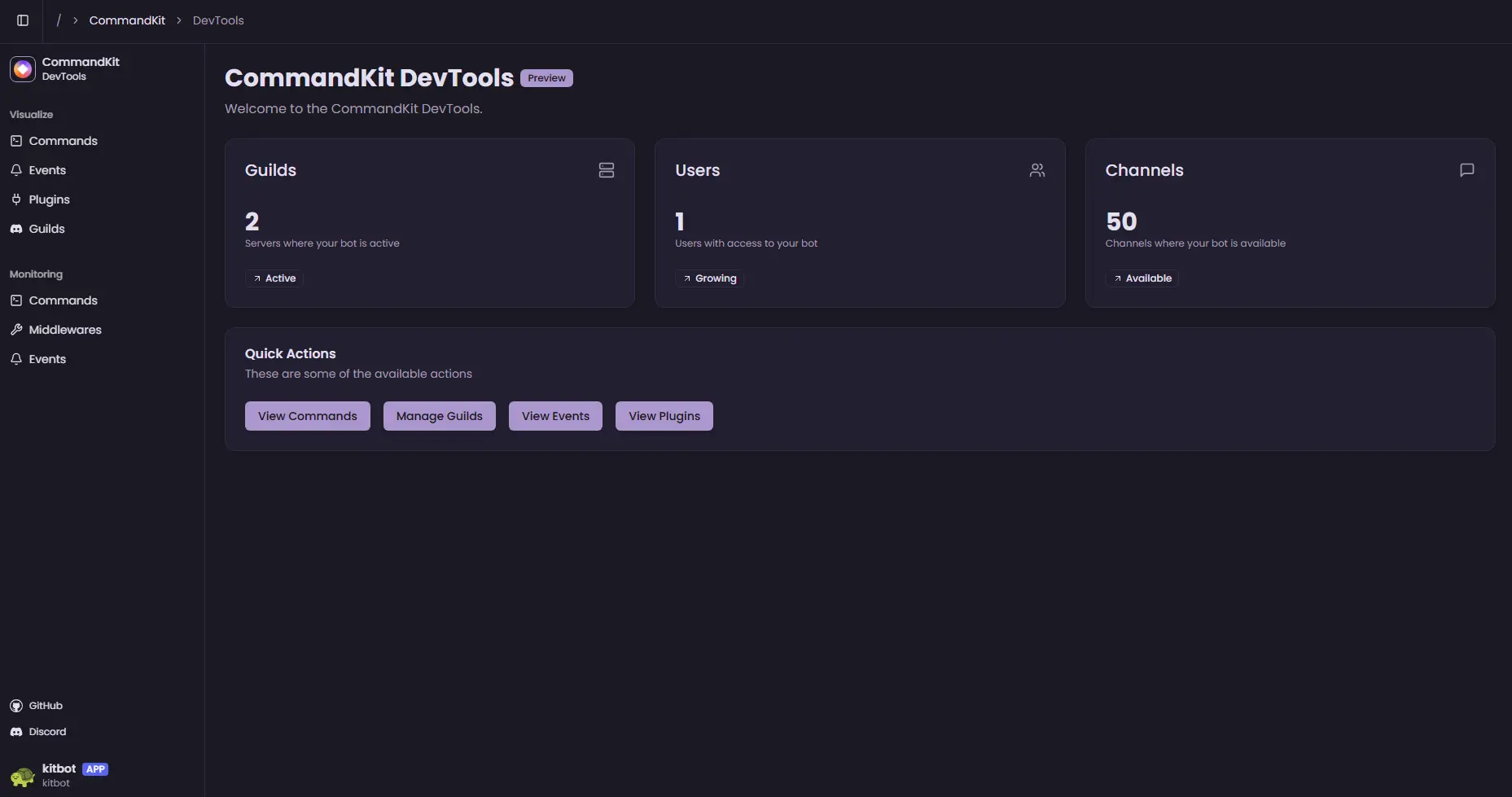 ## Troubleshooting
### Port already in use
If port `4356` is already in use, you can specify a different port in
the configuration:
```ts
devtools({ port: 4357 });
```
### Interface not loading
Ensure that:
1. The devtools plugin is properly configured
2. Your application is running in development mode
3. No firewall is blocking the specified port
4. You're accessing the correct URL (`http://localhost:4356`)
### Performance issues
If you experience performance issues:
1. Disable unnecessary features in the configuration
2. Reduce logging verbosity
3. Consider using a different port
## Feedback and contributions
As this plugin is in early development, your feedback is valuable for
improving the devtools experience. Please report issues, suggest
features, or contribute to the development through:
- [GitHub Issues](https://github.com/neplexlabs/commandkit/issues)
- [Discord Community](https://commandkit.dev/discord)
---
## @commandkit/i18n
import Tabs from '@theme/Tabs';
import TabItem from '@theme/TabItem';
The `@commandkit/i18n` plugin integrates
[i18next](https://www.i18next.com/) into CommandKit, enabling you to
create multilingual Discord bots that automatically adapt to your
users' preferred languages. This plugin provides seamless
internationalization support for commands, events, and all bot
interactions.
## Features
- **Automatic locale detection** - Automatically uses Discord's guild
preferred locale
- **Easy setup** - Simple configuration with sensible defaults
- **File-based translations** - Organize translations in JSON files
- **Context-aware** - Access translations in commands, events, and
legacy handlers
- **i18next ecosystem** - Full compatibility with i18next plugins and
features
- **Command metadata localization** - Localize command names,
descriptions, and options
## Installation
```sh npm2yarn
npm install @commandkit/i18n
```
## Basic setup
Add the i18n plugin to your CommandKit configuration:
```ts title="commandkit.config.ts"
import { defineConfig } from 'commandkit';
import { i18n } from '@commandkit/i18n';
export default defineConfig({
plugins: [i18n()],
});
```
## Advanced configuration
You can customize the i18n plugin by passing options to it:
```ts title="commandkit.config.ts"
import { defineConfig } from 'commandkit';
import { i18n } from '@commandkit/i18n';
export default defineConfig({
plugins: [
i18n({
plugins: [someI18nextPlugin],
// Add other i18next configuration options as needed
}),
],
});
```
## Translation files structure
Create a `locales` directory inside your `src/app` folder with
subdirectories for each language. Each language directory should
contain JSON files for your translations.
```
src
└── app
├── locales
│ ├── en-US
│ │ └── ping.json
│ │ └── messageCreate.event.json
│ └── fr
│ └── ping.json
│ └── messageCreate.event.json
├── commands
│ ├── ping.ts
│ └── help.ts
└── events
└── messageCreate
└── handler.ts
```
### Supported locales
CommandKit uses Discord's locale identifiers. Please refer to
[Discord's Locales documentation](https://discord.com/developers/docs/reference#locales)
for a complete list.
## Quick start example
Here's a complete example to get you started:
1. **Configure the plugin**:
```ts title="commandkit.config.ts"
import { defineConfig } from 'commandkit';
import { i18n } from '@commandkit/i18n';
export default defineConfig({
plugins: [i18n()],
});
```
2. **Create translation files**:
```json title="src/app/locales/en-US/ping.json"
{
"$command": {
"name": "ping",
"description": "Check the bot's latency"
},
"response": "🏓 Pong! Latency: **{{latency}}ms**"
}
```
```json title="src/app/locales/fr/ping.json"
{
"$command": {
"name": "ping",
"description": "Vérifier la latence du bot"
},
"response": "🏓 Pong! Latence: **{{latency}}ms**"
}
```
3. **Use translations in your command**:
```ts title="src/app/commands/ping.ts"
import type { ChatInputCommand, CommandData } from 'commandkit';
export const command: CommandData = {
name: 'ping',
description: "Check the bot's latency",
};
export const chatInput: ChatInputCommand = async (ctx) => {
const { t } = ctx.locale();
await ctx.interaction.reply({
content: t('response', { latency: ctx.client.ws.ping }),
});
};
```
That's it! Your bot will now automatically respond in the user's guild
preferred language.
## Commands localization
CommandKit's i18n plugin provides powerful localization features for
chat input commands, allowing you to translate command metadata
(names, descriptions, options) and responses to match your users'
preferred languages.
### Translation file structure
Translation files should be placed in your `locales` directory and
named after the command they translate. For example, translations for
a `ping` command should be in `ping.json`.
#### Basic translation file
```json title="src/app/locales/en-US/ping.json"
{
"response": "🏓 Pong! Latency: **{{latency}}ms**",
"error": "❌ Failed to ping the server",
"database_response": "📊 Database latency: **{{dbLatency}}ms**"
}
```
#### Command metadata localization
Use the special `$command` key to localize command metadata that
appears in Discord's interface:
```json title="src/app/locales/en-US/ping.json"
{
"$command": {
"name": "ping",
"description": "Check the bot's latency and response time",
"options": [
{
"name": "database",
"description": "Also check database connection latency"
},
{
"name": "target",
"description": "Specify a target server to ping",
"choices": [
{
"name": "Main Server",
"value": "main"
},
{
"name": "Backup Server",
"value": "backup"
}
]
}
]
},
"response": "🏓 Pong! Latency: **{{latency}}ms**",
"database_response": "📊 Database latency: **{{dbLatency}}ms**"
}
```
The `$command` object structure mirrors Discord's application command
structure:
- `name`: Command name (shown in Discord's command picker)
- `description`: Command description (shown in Discord's command
picker)
- `options`: Array of option localizations
- `name`: Option name
- `description`: Option description
- `choices`: Array of choice localizations (for string options with
predefined choices)
### Using translations in commands
The `locale()` function in your command context provides access to
translations and i18next features:
```ts title="src/app/commands/ping.ts"
import type { ChatInputCommand } from 'commandkit';
export const chatInput: ChatInputCommand = async (ctx) => {
// Get translation function and i18next instance for the current guild's locale
const { t, i18n } = ctx.locale();
const latency = ctx.client.ws.ping;
// Use the translation function with interpolation
await ctx.interaction.reply({
content: t('response', { latency }),
ephemeral: true,
});
};
```
#### Manual locale override
You can specify a particular locale instead of using the guild's
preferred locale:
```ts
export const chatInput: ChatInputCommand = async (ctx) => {
// Force French locale
const { t } = ctx.locale('fr');
await ctx.interaction.reply({
content: t('response', { latency: ctx.client.ws.ping }),
});
};
```
### Advanced translation features
#### Pluralization
i18next supports automatic pluralization:
```json title="locales/en-US/user.json"
{
"member_count": "{{count}} member",
"member_count_plural": "{{count}} members"
}
```
```ts
const { t } = ctx.locale();
const memberCount = guild.memberCount;
// Automatically chooses singular or plural form
const message = t('member_count', { count: memberCount });
```
#### Nested Translations
Organize translations using nested objects:
```json title="locales/en-US/errors.json"
{
"validation": {
"required": "This field is required",
"invalid_format": "Invalid format provided",
"too_long": "Input is too long (max {{max}} characters)"
},
"permissions": {
"insufficient": "You don't have permission to use this command",
"missing_role": "You need the {{role}} role to use this command"
}
}
```
```ts
const { t } = ctx.locale();
// Access nested translations with dot notation
await ctx.interaction.reply({
content: t('errors.permissions.insufficient'),
ephemeral: true,
});
```
#### Context and Namespaces
Use different translation contexts for better organization:
```ts
const { t } = ctx.locale();
// Default namespace (command file name)
t('response');
// Specific namespace
t('common:greeting', { name: user.displayName });
// Multiple namespaces
t(['errors:validation.required', 'common:error']);
```
## Events localization
Event handlers in CommandKit can also benefit from localization,
allowing you to create multilingual responses and messages for various
Discord events like message creation, member joins, and more.
### Using translations in event handlers
Since event handlers don't have the same context as commands, you need
to import the `locale` function directly from the i18n plugin:
```ts title="src/app/events/messageCreate/handler.ts"
import { locale } from '@commandkit/i18n';
import type { Message } from 'discord.js';
export default async function onMessageCreate(message: Message) {
// Skip bot messages
if (message.author.bot) return;
// Get translations for the guild's preferred locale
const { t } = locale(message.guild?.preferredLocale);
if (message.content.toLowerCase() === 'hello') {
await message.reply(t('greeting', { user: message.author.displayName }));
}
if (message.content.toLowerCase() === 'help') {
await message.reply(t('help_message'));
}
}
```
### Event translation files
Create translation files for your events using descriptive names:
```json title="src/app/locales/en-US/messageCreate.event.json"
{
"greeting": "👋 Hello {{user}}! Welcome to our server!",
"help_message": "📖 Use `/help` to see all available commands",
"auto_mod": {
"warning": "⚠️ {{user}}, please watch your language!",
"timeout": "🔇 {{user}} has been timed out for inappropriate language"
}
}
```
```json title="src/app/locales/fr/messageCreate.event.json"
{
"greeting": "👋 Salut {{user}} ! Bienvenue sur notre serveur !",
"help_message": "📖 Utilisez `/help` pour voir toutes les commandes disponibles",
"auto_mod": {
"warning": "⚠️ {{user}}, attention à votre langage !",
"timeout": "🔇 {{user}} a été mis en sourdine pour langage inapproprié"
}
}
```
### Advanced event localization
#### Guild welcome messages
```ts title="src/app/events/guildMemberAdd/handler.ts"
import { locale } from '@commandkit/i18n';
import type { GuildMember } from 'discord.js';
export default async function onGuildMemberAdd(member: GuildMember) {
const { t } = locale(member.guild.preferredLocale);
// Find welcome channel
const welcomeChannel = member.guild.channels.cache.find(
(channel) => channel.name === 'welcome',
);
if (welcomeChannel?.isTextBased()) {
const memberCount = member.guild.memberCount;
await welcomeChannel.send({
content: t('welcome.message', {
user: member.displayName,
guild: member.guild.name,
count: memberCount,
}),
// You can also send embeds with localized content
embeds: [
{
title: t('welcome.embed.title'),
description: t('welcome.embed.description', {
user: member.displayName,
}),
color: 0x00ff00,
fields: [
{
name: t('welcome.embed.fields.rules'),
value: t('welcome.embed.fields.rules_description'),
},
{
name: t('welcome.embed.fields.channels'),
value: t('welcome.embed.fields.channels_description'),
},
],
},
],
});
}
}
```
```json title="src/app/locales/en-US/guildMemberAdd.event.json"
{
"welcome": {
"message": "🎉 Welcome {{user}} to **{{guild}}**! You're our **{{count}}** member!",
"embed": {
"title": "Welcome to the Server!",
"description": "Hi {{user}}, we're glad to have you here!",
"fields": {
"rules": "📋 Rules",
"rules_description": "Please read our rules in #rules channel",
"channels": "💬 Important Channels",
"channels_description": "Check out #announcements and #general"
}
}
}
}
```
#### Locale detection strategies
When working with events, you have several options for determining the
appropriate locale:
##### 1. Guild preferred locale (recommended)
```ts
// Use the guild's preferred locale set by server admins
const { t } = locale(message.guild?.preferredLocale);
```
##### 2. User locale
```ts
// Use the individual user's Discord locale
const { t } = locale(message.author.locale);
```
##### 3. Fallback chain
```ts
// Try multiple locale sources with fallback
const detectedLocale =
message.guild?.preferredLocale || message.author.locale || 'en-US';
const { t } = locale(detectedLocale);
```
##### 4. Custom locale detection
```ts
async function detectLocale(message: Message): Promise
## Troubleshooting
### Port already in use
If port `4356` is already in use, you can specify a different port in
the configuration:
```ts
devtools({ port: 4357 });
```
### Interface not loading
Ensure that:
1. The devtools plugin is properly configured
2. Your application is running in development mode
3. No firewall is blocking the specified port
4. You're accessing the correct URL (`http://localhost:4356`)
### Performance issues
If you experience performance issues:
1. Disable unnecessary features in the configuration
2. Reduce logging verbosity
3. Consider using a different port
## Feedback and contributions
As this plugin is in early development, your feedback is valuable for
improving the devtools experience. Please report issues, suggest
features, or contribute to the development through:
- [GitHub Issues](https://github.com/neplexlabs/commandkit/issues)
- [Discord Community](https://commandkit.dev/discord)
---
## @commandkit/i18n
import Tabs from '@theme/Tabs';
import TabItem from '@theme/TabItem';
The `@commandkit/i18n` plugin integrates
[i18next](https://www.i18next.com/) into CommandKit, enabling you to
create multilingual Discord bots that automatically adapt to your
users' preferred languages. This plugin provides seamless
internationalization support for commands, events, and all bot
interactions.
## Features
- **Automatic locale detection** - Automatically uses Discord's guild
preferred locale
- **Easy setup** - Simple configuration with sensible defaults
- **File-based translations** - Organize translations in JSON files
- **Context-aware** - Access translations in commands, events, and
legacy handlers
- **i18next ecosystem** - Full compatibility with i18next plugins and
features
- **Command metadata localization** - Localize command names,
descriptions, and options
## Installation
```sh npm2yarn
npm install @commandkit/i18n
```
## Basic setup
Add the i18n plugin to your CommandKit configuration:
```ts title="commandkit.config.ts"
import { defineConfig } from 'commandkit';
import { i18n } from '@commandkit/i18n';
export default defineConfig({
plugins: [i18n()],
});
```
## Advanced configuration
You can customize the i18n plugin by passing options to it:
```ts title="commandkit.config.ts"
import { defineConfig } from 'commandkit';
import { i18n } from '@commandkit/i18n';
export default defineConfig({
plugins: [
i18n({
plugins: [someI18nextPlugin],
// Add other i18next configuration options as needed
}),
],
});
```
## Translation files structure
Create a `locales` directory inside your `src/app` folder with
subdirectories for each language. Each language directory should
contain JSON files for your translations.
```
src
└── app
├── locales
│ ├── en-US
│ │ └── ping.json
│ │ └── messageCreate.event.json
│ └── fr
│ └── ping.json
│ └── messageCreate.event.json
├── commands
│ ├── ping.ts
│ └── help.ts
└── events
└── messageCreate
└── handler.ts
```
### Supported locales
CommandKit uses Discord's locale identifiers. Please refer to
[Discord's Locales documentation](https://discord.com/developers/docs/reference#locales)
for a complete list.
## Quick start example
Here's a complete example to get you started:
1. **Configure the plugin**:
```ts title="commandkit.config.ts"
import { defineConfig } from 'commandkit';
import { i18n } from '@commandkit/i18n';
export default defineConfig({
plugins: [i18n()],
});
```
2. **Create translation files**:
```json title="src/app/locales/en-US/ping.json"
{
"$command": {
"name": "ping",
"description": "Check the bot's latency"
},
"response": "🏓 Pong! Latency: **{{latency}}ms**"
}
```
```json title="src/app/locales/fr/ping.json"
{
"$command": {
"name": "ping",
"description": "Vérifier la latence du bot"
},
"response": "🏓 Pong! Latence: **{{latency}}ms**"
}
```
3. **Use translations in your command**:
```ts title="src/app/commands/ping.ts"
import type { ChatInputCommand, CommandData } from 'commandkit';
export const command: CommandData = {
name: 'ping',
description: "Check the bot's latency",
};
export const chatInput: ChatInputCommand = async (ctx) => {
const { t } = ctx.locale();
await ctx.interaction.reply({
content: t('response', { latency: ctx.client.ws.ping }),
});
};
```
That's it! Your bot will now automatically respond in the user's guild
preferred language.
## Commands localization
CommandKit's i18n plugin provides powerful localization features for
chat input commands, allowing you to translate command metadata
(names, descriptions, options) and responses to match your users'
preferred languages.
### Translation file structure
Translation files should be placed in your `locales` directory and
named after the command they translate. For example, translations for
a `ping` command should be in `ping.json`.
#### Basic translation file
```json title="src/app/locales/en-US/ping.json"
{
"response": "🏓 Pong! Latency: **{{latency}}ms**",
"error": "❌ Failed to ping the server",
"database_response": "📊 Database latency: **{{dbLatency}}ms**"
}
```
#### Command metadata localization
Use the special `$command` key to localize command metadata that
appears in Discord's interface:
```json title="src/app/locales/en-US/ping.json"
{
"$command": {
"name": "ping",
"description": "Check the bot's latency and response time",
"options": [
{
"name": "database",
"description": "Also check database connection latency"
},
{
"name": "target",
"description": "Specify a target server to ping",
"choices": [
{
"name": "Main Server",
"value": "main"
},
{
"name": "Backup Server",
"value": "backup"
}
]
}
]
},
"response": "🏓 Pong! Latency: **{{latency}}ms**",
"database_response": "📊 Database latency: **{{dbLatency}}ms**"
}
```
The `$command` object structure mirrors Discord's application command
structure:
- `name`: Command name (shown in Discord's command picker)
- `description`: Command description (shown in Discord's command
picker)
- `options`: Array of option localizations
- `name`: Option name
- `description`: Option description
- `choices`: Array of choice localizations (for string options with
predefined choices)
### Using translations in commands
The `locale()` function in your command context provides access to
translations and i18next features:
```ts title="src/app/commands/ping.ts"
import type { ChatInputCommand } from 'commandkit';
export const chatInput: ChatInputCommand = async (ctx) => {
// Get translation function and i18next instance for the current guild's locale
const { t, i18n } = ctx.locale();
const latency = ctx.client.ws.ping;
// Use the translation function with interpolation
await ctx.interaction.reply({
content: t('response', { latency }),
ephemeral: true,
});
};
```
#### Manual locale override
You can specify a particular locale instead of using the guild's
preferred locale:
```ts
export const chatInput: ChatInputCommand = async (ctx) => {
// Force French locale
const { t } = ctx.locale('fr');
await ctx.interaction.reply({
content: t('response', { latency: ctx.client.ws.ping }),
});
};
```
### Advanced translation features
#### Pluralization
i18next supports automatic pluralization:
```json title="locales/en-US/user.json"
{
"member_count": "{{count}} member",
"member_count_plural": "{{count}} members"
}
```
```ts
const { t } = ctx.locale();
const memberCount = guild.memberCount;
// Automatically chooses singular or plural form
const message = t('member_count', { count: memberCount });
```
#### Nested Translations
Organize translations using nested objects:
```json title="locales/en-US/errors.json"
{
"validation": {
"required": "This field is required",
"invalid_format": "Invalid format provided",
"too_long": "Input is too long (max {{max}} characters)"
},
"permissions": {
"insufficient": "You don't have permission to use this command",
"missing_role": "You need the {{role}} role to use this command"
}
}
```
```ts
const { t } = ctx.locale();
// Access nested translations with dot notation
await ctx.interaction.reply({
content: t('errors.permissions.insufficient'),
ephemeral: true,
});
```
#### Context and Namespaces
Use different translation contexts for better organization:
```ts
const { t } = ctx.locale();
// Default namespace (command file name)
t('response');
// Specific namespace
t('common:greeting', { name: user.displayName });
// Multiple namespaces
t(['errors:validation.required', 'common:error']);
```
## Events localization
Event handlers in CommandKit can also benefit from localization,
allowing you to create multilingual responses and messages for various
Discord events like message creation, member joins, and more.
### Using translations in event handlers
Since event handlers don't have the same context as commands, you need
to import the `locale` function directly from the i18n plugin:
```ts title="src/app/events/messageCreate/handler.ts"
import { locale } from '@commandkit/i18n';
import type { Message } from 'discord.js';
export default async function onMessageCreate(message: Message) {
// Skip bot messages
if (message.author.bot) return;
// Get translations for the guild's preferred locale
const { t } = locale(message.guild?.preferredLocale);
if (message.content.toLowerCase() === 'hello') {
await message.reply(t('greeting', { user: message.author.displayName }));
}
if (message.content.toLowerCase() === 'help') {
await message.reply(t('help_message'));
}
}
```
### Event translation files
Create translation files for your events using descriptive names:
```json title="src/app/locales/en-US/messageCreate.event.json"
{
"greeting": "👋 Hello {{user}}! Welcome to our server!",
"help_message": "📖 Use `/help` to see all available commands",
"auto_mod": {
"warning": "⚠️ {{user}}, please watch your language!",
"timeout": "🔇 {{user}} has been timed out for inappropriate language"
}
}
```
```json title="src/app/locales/fr/messageCreate.event.json"
{
"greeting": "👋 Salut {{user}} ! Bienvenue sur notre serveur !",
"help_message": "📖 Utilisez `/help` pour voir toutes les commandes disponibles",
"auto_mod": {
"warning": "⚠️ {{user}}, attention à votre langage !",
"timeout": "🔇 {{user}} a été mis en sourdine pour langage inapproprié"
}
}
```
### Advanced event localization
#### Guild welcome messages
```ts title="src/app/events/guildMemberAdd/handler.ts"
import { locale } from '@commandkit/i18n';
import type { GuildMember } from 'discord.js';
export default async function onGuildMemberAdd(member: GuildMember) {
const { t } = locale(member.guild.preferredLocale);
// Find welcome channel
const welcomeChannel = member.guild.channels.cache.find(
(channel) => channel.name === 'welcome',
);
if (welcomeChannel?.isTextBased()) {
const memberCount = member.guild.memberCount;
await welcomeChannel.send({
content: t('welcome.message', {
user: member.displayName,
guild: member.guild.name,
count: memberCount,
}),
// You can also send embeds with localized content
embeds: [
{
title: t('welcome.embed.title'),
description: t('welcome.embed.description', {
user: member.displayName,
}),
color: 0x00ff00,
fields: [
{
name: t('welcome.embed.fields.rules'),
value: t('welcome.embed.fields.rules_description'),
},
{
name: t('welcome.embed.fields.channels'),
value: t('welcome.embed.fields.channels_description'),
},
],
},
],
});
}
}
```
```json title="src/app/locales/en-US/guildMemberAdd.event.json"
{
"welcome": {
"message": "🎉 Welcome {{user}} to **{{guild}}**! You're our **{{count}}** member!",
"embed": {
"title": "Welcome to the Server!",
"description": "Hi {{user}}, we're glad to have you here!",
"fields": {
"rules": "📋 Rules",
"rules_description": "Please read our rules in #rules channel",
"channels": "💬 Important Channels",
"channels_description": "Check out #announcements and #general"
}
}
}
}
```
#### Locale detection strategies
When working with events, you have several options for determining the
appropriate locale:
##### 1. Guild preferred locale (recommended)
```ts
// Use the guild's preferred locale set by server admins
const { t } = locale(message.guild?.preferredLocale);
```
##### 2. User locale
```ts
// Use the individual user's Discord locale
const { t } = locale(message.author.locale);
```
##### 3. Fallback chain
```ts
// Try multiple locale sources with fallback
const detectedLocale =
message.guild?.preferredLocale || message.author.locale || 'en-US';
const { t } = locale(detectedLocale);
```
##### 4. Custom locale detection
```ts
async function detectLocale(message: Message): Promise